> ## Documentation Index
> Fetch the complete documentation index at: https://docs.gloo.com/llms.txt
> Use this file to discover all available pages before exploring further.
# Gloo Code Desktop
> Install the Gloo Code macOS app, sign in with your Gloo AI account, and run your first session in a native window.
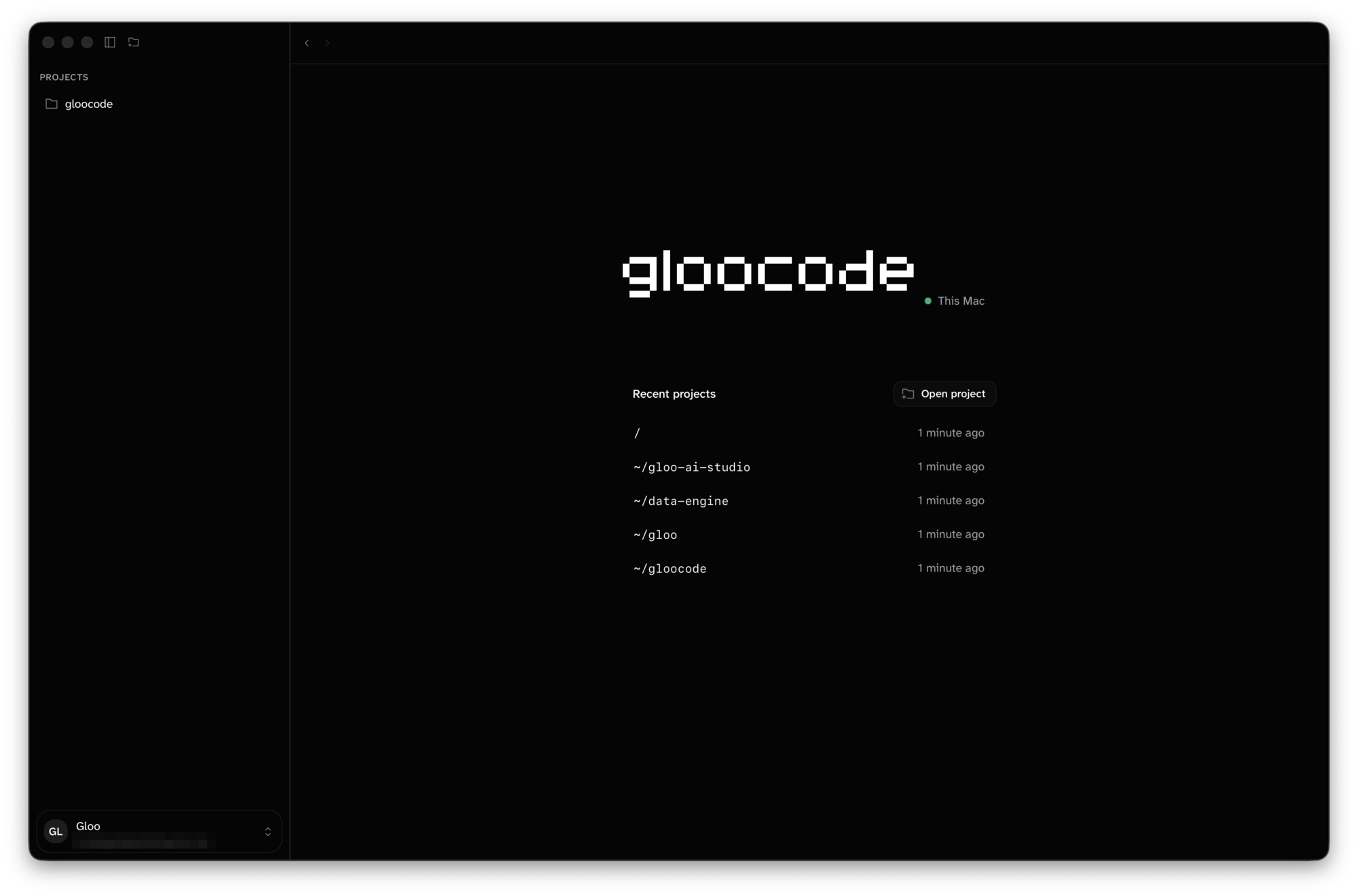
Gloo Code Desktop is the macOS app for Gloo Code. It runs the same agents as the CLI and adds a sidebar of projects and sessions, a diff review panel, a built-in terminal, and system notifications. It ships separately from the CLI and does not require the CLI to be installed.
 ## Requirements
* **macOS 13 (Ventura) or later**, Apple Silicon or Intel.
* **A Gloo AI account** — [sign up here](https://studio.ai.gloo.com/sign-up) if you don't have one.
Nothing else. The app bundles its own copy of the Gloo Code server, so there is no Node, Bun, Homebrew, or command-line step.
Gloo Code Desktop is currently macOS only. Windows and Linux builds are not available yet. On those platforms, use the [Gloo Code CLI](/gloocode/installation).
## Install
M1 and later
Macs from before 2021
Not sure which you have? Click the Apple menu, then **About This Mac**. A chip named "Apple M-something" is Apple Silicon.
Both links always point at the current release, and the app updates itself after that. You can also download from [Gloo AI Studio](https://studio.ai.gloo.com/gloocode?tab=desktop) if you're already signed in.
Open the DMG and drag **Gloo Code** into your **Applications** folder, then eject the DMG.
## Requirements
* **macOS 13 (Ventura) or later**, Apple Silicon or Intel.
* **A Gloo AI account** — [sign up here](https://studio.ai.gloo.com/sign-up) if you don't have one.
Nothing else. The app bundles its own copy of the Gloo Code server, so there is no Node, Bun, Homebrew, or command-line step.
Gloo Code Desktop is currently macOS only. Windows and Linux builds are not available yet. On those platforms, use the [Gloo Code CLI](/gloocode/installation).
## Install
M1 and later
Macs from before 2021
Not sure which you have? Click the Apple menu, then **About This Mac**. A chip named "Apple M-something" is Apple Silicon.
Both links always point at the current release, and the app updates itself after that. You can also download from [Gloo AI Studio](https://studio.ai.gloo.com/gloocode?tab=desktop) if you're already signed in.
Open the DMG and drag **Gloo Code** into your **Applications** folder, then eject the DMG.
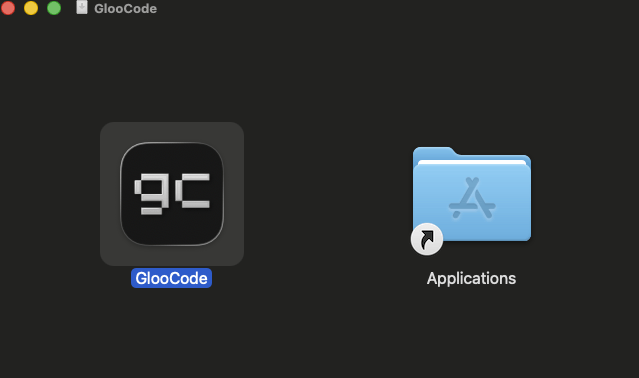 Launch it from **Applications**, Launchpad, or Spotlight — not from inside the DMG.
**macOS will ask you to allow it once.** Current builds aren't notarized with Apple yet, so the first launch shows a security dialog. It takes under a minute and only happens once per Mac:
1. Open Gloo Code from Applications. A dialog says Apple could not verify it — click **Done**, *not* **Move to Trash**.
2. Open **System Settings ▸ Privacy & Security** and scroll to the bottom.
3. Next to "GlooCode was blocked to protect your Mac", click **Open Anyway** and confirm with your password or Touch ID.
4. Open Gloo Code again and click **Open Anyway** on the last dialog.
You can also Control-click Gloo Code in Finder, choose **Open**, then confirm **Open Anyway**. Either way, you won't see it again after the first launch.
## Sign in
On first launch the **Login to Gloo** dialog opens on its own.
1. Click **Sign in with browser**. Your default browser opens the Gloo AI Studio sign-in page while the dialog shows "Waiting for sign-in in your browser…".
2. Sign in and approve access. The browser shows a Gloo Code success page you can close.
3. Back in the app, a **Credentials saved** toast appears. Your profile card in the bottom-left of the sidebar now shows your initials, organization, and email.
Launch it from **Applications**, Launchpad, or Spotlight — not from inside the DMG.
**macOS will ask you to allow it once.** Current builds aren't notarized with Apple yet, so the first launch shows a security dialog. It takes under a minute and only happens once per Mac:
1. Open Gloo Code from Applications. A dialog says Apple could not verify it — click **Done**, *not* **Move to Trash**.
2. Open **System Settings ▸ Privacy & Security** and scroll to the bottom.
3. Next to "GlooCode was blocked to protect your Mac", click **Open Anyway** and confirm with your password or Touch ID.
4. Open Gloo Code again and click **Open Anyway** on the last dialog.
You can also Control-click Gloo Code in Finder, choose **Open**, then confirm **Open Anyway**. Either way, you won't see it again after the first launch.
## Sign in
On first launch the **Login to Gloo** dialog opens on its own.
1. Click **Sign in with browser**. Your default browser opens the Gloo AI Studio sign-in page while the dialog shows "Waiting for sign-in in your browser…".
2. Sign in and approve access. The browser shows a Gloo Code success page you can close.
3. Back in the app, a **Credentials saved** toast appears. Your profile card in the bottom-left of the sidebar now shows your initials, organization, and email.
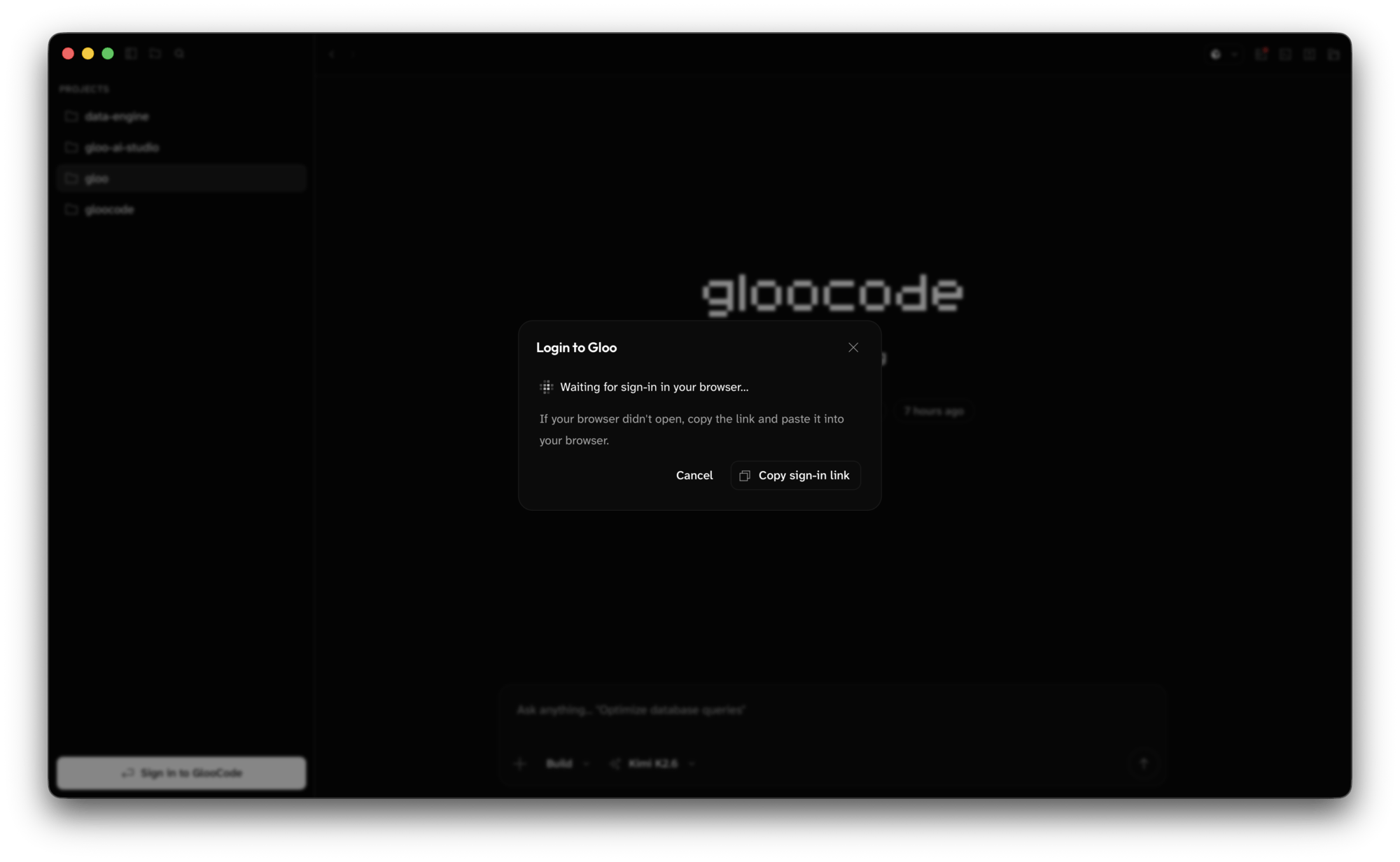 If the browser didn't open, click **Copy sign-in link** and paste it into any browser. A sign-in attempt expires after 10 minutes.
Each organization you sign in with becomes its own **profile**. Click your profile card to **Switch profile**, or type `/login` in the prompt to add another account.
Credentials stay on your Mac and are used only to authenticate requests to Gloo AI.
## Open a project
Press **⌘O**, choose **File ▸ Open Project…**, or click **Open project** on the Home screen. A standard macOS folder picker opens; you can select more than one folder at once. Each folder becomes a project in the left sidebar, and Gloo Code opens a new, empty session in it.
If the browser didn't open, click **Copy sign-in link** and paste it into any browser. A sign-in attempt expires after 10 minutes.
Each organization you sign in with becomes its own **profile**. Click your profile card to **Switch profile**, or type `/login` in the prompt to add another account.
Credentials stay on your Mac and are used only to authenticate requests to Gloo AI.
## Open a project
Press **⌘O**, choose **File ▸ Open Project…**, or click **Open project** on the Home screen. A standard macOS folder picker opens; you can select more than one folder at once. Each folder becomes a project in the left sidebar, and Gloo Code opens a new, empty session in it.
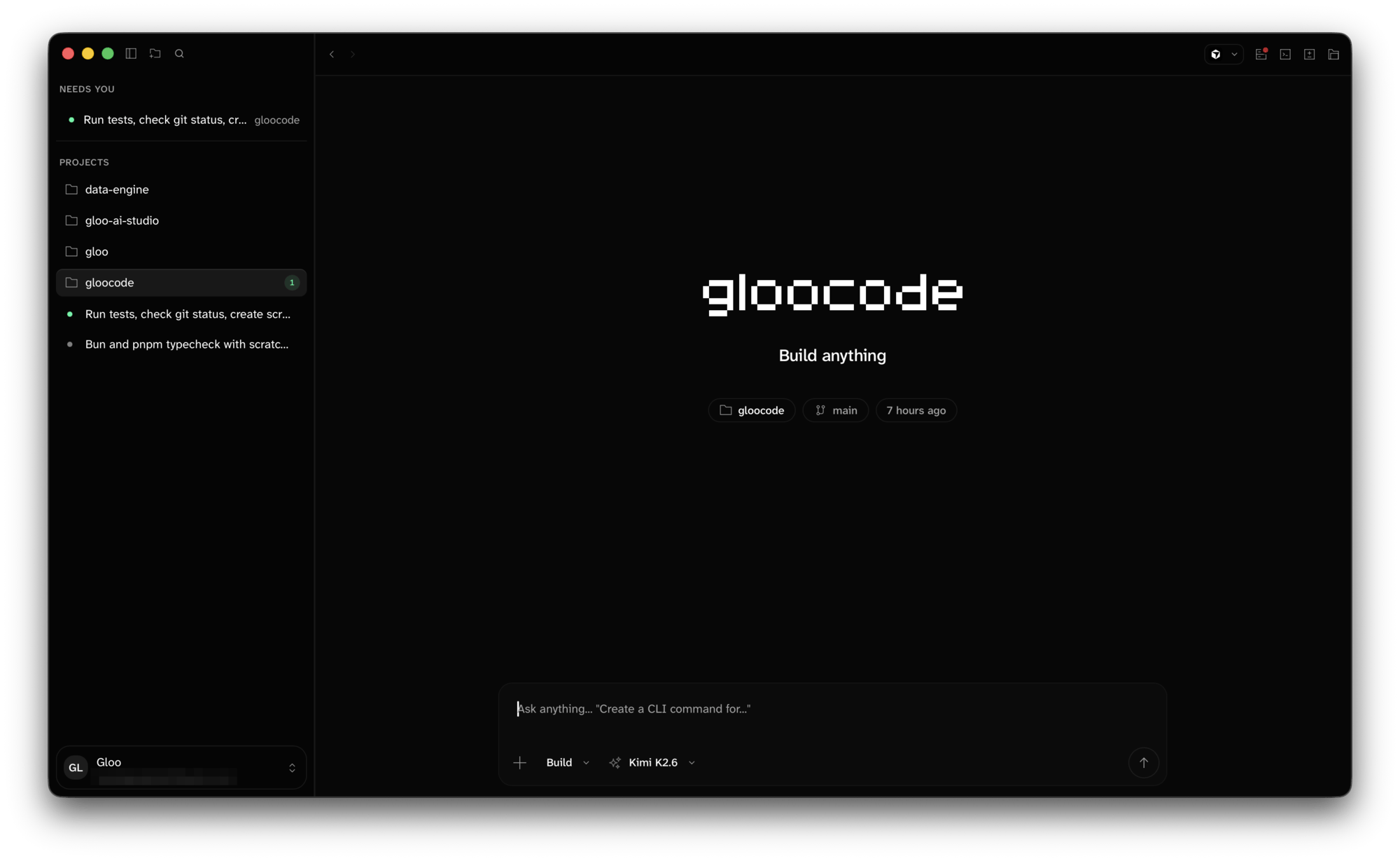 Projects you've opened before are listed under **Recent projects** on the Home screen. Right-click a project in the sidebar and choose **Close** to remove it from the sidebar. Nothing on disk is touched.
## Run your first task
Type a request in the prompt at the bottom and press **Enter**.
```text theme={null}
Fix the failing test in src/auth.test.ts
```
Tool calls show up in the timeline as cards, so you can see every file the agent reads, every command it runs, and every edit it makes. While a run is in flight the **Send** button becomes **Stop**; press **Esc** to interrupt. Messages you send during a run are queued and shown above the prompt with **Send now** and **Edit** buttons.
**Attach context**
* Type **@** to mention a project file.
* Press **⌘U** or drag files onto the window to attach images, PDFs, or text files. You can also paste an image from the clipboard.
**Slash commands** — type **/** at the start of the prompt to see them all. The ones you'll use most:
| Command | What it does |
| ---------------- | ---------------------------------------------------------- |
| `/new` | Start a new session |
| `/sessions` | Switch to an earlier session |
| `/models` | Override the model for this session |
| `/agents` | Switch agent |
| `/undo`, `/redo` | Roll back or restore the last message and its file changes |
| `/compact` | Summarize the session to free up context |
| `/terminal` | Toggle the built-in terminal |
| `/help` | Keyboard shortcut cheat sheet |
## Approve what the agent does
When the agent wants to do something that needs your say, a **Permission required** dock appears above the prompt. It names the tool, describes it in plain language, and shows the matching path or command pattern.
* **Allow once** runs it this time.
* **Allow always** stops asking for this pattern in this project.
* **Deny** blocks it.
Projects you've opened before are listed under **Recent projects** on the Home screen. Right-click a project in the sidebar and choose **Close** to remove it from the sidebar. Nothing on disk is touched.
## Run your first task
Type a request in the prompt at the bottom and press **Enter**.
```text theme={null}
Fix the failing test in src/auth.test.ts
```
Tool calls show up in the timeline as cards, so you can see every file the agent reads, every command it runs, and every edit it makes. While a run is in flight the **Send** button becomes **Stop**; press **Esc** to interrupt. Messages you send during a run are queued and shown above the prompt with **Send now** and **Edit** buttons.
**Attach context**
* Type **@** to mention a project file.
* Press **⌘U** or drag files onto the window to attach images, PDFs, or text files. You can also paste an image from the clipboard.
**Slash commands** — type **/** at the start of the prompt to see them all. The ones you'll use most:
| Command | What it does |
| ---------------- | ---------------------------------------------------------- |
| `/new` | Start a new session |
| `/sessions` | Switch to an earlier session |
| `/models` | Override the model for this session |
| `/agents` | Switch agent |
| `/undo`, `/redo` | Roll back or restore the last message and its file changes |
| `/compact` | Summarize the session to free up context |
| `/terminal` | Toggle the built-in terminal |
| `/help` | Keyboard shortcut cheat sheet |
## Approve what the agent does
When the agent wants to do something that needs your say, a **Permission required** dock appears above the prompt. It names the tool, describes it in plain language, and shows the matching path or command pattern.
* **Allow once** runs it this time.
* **Allow always** stops asking for this pattern in this project.
* **Deny** blocks it.
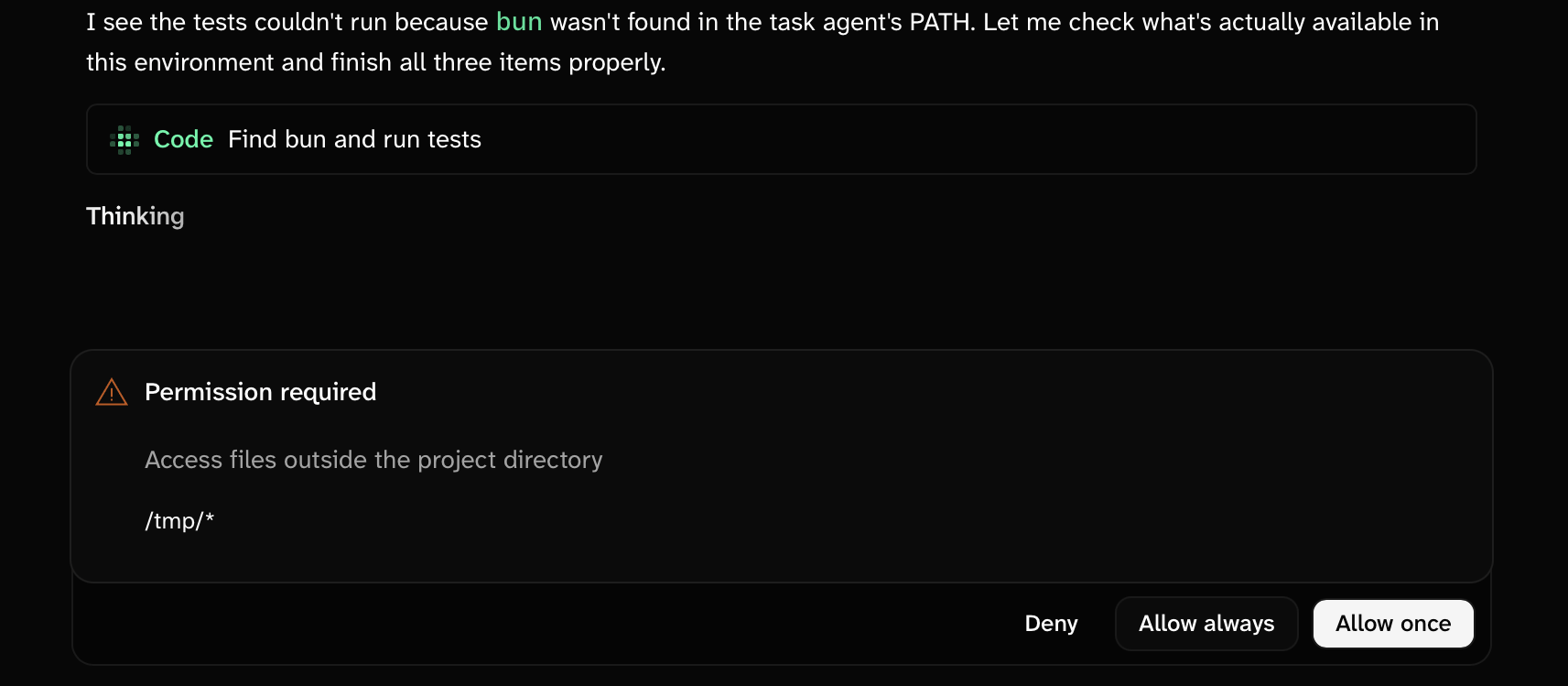 The agent doesn't touch your files without approval. If you trust a session, press **⇧⌘A** to turn on **Auto-accept permissions** for it; press it again to turn it off. The agent may also ask you a question, which arrives in the same spot as a short form.
## Review changes
Press **⇧⌘R** to open the review panel on the right. The **Review** tab lists every changed file with **Added**, **Removed**, or **Modified** badges and a unified or split diff. The dropdown at the top chooses what you're comparing:
* **Git changes** — everything uncommitted in the working tree.
* **Branch changes** — everything on this branch that isn't on the base branch.
* **Last turn changes** — only what the agent just did.
The agent doesn't touch your files without approval. If you trust a session, press **⇧⌘A** to turn on **Auto-accept permissions** for it; press it again to turn it off. The agent may also ask you a question, which arrives in the same spot as a short form.
## Review changes
Press **⇧⌘R** to open the review panel on the right. The **Review** tab lists every changed file with **Added**, **Removed**, or **Modified** badges and a unified or split diff. The dropdown at the top chooses what you're comparing:
* **Git changes** — everything uncommitted in the working tree.
* **Branch changes** — everything on this branch that isn't on the base branch.
* **Last turn changes** — only what the agent just did.
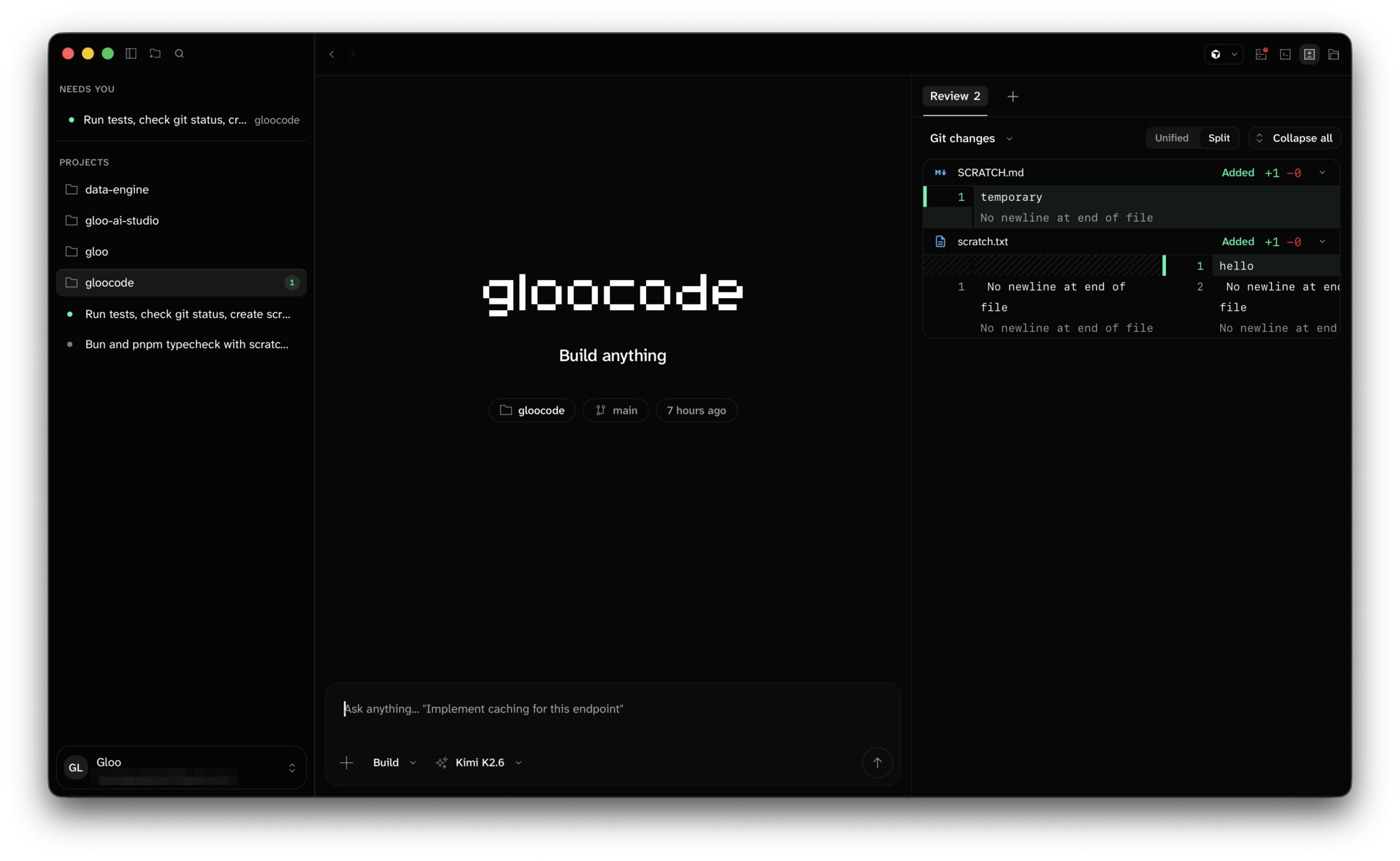 Select lines in a diff and click **Comment** to leave a note; comments collect in the prompt so you can send them back to the agent as one message. **⇧⌘L** adds selected lines to the prompt as context.
If you don't like what the agent did, `/undo` reverts to before your last message and puts that prompt back in the composer so you can rephrase.
If the project folder has no git repository, the Review tab offers **Create Git repository** so changes can be tracked and undone. That's the only git action in the app itself; commits, branches, and pushes happen through the agent or the terminal.
## Built-in terminal
Press **⌃\`** to open a terminal at the bottom of the session. It runs in the project folder. **⌃⌥T** opens another tab. The terminal is a plain shell for you; it shares nothing with the agent.
## Model, agent, and effort
Model selection is automatic. Gloo picks and tunes the model for each built-in agent, so most people never change it. For a one-session override, click the model name in the prompt footer or type `/models`.
* **⌘.** cycles agents. `/agents` opens the picker.
* **⇧⌘D** cycles thinking effort. `/variants` opens the picker.
The ring next to the prompt shows how much of the model's context window the session is using. Click it to open the **Context** tab for a token breakdown.
## Work across sessions
Every session is saved automatically. In the sidebar, each session row has a status dot: amber means the agent is waiting on you, red means an error, a spinner means it's working, and a highlighted dot means a session finished while you were elsewhere.
* **⇧⌘S** starts a new session in the current project. The **+** on a hovered project row does the same.
* **⌥↑ / ⌥↓** move between sessions. **⌘⌥↑ / ⌘⌥↓** move between projects.
* The **⋯** menu in the session header offers **Rename**, **Delete**, **Export transcript…**, and **Open in New Window**.
* **File ▸ New Window** (⇧⌘N) opens a second full window. Both windows share the same server, so sessions stay in sync.
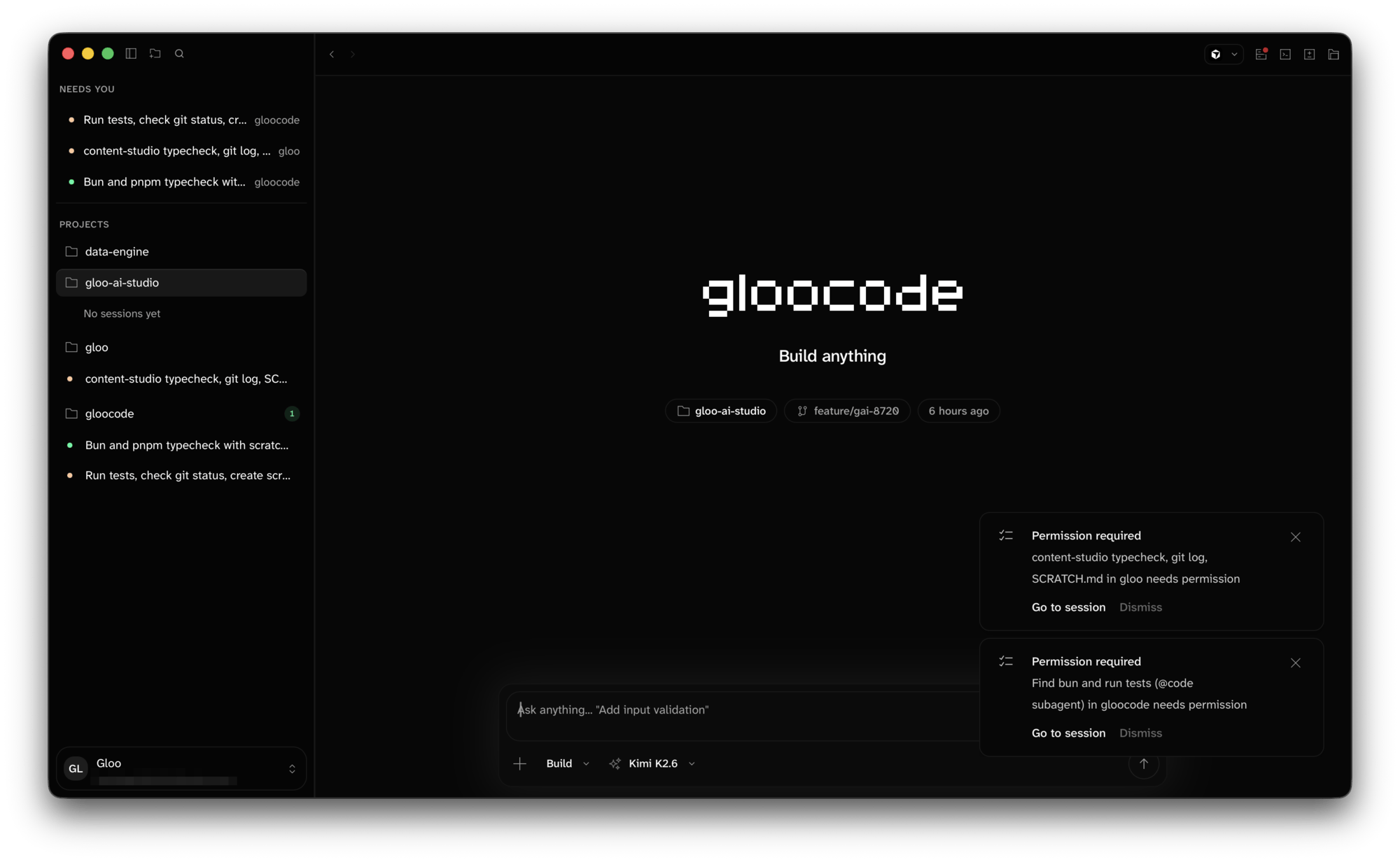
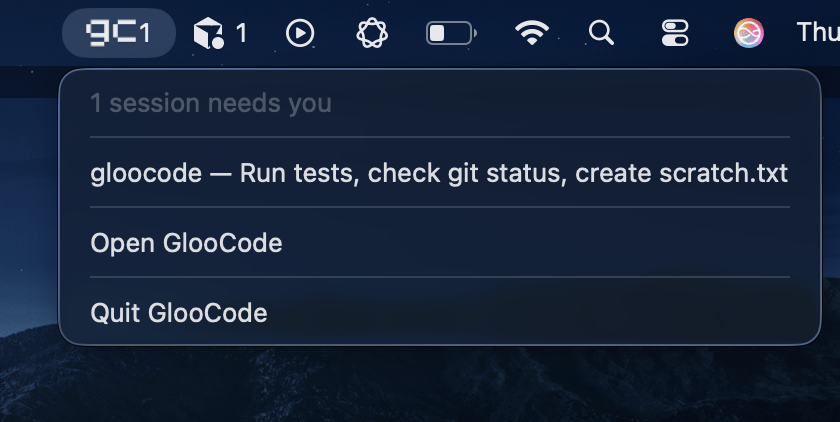
When sessions in several projects need attention at once, a **Needs you** list appears above your profile card. The Gloo Code icon in the macOS menu bar shows the same count and lists each waiting session; choosing one brings the app to the front on that session. The Dock badge matches.
Select lines in a diff and click **Comment** to leave a note; comments collect in the prompt so you can send them back to the agent as one message. **⇧⌘L** adds selected lines to the prompt as context.
If you don't like what the agent did, `/undo` reverts to before your last message and puts that prompt back in the composer so you can rephrase.
If the project folder has no git repository, the Review tab offers **Create Git repository** so changes can be tracked and undone. That's the only git action in the app itself; commits, branches, and pushes happen through the agent or the terminal.
## Built-in terminal
Press **⌃\`** to open a terminal at the bottom of the session. It runs in the project folder. **⌃⌥T** opens another tab. The terminal is a plain shell for you; it shares nothing with the agent.
## Model, agent, and effort
Model selection is automatic. Gloo picks and tunes the model for each built-in agent, so most people never change it. For a one-session override, click the model name in the prompt footer or type `/models`.
* **⌘.** cycles agents. `/agents` opens the picker.
* **⇧⌘D** cycles thinking effort. `/variants` opens the picker.
The ring next to the prompt shows how much of the model's context window the session is using. Click it to open the **Context** tab for a token breakdown.
## Work across sessions
Every session is saved automatically. In the sidebar, each session row has a status dot: amber means the agent is waiting on you, red means an error, a spinner means it's working, and a highlighted dot means a session finished while you were elsewhere.
* **⇧⌘S** starts a new session in the current project. The **+** on a hovered project row does the same.
* **⌥↑ / ⌥↓** move between sessions. **⌘⌥↑ / ⌘⌥↓** move between projects.
* The **⋯** menu in the session header offers **Rename**, **Delete**, **Export transcript…**, and **Open in New Window**.
* **File ▸ New Window** (⇧⌘N) opens a second full window. Both windows share the same server, so sessions stay in sync.
When sessions in several projects need attention at once, a **Needs you** list appears above your profile card. The Gloo Code icon in the macOS menu bar shows the same count and lists each waiting session; choosing one brings the app to the front on that session. The Dock badge matches.
 ## Notifications
Gloo Code posts a macOS notification when a session finishes, needs a permission, or hits an error, but only while the app window isn't in front. Click the notification to jump to that session. Individual notifications and sounds are toggled in **Settings ▸ General**.
## Settings
**Gloo Code ▸ Settings** (⌘,) has three tabs. The app version is in the bottom-left corner.
## Notifications
Gloo Code posts a macOS notification when a session finishes, needs a permission, or hits an error, but only while the app window isn't in front. Click the notification to jump to that session. Individual notifications and sounds are toggled in **Settings ▸ General**.
## Settings
**Gloo Code ▸ Settings** (⌘,) has three tabs. The app version is in the bottom-left corner.
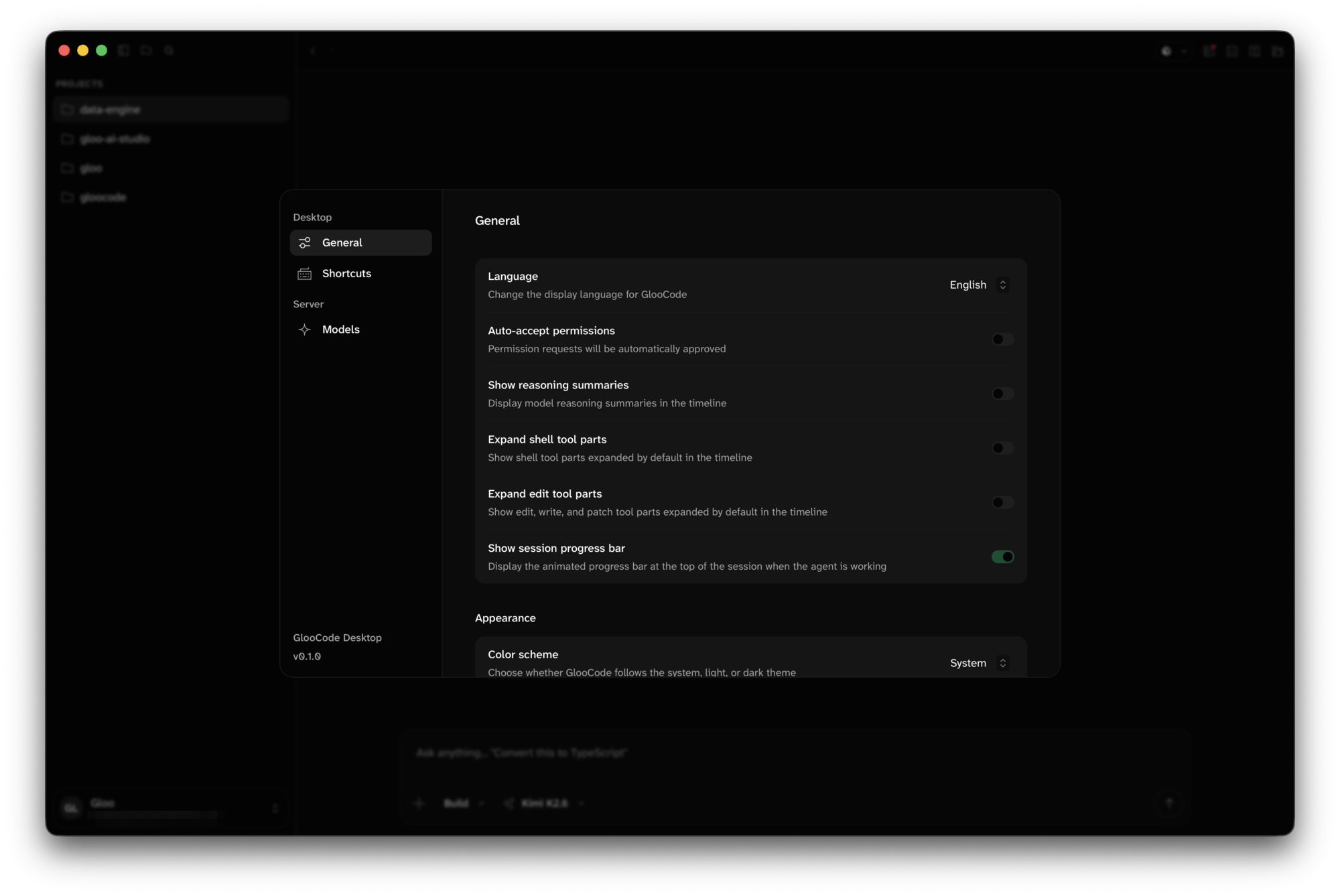 **General**
| Setting | Effect |
| ------------------------------------------- | ------------------------------------------------------------------------ |
| Language | Interface language (17 bundled) |
| Auto-accept permissions | Approve every permission request in the current project |
| Show reasoning summaries | Show the model's reasoning summaries in the timeline |
| Expand shell / edit tool parts | Show those tool cards expanded by default |
| Show session progress bar | Animated bar at the top of the session while the agent works |
| Color scheme, Theme | **System**, **Light**, or **Dark**, and a theme picker with live preview |
| UI, Code, and Terminal fonts | Any font family installed on your Mac |
| System notifications, Sound effects | Per-event toggles for **Agent**, **Permissions**, and **Errors** |
| Check for updates on startup, Release notes | Update checks at launch and a What's New dialog after updates |
**Shortcuts** lists every command with its binding. Click a row and press new keys to rebind; **Reset to defaults** restores everything.
**Models** has one switch per model to control which appear in the model picker.
MCP servers, custom agents, and skills are configured through files in the project or home directory. Ask Gloo Code how, or see [Ask Gloo Code](/gloocode/ask-gloocode).
## Keyboard shortcuts
Every shortcut can be changed in **Settings ▸ Shortcuts**. Defaults:
| Action | Shortcut |
| ------------------------------ | ---------- |
| Command palette | ⇧⌘P |
| Open file / palette | ⌘K or ⌘P |
| Settings | ⌘, |
| Open project | ⌘O |
| New session | ⇧⌘S |
| New window | ⇧⌘N |
| Toggle sidebar | ⌘B |
| Toggle review panel | ⇧⌘R |
| Toggle file tree | ⌘\\ |
| Toggle terminal | ⌃\` |
| New terminal tab | ⌃⌥T |
| Add files | ⌘U |
| Add selected lines to context | ⇧⌘L |
| Shell mode / back to prompt | ⇧⌘X / ⇧⌘E |
| Auto-accept permissions on/off | ⇧⌘A |
| Cycle agent / backwards | ⌘. / ⇧⌘. |
| Cycle thinking effort | ⇧⌘D |
| Previous / next session | ⌥↑ / ⌥↓ |
| Previous / next project | ⌘⌥↑ / ⌘⌥↓ |
| Previous / next message | ⌘⌥\[ / ⌘⌥] |
| Back / forward | ⌘\[ / ⌘] |
| Stop the current run | Esc |
Shortcuts without a modifier are ignored while you're typing, and all shortcuts pause while a dialog is open. Type `/help` for an in-app cheat sheet.
## Updates
The app checks for updates at launch and prompts you to **Install and restart** when one is available. To check manually, choose **Gloo Code ▸ Check for Updates…**.
## Where things are stored
| What | Where |
| ------------------------------------------------------------------ | ------------------------------------------------------------------------------------------------------------------ |
| Sessions, messages, and project data | `~/.local/share/gloocode/`, shared with the CLI if it's installed, so sessions started in one show up in the other |
| Credentials and profiles | Your macOS login keychain, readable only by your user. Profile names live in `~/.config/gloo/credentials.json` |
| App state (window layout, sidebar order, prompt history, settings) | `~/Library/Application Support/com.gloocode.desktop/` |
## Troubleshooting
Choose **Gloo Code ▸ Reload Webview**. If that doesn't help, **Gloo Code ▸ Restart**.
Quit and reopen the app. The app starts its own local server on launch and restarts it automatically if it crashes; if this message persists, check for another process holding many local ports.
Use **Copy sign-in link** in the login dialog and paste it into a browser.
Contact your organization's Gloo AI admin. The app can't proceed without an eligible organization.
Allow notifications for Gloo Code in **System Settings ▸ Notifications**, and note they're suppressed while the app window is in front.
The bundled server restarted. Close the terminal tab and open a new one with **⌃⌥T**.
## Next Steps
Not sure how to do something? Gloo Code can answer questions about itself — learn how to ask.
**General**
| Setting | Effect |
| ------------------------------------------- | ------------------------------------------------------------------------ |
| Language | Interface language (17 bundled) |
| Auto-accept permissions | Approve every permission request in the current project |
| Show reasoning summaries | Show the model's reasoning summaries in the timeline |
| Expand shell / edit tool parts | Show those tool cards expanded by default |
| Show session progress bar | Animated bar at the top of the session while the agent works |
| Color scheme, Theme | **System**, **Light**, or **Dark**, and a theme picker with live preview |
| UI, Code, and Terminal fonts | Any font family installed on your Mac |
| System notifications, Sound effects | Per-event toggles for **Agent**, **Permissions**, and **Errors** |
| Check for updates on startup, Release notes | Update checks at launch and a What's New dialog after updates |
**Shortcuts** lists every command with its binding. Click a row and press new keys to rebind; **Reset to defaults** restores everything.
**Models** has one switch per model to control which appear in the model picker.
MCP servers, custom agents, and skills are configured through files in the project or home directory. Ask Gloo Code how, or see [Ask Gloo Code](/gloocode/ask-gloocode).
## Keyboard shortcuts
Every shortcut can be changed in **Settings ▸ Shortcuts**. Defaults:
| Action | Shortcut |
| ------------------------------ | ---------- |
| Command palette | ⇧⌘P |
| Open file / palette | ⌘K or ⌘P |
| Settings | ⌘, |
| Open project | ⌘O |
| New session | ⇧⌘S |
| New window | ⇧⌘N |
| Toggle sidebar | ⌘B |
| Toggle review panel | ⇧⌘R |
| Toggle file tree | ⌘\\ |
| Toggle terminal | ⌃\` |
| New terminal tab | ⌃⌥T |
| Add files | ⌘U |
| Add selected lines to context | ⇧⌘L |
| Shell mode / back to prompt | ⇧⌘X / ⇧⌘E |
| Auto-accept permissions on/off | ⇧⌘A |
| Cycle agent / backwards | ⌘. / ⇧⌘. |
| Cycle thinking effort | ⇧⌘D |
| Previous / next session | ⌥↑ / ⌥↓ |
| Previous / next project | ⌘⌥↑ / ⌘⌥↓ |
| Previous / next message | ⌘⌥\[ / ⌘⌥] |
| Back / forward | ⌘\[ / ⌘] |
| Stop the current run | Esc |
Shortcuts without a modifier are ignored while you're typing, and all shortcuts pause while a dialog is open. Type `/help` for an in-app cheat sheet.
## Updates
The app checks for updates at launch and prompts you to **Install and restart** when one is available. To check manually, choose **Gloo Code ▸ Check for Updates…**.
## Where things are stored
| What | Where |
| ------------------------------------------------------------------ | ------------------------------------------------------------------------------------------------------------------ |
| Sessions, messages, and project data | `~/.local/share/gloocode/`, shared with the CLI if it's installed, so sessions started in one show up in the other |
| Credentials and profiles | Your macOS login keychain, readable only by your user. Profile names live in `~/.config/gloo/credentials.json` |
| App state (window layout, sidebar order, prompt history, settings) | `~/Library/Application Support/com.gloocode.desktop/` |
## Troubleshooting
Choose **Gloo Code ▸ Reload Webview**. If that doesn't help, **Gloo Code ▸ Restart**.
Quit and reopen the app. The app starts its own local server on launch and restarts it automatically if it crashes; if this message persists, check for another process holding many local ports.
Use **Copy sign-in link** in the login dialog and paste it into a browser.
Contact your organization's Gloo AI admin. The app can't proceed without an eligible organization.
Allow notifications for Gloo Code in **System Settings ▸ Notifications**, and note they're suppressed while the app window is in front.
The bundled server restarted. Close the terminal tab and open a new one with **⌃⌥T**.
## Next Steps
Not sure how to do something? Gloo Code can answer questions about itself — learn how to ask.