> ## Documentation Index
> Fetch the complete documentation index at: https://docs.gloo.com/llms.txt
> Use this file to discover all available pages before exploring further.
# Chat Playground
> Test chat completions, compare models, and experiment with settings in the browser.
## Overview
The Chat Playground lets you experiment with Gloo AI's chat capabilities directly in your browser. Test different models, adjust parameters, and see responses in real-time before implementing in your application.
## Availability & Access
The Chat Playground is available on all plans (Pay-as-you-go, Pro, and Enterprise). Playground messages are routed through your organization's API credentials, so usage is billed at standard model rates and counts against your spend limit. See [Billing & Plans](/studio/billing) to get started.
## Getting Started
Access the Chat Playground and start testing:
1. Log in to [Gloo AI Studio](https://studio.ai.gloo.com)
2. Click **Playground** in the main navigation
3. Select the **Chat** tab
4. Type your message in the text input
5. Press **Enter** or click **Send** to submit
Use the quick-start action buttons (Write, Learn, Summarize, Compare, Life Stuff) to jump-start conversations with pre-configured prompts.
## Selecting Models
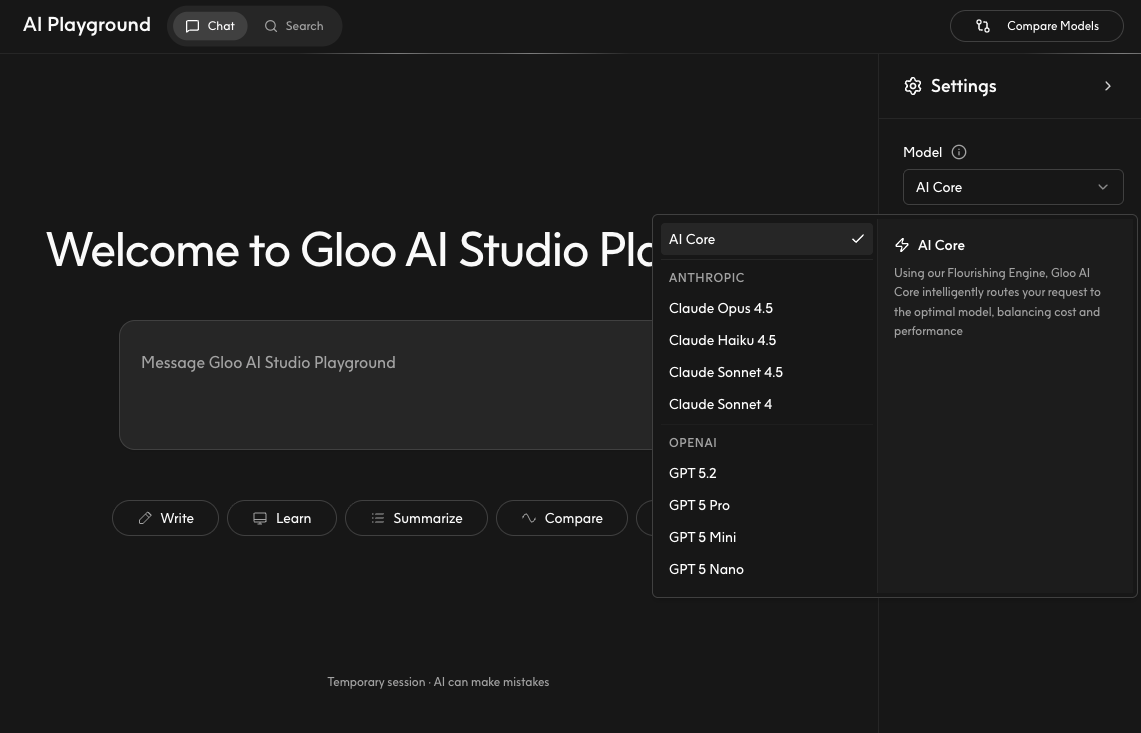
The Chat Playground supports multiple AI models. Choose the model that best fits your testing needs:
1. Click the gear icon next to the chat interface
2. Click the **Model** dropdown at the top of the chat interface
3. Select from three categories:
* **AI Core:** Gloo's auto-routing system that selects the best model for your request
* **Specific Model:** such as Claude Opus 4.5 or GPT 5.2
* **Model Family:** for example Anthropic or OpenAI, letting Gloo pick the best model from that family
Different models have different capabilities, speeds, and costs. See [Supported Models](/api-guides/supported-models) for detailed model comparisons.
 ## Advanced Settings
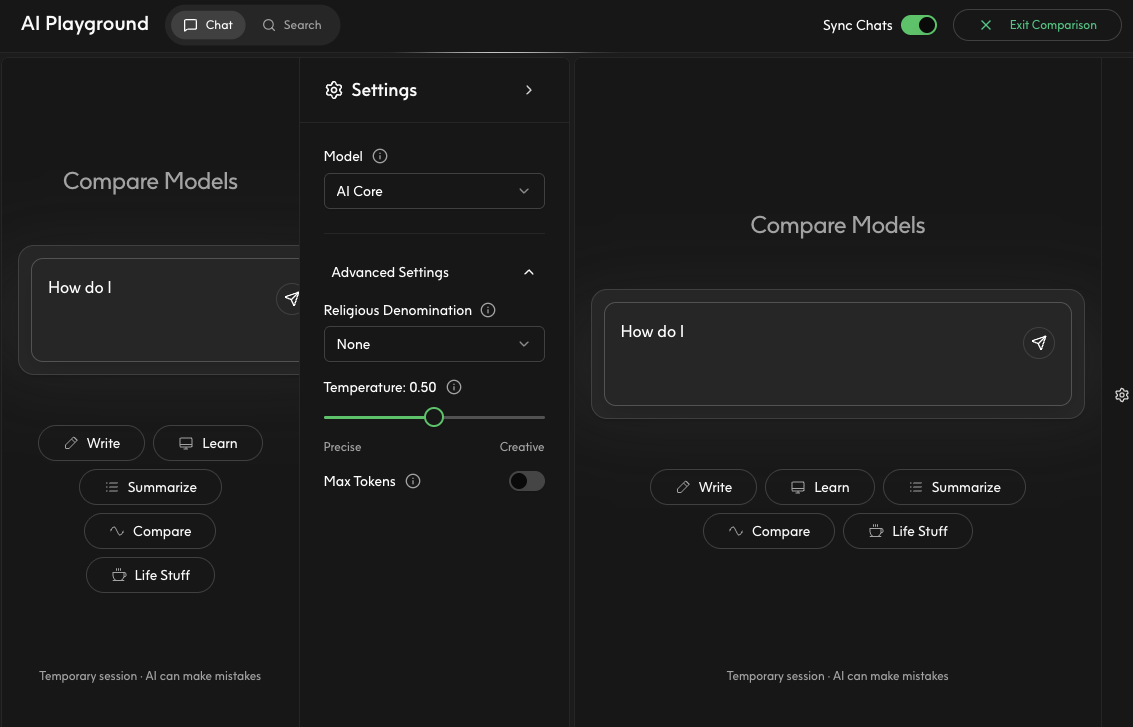
Customize model behavior using advanced settings:
1. Click the gear icon next to the chat interface
2. Open the **Advanced Settings** dropdown
3. Modify one or more settings
**Religious Denomination**
Select a religious tradition to align responses with specific theological perspectives. Choose from denominations like Catholic, Protestant, Orthodox, and others.
**Temperature**
Control response creativity and randomness:
* **Precise (0.0):** Deterministic, focused responses
* **Balanced (0.5-0.7):** Mix of consistency and creativity
* **Creative (1.0):** More varied, imaginative responses
**Max Tokens**
Toggle to limit the maximum length of model responses. When enabled, set a specific token count to control response size.
Start with default settings for general testing. Adjust temperature when you need more creative responses (higher) or more consistent outputs (lower). Use max tokens to control costs in production.
## Advanced Settings
Customize model behavior using advanced settings:
1. Click the gear icon next to the chat interface
2. Open the **Advanced Settings** dropdown
3. Modify one or more settings
**Religious Denomination**
Select a religious tradition to align responses with specific theological perspectives. Choose from denominations like Catholic, Protestant, Orthodox, and others.
**Temperature**
Control response creativity and randomness:
* **Precise (0.0):** Deterministic, focused responses
* **Balanced (0.5-0.7):** Mix of consistency and creativity
* **Creative (1.0):** More varied, imaginative responses
**Max Tokens**
Toggle to limit the maximum length of model responses. When enabled, set a specific token count to control response size.
Start with default settings for general testing. Adjust temperature when you need more creative responses (higher) or more consistent outputs (lower). Use max tokens to control costs in production.
 ## Comparing Models Side-by-Side
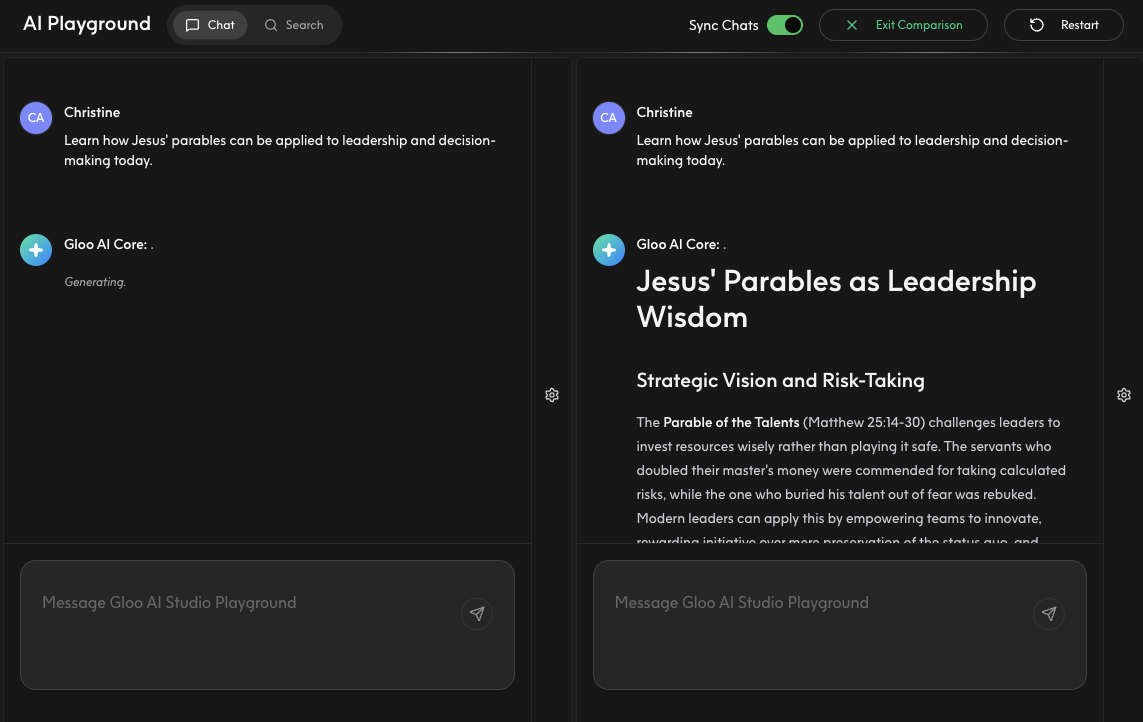
Test the same prompt across multiple models simultaneously:
1. Click the **Compare Models** button in the top right
2. Select models for each comparison pane
3. **Sync Chats** is enabled by default which sends the same message to all models at once
4. Type your message and see how different models respond
**When to use model comparison:**
* Evaluating model quality for your use case
* Testing response consistency across models
* Choosing the right model before API implementation
* Understanding pricing vs. performance trade-offs
## Comparing Models Side-by-Side
Test the same prompt across multiple models simultaneously:
1. Click the **Compare Models** button in the top right
2. Select models for each comparison pane
3. **Sync Chats** is enabled by default which sends the same message to all models at once
4. Type your message and see how different models respond
**When to use model comparison:**
* Evaluating model quality for your use case
* Testing response consistency across models
* Choosing the right model before API implementation
* Understanding pricing vs. performance trade-offs
 ## Understanding Temporary Sessions
Chat Playground conversations are temporary and not saved. When you close or refresh the page, your conversation history is lost.
To preserve important content:
* Copy valuable responses to a text editor or note-taking app
* Take screenshots of useful examples
* Document successful prompts for later API implementation
## Transitioning to API
Once you've tested your prompts in the Playground, transition to the API:
**Parameter Mapping:**
| Playground Setting | API Parameter | Example Value |
| ------------------ | ------------- | ------------------------------------------- |
| Model dropdown | `model` | `"ai-core"`, `"claude-sonnet-4"`, `"gpt-4"` |
| Temperature | `temperature` | `0.7` |
| Max Tokens | `max_tokens` | `1024` |
| Denomination | `tradition` | `"mainline"` |
Your Playground experiments map directly to API requests. Use your successful prompts and settings to build production implementations.
Implement chat completions in your application
Generate credentials for API access
View all available models and capabilities
Monitor API requests and costs
## Frequently Asked Questions
**Why aren't my conversations saved?**
The Playground is designed for quick testing and experimentation, not persistent storage. This keeps the interface fast and prevents sensitive test data from being stored. For saved conversations, implement the API in your application with your own storage.
**Do Playground messages count against my rate limits and spend?**
Yes. Playground messages are routed through your organization's API credentials, so they count toward your spend limit and are subject to the same rate limits as direct API calls. Monitor your consumption in the [API Usage](/studio/api-usage) dashboard.
**Do I need API credentials to use the Playground?**
Yes. The Chat Playground routes requests through your organization's API credentials, so at least one active Client ID and Client Secret must exist before you can send messages. See [Manage API Credentials](/studio/manage-api-credentials) to create them.
**How do I choose the right model?**
Start with **AI Core** for automatic model selection. If you need specific capabilities, use model comparison to test options side-by-side. Consider factors like response quality, speed, and cost for your use case.
**What's the difference between Chat and Search Playground?**
Chat Playground tests conversational AI interactions. Search Playground (Pro and Enterprise) tests semantic search across your Data Engine content library. Use Chat for general AI testing, Search for content discovery features.
**Can I access the Playground on mobile?**
Yes. The Chat Playground works on mobile browsers, though the experience is optimized for desktop screens. Mobile access is useful for quick tests when away from your computer.
## Understanding Temporary Sessions
Chat Playground conversations are temporary and not saved. When you close or refresh the page, your conversation history is lost.
To preserve important content:
* Copy valuable responses to a text editor or note-taking app
* Take screenshots of useful examples
* Document successful prompts for later API implementation
## Transitioning to API
Once you've tested your prompts in the Playground, transition to the API:
**Parameter Mapping:**
| Playground Setting | API Parameter | Example Value |
| ------------------ | ------------- | ------------------------------------------- |
| Model dropdown | `model` | `"ai-core"`, `"claude-sonnet-4"`, `"gpt-4"` |
| Temperature | `temperature` | `0.7` |
| Max Tokens | `max_tokens` | `1024` |
| Denomination | `tradition` | `"mainline"` |
Your Playground experiments map directly to API requests. Use your successful prompts and settings to build production implementations.
Implement chat completions in your application
Generate credentials for API access
View all available models and capabilities
Monitor API requests and costs
## Frequently Asked Questions
**Why aren't my conversations saved?**
The Playground is designed for quick testing and experimentation, not persistent storage. This keeps the interface fast and prevents sensitive test data from being stored. For saved conversations, implement the API in your application with your own storage.
**Do Playground messages count against my rate limits and spend?**
Yes. Playground messages are routed through your organization's API credentials, so they count toward your spend limit and are subject to the same rate limits as direct API calls. Monitor your consumption in the [API Usage](/studio/api-usage) dashboard.
**Do I need API credentials to use the Playground?**
Yes. The Chat Playground routes requests through your organization's API credentials, so at least one active Client ID and Client Secret must exist before you can send messages. See [Manage API Credentials](/studio/manage-api-credentials) to create them.
**How do I choose the right model?**
Start with **AI Core** for automatic model selection. If you need specific capabilities, use model comparison to test options side-by-side. Consider factors like response quality, speed, and cost for your use case.
**What's the difference between Chat and Search Playground?**
Chat Playground tests conversational AI interactions. Search Playground (Pro and Enterprise) tests semantic search across your Data Engine content library. Use Chat for general AI testing, Search for content discovery features.
**Can I access the Playground on mobile?**
Yes. The Chat Playground works on mobile browsers, though the experience is optimized for desktop screens. Mobile access is useful for quick tests when away from your computer.