

Overview
The Chat Playground lets you experiment with Gloo AI’s chat capabilities directly in your browser. Test different models, adjust parameters, and see responses in real-time before implementing in your application.Availability & Access
The Chat Playground is available on all plans (Pay-as-you-go, Pro, and Enterprise). Playground messages are routed through your organization’s API credentials, so usage is billed at standard model rates and counts against your spend limit. See Billing & Plans to get started.
Getting Started
Access the Chat Playground and start testing:- Log in to Gloo AI Studio
- Click Playground in the main navigation
- Select the Chat tab
- Type your message in the text input
- Press Enter or click Send to submit
Selecting Models
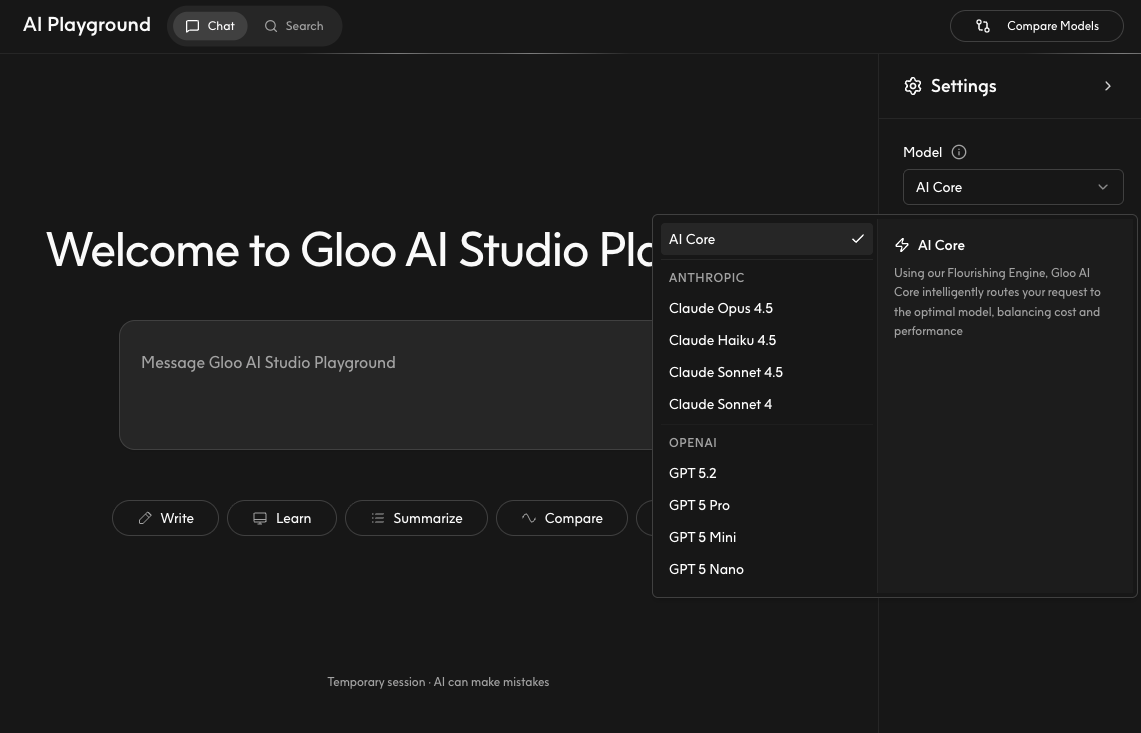
The Chat Playground supports multiple AI models. Choose the model that best fits your testing needs:- Click the gear icon next to the chat interface
- Click the Model dropdown at the top of the chat interface
- Select from three categories:
- AI Core: Gloo’s auto-routing system that selects the best model for your request
- Specific Model: such as Claude Opus 4.5 or GPT 5.2
- Model Family: for example Anthropic or OpenAI, letting Gloo pick the best model from that family
Different models have different capabilities, speeds, and costs. See Supported Models for detailed model comparisons.
Advanced Settings
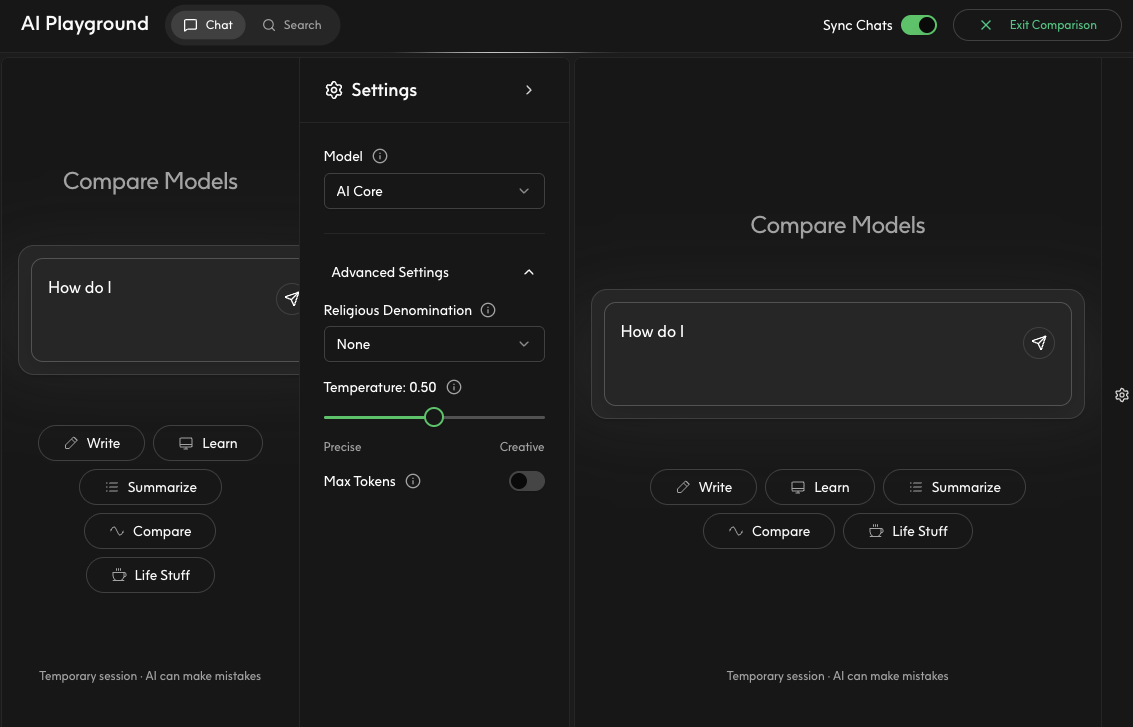
Customize model behavior using advanced settings:- Click the gear icon next to the chat interface
- Open the Advanced Settings dropdown
- Modify one or more settings
- Precise (0.0): Deterministic, focused responses
- Balanced (0.5-0.7): Mix of consistency and creativity
- Creative (1.0): More varied, imaginative responses
Comparing Models Side-by-Side
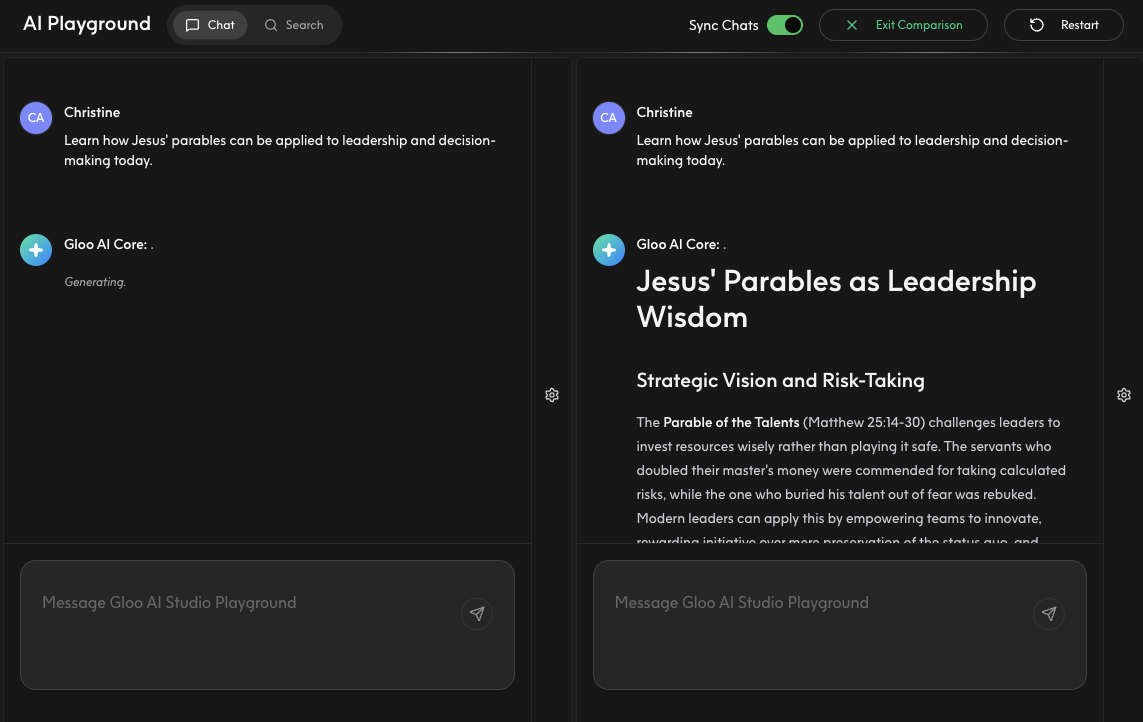
Test the same prompt across multiple models simultaneously:- Click the Compare Models button in the top right
- Select models for each comparison pane
- Sync Chats is enabled by default which sends the same message to all models at once
- Type your message and see how different models respond
When to use model comparison:
- Evaluating model quality for your use case
- Testing response consistency across models
- Choosing the right model before API implementation
- Understanding pricing vs. performance trade-offs
Understanding Temporary Sessions
To preserve important content:- Copy valuable responses to a text editor or note-taking app
- Take screenshots of useful examples
- Document successful prompts for later API implementation
Transitioning to API
Once you’ve tested your prompts in the Playground, transition to the API: Parameter Mapping:
Your Playground experiments map directly to API requests. Use your successful prompts and settings to build production implementations.
Completions API
Implement chat completions in your application
Generate API Keys
Generate credentials for API access
Supported Models
View all available models and capabilities
API Usage
Monitor API requests and costs