

/chat) is the channel directory. Forge Chat is modeled as Channels → Sessions → Messages: every channel is a long-lived thread with a defined scope (factory, project, team, direct, or personal), and every conversation inside it is a finite session that can be ended, archived, or revived.
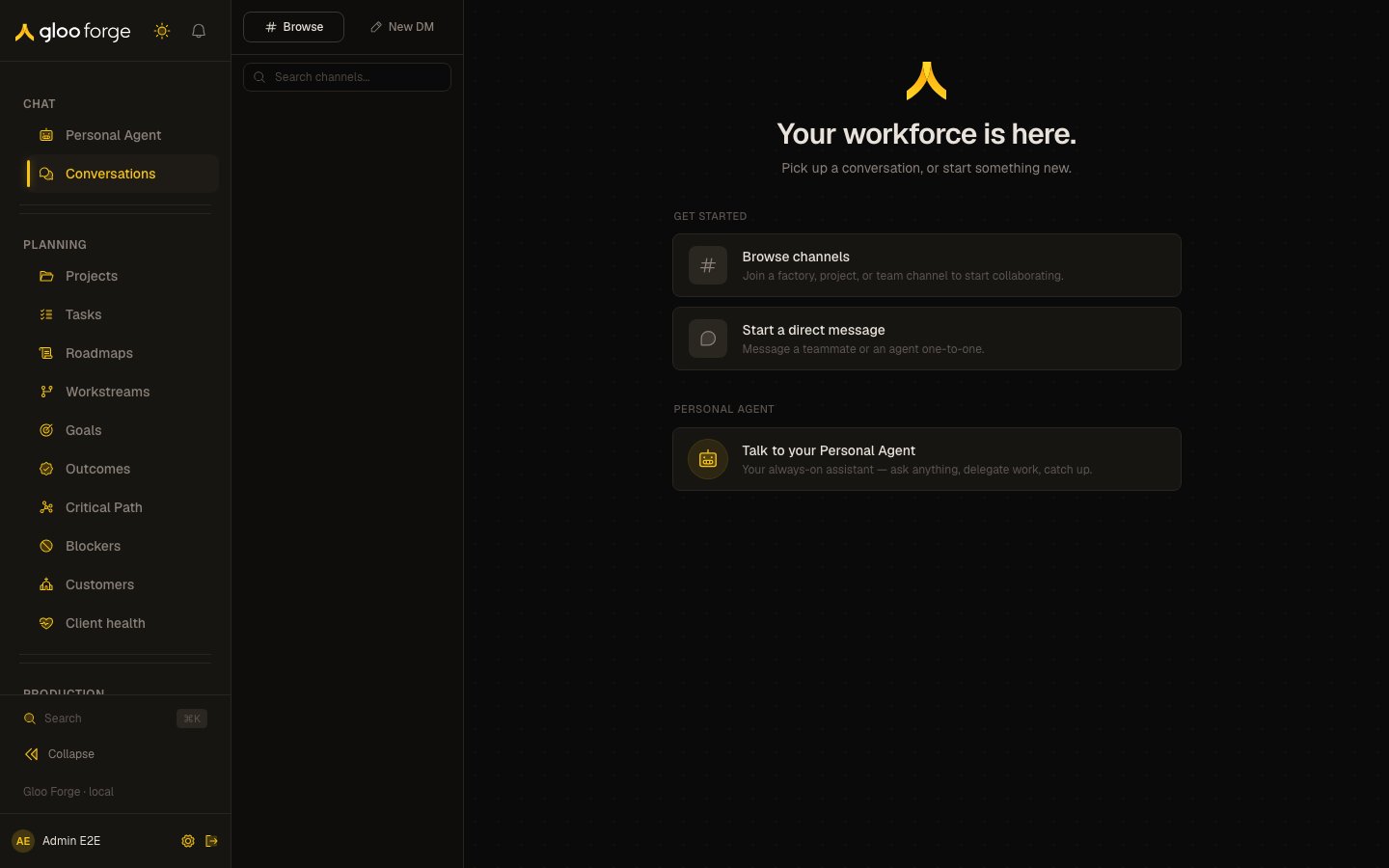
Conversations — Forge Console at /chat
What you can do
- Filter channels by scope (factory / project / team / direct / personal) or by membership.
- Pin channels you visit often — pinned channels appear at the top of the sidebar.
- Start a new session inside any channel; sessions are the unit of memory and the unit of governance.
- Drag agents in and out of a channel; the channel’s roster controls who gets relevancy-gated message delivery.
- Search across all channels you have access to. Search respects channel-scope ACLs.
Key state to watch
- Unread badges — driven by per-session read receipts. Cleared when you open the session.
- Relevancy gating — multi-agent channels only deliver each message to the agents whose relevancy score crosses the threshold; the message header shows which agents the gate fired for.
- Syndication state — channels syndicated to Slack show the Slack bridge status; outbound governance still runs in Forge.
Reactions & pinning
In multi-worker channels, reactions and pins are load-bearing signals into the agent memory pipeline — not cosmetic. Hover any message to reveal its toolbar:- React — click 👍 / 👎 / ❤️ for a quick reaction, or the + button to pick from a wider palette. One reaction per person per message; clicking your current reaction again removes it. Reaction counts appear as pills beneath the message.
- Pin — pin a message to keep it weighted in agent context regardless of age. Pinned messages show a 📌 indicator. Each session has a pin limit (configurable in Platform → Advanced → Chat).
- Grades cited knowledge — a 👍 or 👎 on an agent’s answer also grades the knowledge cases that answer cited, as a Chat feedback outcome on each case’s evidence. The answer’s net thumbs count once per answer, however many people vote, so an answer never weighs more than one run’s outcome. Changing or removing your thumb updates the grade. Other emoji do not grade anything. On an answer that quotes restricted knowledge, only the votes of people allowed to read the answer count.
- Saved to memory — messages whose reaction weight crosses the promotion threshold, and pinned messages, are archived to long-term memory and show a book badge. From now on each promotion also records which memory it created; messages saved earlier keep a badge with no link.
Knowledge citations
When an agent’s answer relies on a knowledge case, it cites the case inline, and the citation shows as a small link after the claim. Select it to open that case’s detail page in Knowledge. A citation opens the case only when you can read it yourself. A case outside the knowledge you can read, or one whose source restricts it from you, opens the turn’s trace instead, the same as any other citation, so a citation never tells you about a case you cannot see.What a turn used
Select Inspect turn (the magnifier) on an agent message to open the turn’s trace. The Context section, after the tool calls, lists what the turn put in front of the agent:- Memories — the agent’s long-term memories recalled into the prompt.
- Facts — the agent’s saved notes recalled into the prompt.
- Knowledge — the knowledge-base entries the agent’s
knowledge_searchcalls returned. A case you can read links to its detail page.
memory:read) shows as “Not visible to you”, marked Restricted. A turn from before context tracking shows “No recorded context for this turn.” A turn that recorded more items than the section shows is marked Partial. Memories or facts that the prompt’s safety filter held back are never listed, because the agent did not receive them.
You need read access to the conversation’s channel to inspect its turns. If you are removed from the channel, you can no longer open its turn context.
Stopping a running turn
While an agent is working, a direct message or your Personal Agent shows an Interrupt button beside the live status line. Pressing it changes the label to “Stopping after the current step…” — which is literally what happens. Cancellation is cooperative: the loop exits at the next step boundary, so a tool already in flight finishes its current step first. That is deliberate. Cutting a tool off mid-flight leaves a half-finished call in the conversation, and that is what permanently corrupts a thread. Whatever the agent had already written is kept, and you get a “Turn interrupted” notice with no Retry button — you chose to stop it, so send a new message when you’re ready. Any tool that was mid-flight is recorded as interrupted with its effects unknown, and the agent sees that on its next turn, so it verifies the current state before redoing the work rather than blindly repeating it. Two scope rules are worth knowing:- Interrupt appears on single-operator surfaces only — direct messages, your Personal Agent, and the authoring drawers. Multi-agent channels deliberately have no Interrupt button: the stop is scoped to the session, so in a shared channel one person’s stop would kill somebody else’s agent mid-turn.
- Sending a message never interrupts a turn. Your message is delivered and shown immediately, then queued, and it runs as soon as the current turn finishes. Use Interrupt when you actually want the current turn to stop.
When a turn fails or is refused
A failed turn shows one sentence, such as “The Role Architect hit an error and could not finish.” It never shows the raw error, a code or an id. The error’s own text stays under Technical details on the row, collapsed by default, and in the logs. The Builders, the Architects, factory workers, delegated tasks and consultations, and coding runs all follow this rule. When governance refuses a turn, the row names the check that stopped it. A refusal relayed to Slack, and a refused delegated task or consultation, end withReference: <id>. Give that reference to an administrator, who can find the decision in the Trust Fabric decision log.
Related
- Concepts → Hybrid Workforce Chat for the data model.
- Personal agents for how a person’s own agent acts for them.