

/planning/projects) to organize a body of work, its customer attribution, tasks, staffing, and outcomes. Read access requires projects:read; creating or changing a project requires projects:manage at the applicable scope.
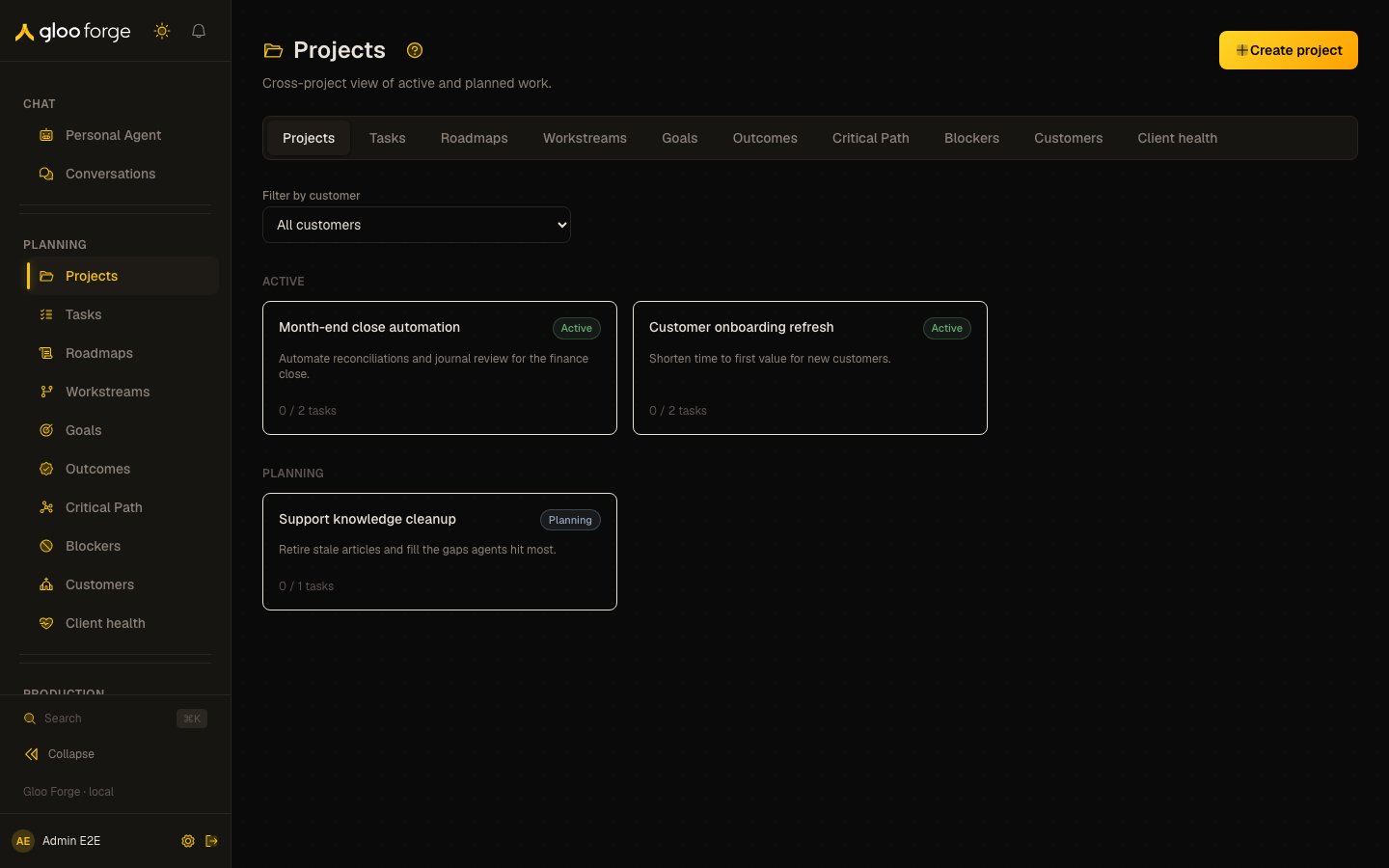
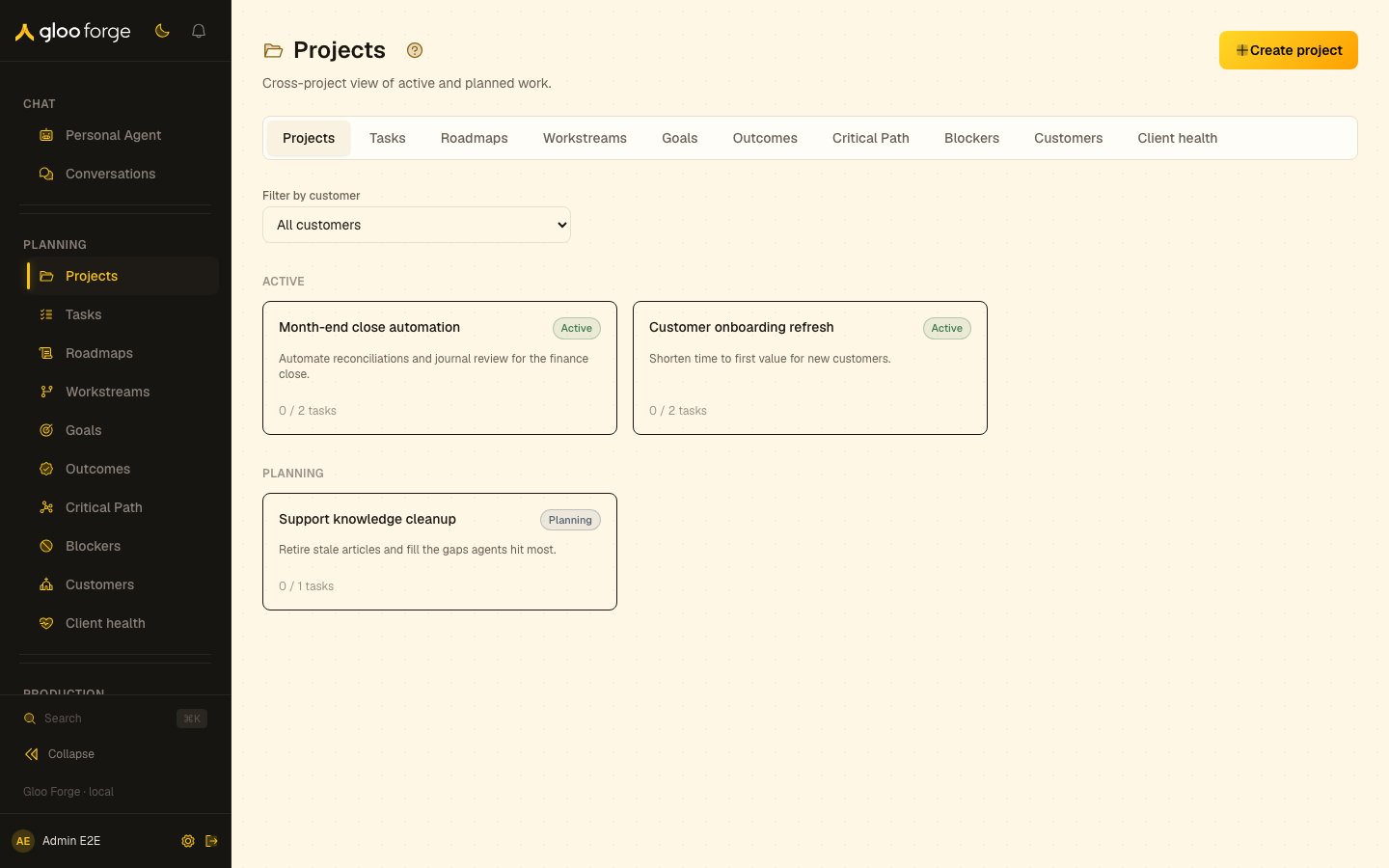
Projects — Forge Console at /planning/projects
What you can do
- Find a project by status group or customer, and open its detail. See Find a project.
- Create a project, internal or attributed to an active customer. See Create a project.
- Read a project’s tasks, staffing and knowledge on its detail. See Use the project detail.
- Retry a failed save without losing the form. See Recover from a failed save.
Find a project
Projects are grouped by Active, Planning, On Hold, Complete, and Archived. Use Filter by customer to narrow the list; All customers clears that filter. Choose Load more projects when another page is available, then select the project to open its detail. Customer attribution describes whom the work serves. It does not grant access to that customer’s projects or change a project’s access boundary.Create a project
- Choose Create project.
- Enter Project name. The name is required; whitespace alone does not count.
- Add an optional Description, Start date, and Target date.
- Under Customer, choose an active customer or keep Internal (no customer).
- Choose Create project and wait for the form to close.
- Find the new project in the list and open it. Check its name, dates, and customer before adding work.
Use the project detail
The project detail brings together its work and staffing. Use Tasks for individual assignments and Workstreams for parallel delivery tracks. The Knowledge card shows active entries and recent cases when you haveknowledge:read in the project’s scope. Browse all opens Knowledge filtered to the project. Project read access alone does not imply knowledge access; a hidden count is not a zero count.
Recover from a failed save
A failed mutation leaves the creation form open with its error. Correct invalid input or access, then use Retry to retry the last attempted save. Avoid closing the form if you still need its values: Cancel and the close control reset it.Key state to watch
- Status group — Active, Planning, On Hold, Complete or Archived. A project you can’t find may be in another group or on a page not yet loaded.
- Customer attribution — records whom the work serves; it never grants access to that customer’s projects.
- A hidden knowledge count — you lack
knowledge:readin the project’s scope; it is not a zero count.
Related surfaces
- Tasks: the work inside a project.
- Workstreams: parallel delivery tracks.
- Customers: the customer a project serves.