

/workforce/integrity) audits the canonical organization and people records and lists what is wrong with them: people whose worker and person types disagree, overlapping primary assignments, more than one active seat for one person, circular reporting lines, orphan identity claims and others. Reading runs and findings needs workforce:read; running an audit and every repair control needs workforce:manage. Without workforce:read the page shows Access restricted.
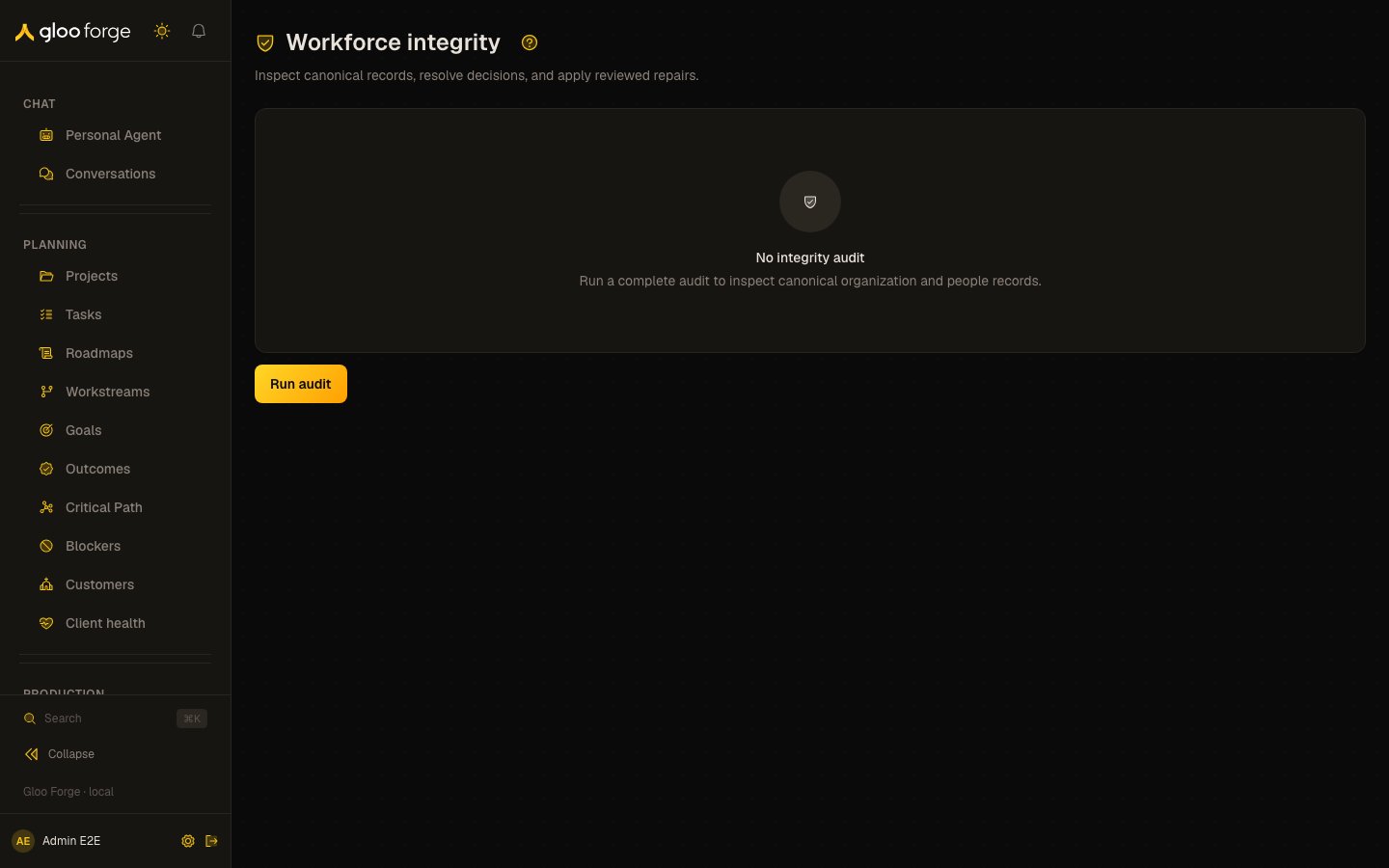
Workforce integrity — Forge Console at /workforce/integrity
What you can do
- Run audit (or Rerun audit) to measure the records again. With no audit recorded, the page shows No integrity audit and the Run audit button.
- Read each finding, grouped by problem, with the records it names, its classification and status, and its Evidence.
- Follow a finding’s corrective link to the record that owns the fix, such as Correct person type, Reassign / end-date assignments, Review position history, Preview merge or Link identity.
- Select deterministic assignment repairs, give a Repair reason, and Preview selected repairs. A batch holds up to 20 repairs, and you must load every finding first.
- Open a guided review for findings that need a decision: Review person link, Review orphan claim or Review seat consolidation.
- Confirm a previewed repair, then open Review post-repair findings for the audit that runs after it.
The run summary
The summary card names the run (Integrity audit or Repair results), its status (COMPLETE, RUNNING or a failure), when it was updated, and its stage. A badge reads Stale when the last result is more than 36 hours old. When the run failed, Audit or repair requires attention explains why.
Before / after summary opens a side-by-side view of the records a repair run changed.
Findings
Integrity findings groups findings by problem, each with a one-line note on how to approach it. Every finding shows:- The records it names, linked where the Console has a page for them.
- Its classification (
HARD_VIOLATION,DETERMINISTIC_REPAIR,AMBIGUOUSorADVISORY) and its status, such asOPEN. - For a worker and person type mismatch, the two types side by side.
- The affected record ids, and an Evidence disclosure with the facts the audit read.
- An Audit event id once the finding has been resolved.
Repairing findings
- Tick the repairs you want to apply, up to 20, and enter a Repair reason. Only a deterministic repair that ends or supersedes an assignment has a checkbox.
- Choose Preview N selected repairs. Review repairs lists each record Before and After, what the repair changes under What changes, and any Remaining operator decisions.
- In Repair confirmation, choose I approve these exact repairs, then choose Apply selected repairs. The Console reports that the repair was submitted.
- Read the Post-repair audit that follows and open Review post-repair findings.
Key state to watch
- Blocking findings (total) — a non-zero count means records still break a rule.
- Stale — the last audit is more than 36 hours old; rerun it before you repair.
- Ambiguous findings — they wait for a person’s decision.
- Blocked repairs on a repair run — read the post-repair findings for the reason.
Related surfaces
- People — where person types, seats and assignments are corrected.
- Positions — position history named by assignment findings.
- Organization structure — the org-unit tree and reporting lines.
- Settings — unmapped identity attempts and the people merge.