

/settings/connect-agent) to connect your own MCP host to Forge. The page provides the endpoint for your deployment and host-specific configuration. The connection acts through your credential’s authority; adding a server does not grant permissions.
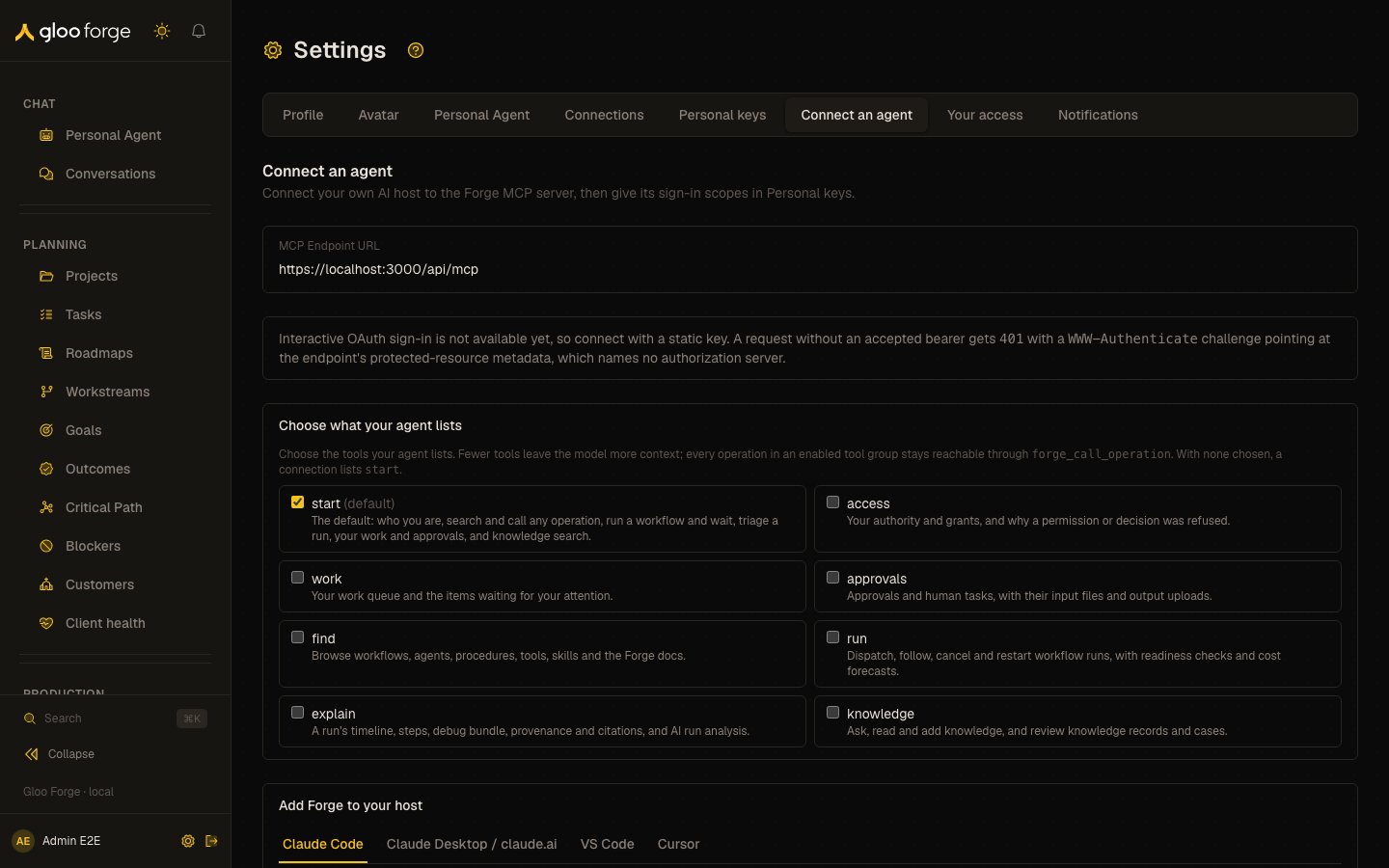
Connect an agent — Forge Console at /settings/connect-agent
What you can do
- Copy your deployment’s MCP endpoint and choose which jobs your host lists. See Choose the connection.
- Connect Claude Code, Claude Desktop / claude.ai, VS Code or Cursor with sign-in or a static key. See Sign in when the deployment offers it and Use a static credential.
- Verify the connected actor and its access before a write. See Verify and recover.
Choose the connection
- Copy the MCP Endpoint URL shown in Console. Use that value rather than guessing a deployment hostname.
- In Choose what your agent lists, keep
startfor a first connection or select the jobs relevant to your work. - In Add Forge to your host, choose Claude Code, Claude Desktop / claude.ai, VS Code, or Cursor.
- Follow that host’s generated recipe. Its URL includes the listing jobs you selected.
start, access, work, approvals, find, run, explain, and knowledge. They select which tools the host lists. They do not widen roles, credential scopes, or the operations allowed by governance. With no job selected, the connection lists start.
Sign in when the deployment offers it
When interactive sign-in is configured, Sign in from your MCP host appears and host recipes default to Sign in:- Add the server using the recipe; no static key is needed for that mode.
- Complete the host’s browser sign-in with your active Forge account.
- Open Settings → Personal keys → Host sign-ins and grant the sign-in its required scopes. A new host sign-in starts with no scopes and cannot perform operations yet.
- Reconnect or refresh the host’s tool list and verify its reported Forge identity and effective access.
Use a static credential
Create a Personal key for your own access and choose Static key where the mode selector is available. Copy the recipe without replacing its environment-variable or password-input placeholder with a committed secret.
An External App can also supply a
client_credentials bearer token. It acts as the application, not as your person. The host must replace expired tokens; this page does not refresh them. See the MCP host quickstart for current authentication modes and qualification limits.
Verify and recover
After connection, ask the host to identify the Forge actor and inspect its effective permissions before performing a write. A visible tool is not proof that the credential can invoke every operation behind it.Key state to watch
- A new host sign-in has no scopes — grant them under Settings → Personal keys → Host sign-ins before it can act.
401on a static connection — check the key’s value, expiry and revocation.- Listed tools — jobs change which tools the host lists, never what it is allowed to do.
Related surfaces
- Personal keys: the key an external agent connects with.
- Forge MCP: the MCP server an agent connects to.
- Your access: the roles the agent acts with.