

/workforce/people) is the human members directory. Each row opens the canonical person profile at /workforce/people/person/[personId]; employee and contractor employment records are relationships, not the person’s identity. A person without a current employment record remains visible and is labelled No employment record.
Historical /workforce/people/[workerId] links are compatibility adapters. They resolve the exact historical employment record and redirect only when it is linked to a canonical person; unlinked human records show an integrity explanation and agent records link to the existing agent view.
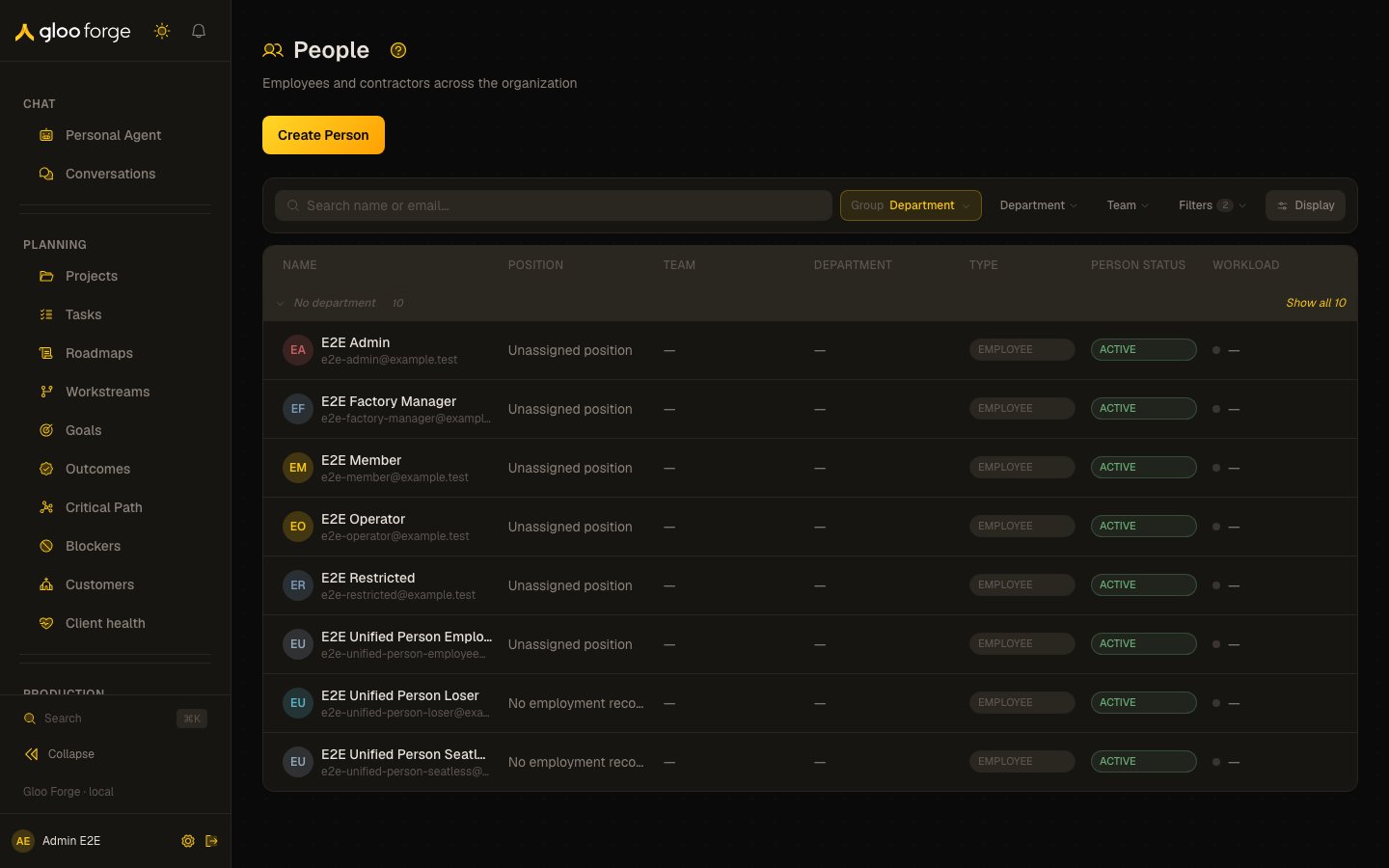
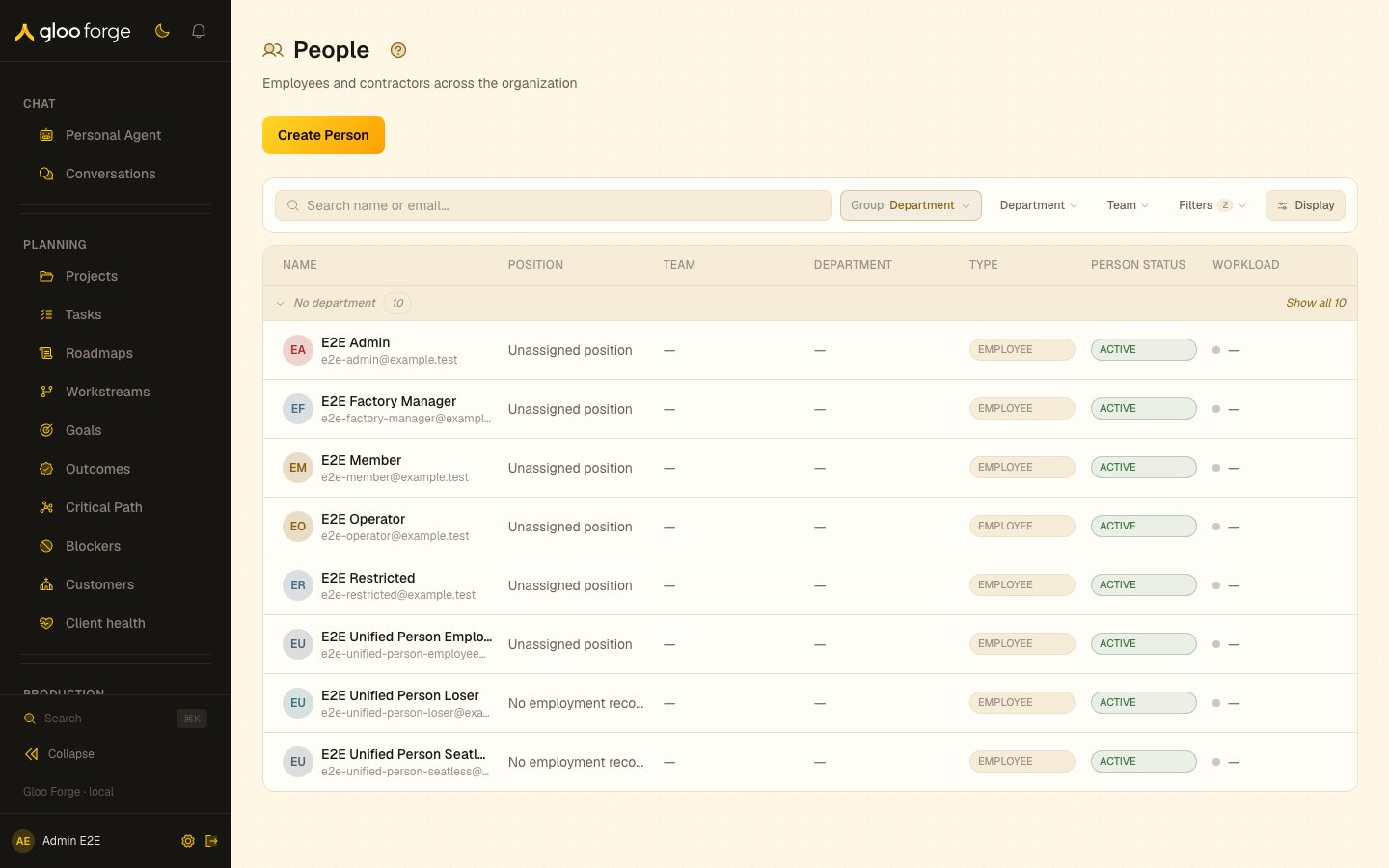
People — Forge Console at /workforce/people
What you can do
- Search by name, email, position, or team.
- Filter by employment status, by role, or by team.
- Open a person’s profile to see their canonical identity, employment records, and workforce allocation.
- If authorized, use the profile’s Identity, Access, and History tabs to manage aliases, inspect effective access, and review supported person-lifecycle events.
- Administrators with
workforce:managecan use the Communication tab to configure the person’s approved ticket-acknowledgment name, signature, tone, instructions, examples, and explicit automation authorization. Every save requires a reason and creates an immutable revision; stale edits must reload before saving. - Invite a new member; the invite flows through the auth provider (WorkOS AuthKit) and lands as a pending worker until accepted.
Create and edit a person
With the required administration permission, use Create person to add a name-only canonical person. Email and an initial employment seat are optional; creating the person does not create a login. Review the entered fields and reason before confirming. If an email matches an existing person, explicitly choose to link that person or keep the records separate instead of silently merging them. Use the profile’s edit control for supported canonical profile changes. The profile’s external-identity controls link or unlink an exact provider identity after a reason and confirmation. An external identity already owned by a different person is a hard conflict: inspect the affected records and use the existing reviewed merge workflow when appropriate.Selecting people in Console workflows
Console forms use a shared person picker, but each picker is authorized for its specific purpose. Chat, workforce, workflow, and identity-administration pickers can therefore show different results for the same search. The server returns only the person’s display name, primary email, status, and eligible Worker seats needed by that form; it does not reuse the broader People-directory search. Chat, workforce, and workflow selection excludes inactive people and inactive or suspended Worker seats. Identity administration may include inactive people when an administrator needs to inspect or repair a canonical identity. In direct-message forms, select the person or agent seat shown by the picker; Forge resolves and validates the canonical participant on the server before creating the conversation. Type to filter results, use the arrow keys to move the active option, and press Enter to select it. A form that needs a particular seat type only offers eligible seats for that operation.Employment seat controls
Employment seat Name and Status are not inline profile edits. Operators withorg:manage
can edit Monthly Budget, independently for each employment record. A budget update targets that
exact seat; it does not use a worker ID as a person identity or change the canonical person.
The employment section also exposes dated assignment history and authorized create, edit, end,
and reassign controls. Confirm before/after values and a reason; overlapping primary intervals or
inactive target ancestry must be resolved before saving. Ending an assignment preserves history.
Ticket reply voice
Freshservice triage applies shared acknowledgment guidance and examples to the actual ticket, then uses the selected person’s authorized communication profile for language, tone, writing preferences and examples. The greeting and approved signature are added by the renderer. In a workflow configured with Vince as the fallback, a selected human whose voice is unusable uses Vince’s separately authorized voice and reply identity while remaining the ticket owner. This includes missing, empty, disabled or unauthorized profiles, inactive people and unusable identity links. Profile permissions still apply independently to Vince; a configured fallback that cannot be authorized blocks the reply. Voice selection does not assign the ticket to Vince. A code deployment alone does not update an already published workflow. The release operator must adopt the updated composer, shared guidance and renderer in a reviewed workflow revision.Person administration
Administrative controls always target the canonicalpersonId. Role administrators can inspect
and manage secondary email aliases; the held roles additionally require grants:read. Identity administration, offboarding, reactivation, and merge require workforce:manage; lifecycle history requires both audit:read and workforce:read.
Freshservice identity linking also requires knowledge:read. Select an active, synchronized
Freshservice Knowledge source homed at the team or department you are working in, and enter the API
agent ID; Forge derives the account and workspace from that source.
Do not use a browser profile/contact ID as an API agent ID. Communication profiles never store
external account identifiers.
The Console does not request those protected datasets until the matching authorization has
resolved, and held roles you may not read are shown as unavailable rather than as an empty list.
The Identity tab keeps the primary email read-only. An administrator may add only a low-trust
admin_assigned alias, or revoke an active alias after entering a reason. Revoked aliases remain
visible with their provenance. A revocation succeeds only while the claim still belongs to the
profile’s canonical person; if ownership changes concurrently, refresh the profile before taking
another action. The Access tab lists the person’s role grants: each role, the scope it was given for, and
whether it is active, revoked or expired. For an inactive person it also explains that the grants are
historical and cannot be used. Manage access opens the Members roles dialog for that
exact canonical person (see Holders). The Members
catalog remains person-first, so active contractors, inactive people, and people without a current
employment seat can still be selected and retain their person-scoped grant history.
The History tab covers supported lifecycle audit events from this feature’s rollout. Earlier
events and access or alias changes may be recorded elsewhere; this is not a comprehensive identity
or authorization history.
For active employees and contractors, Offboard person deactivates supported seats, claims, MCP
keys, role grants and personal agents, and ends supported participation. Every skipped compatibility
count remains visible as a warning. Inactive employees and contractors may be reactivated, but
claims, credentials, role grants and personal agents are not restored. External, other, and
suspended people show their unsupported lifecycle state instead of an unsafe transition.
Every destructive action requires a trimmed operator reason. A confirmed server response is the
only success signal. If transport is interrupted, the outcome is unknown: refresh the person,
claims, and history before deciding whether another action is needed.
Merging duplicate person records
Identity repair is available from an authorized canonical profile and from Unmapped Identities (/platform/identity/unmapped). Use Merge people when two person records describe the same human — for example
when a secondary email was claimed by a second canonical person before the seats were linked.
Both sides are chosen with the same searchable person picker used elsewhere in the console; the form
accepts no raw person IDs. Choosing a winner and a loser loads a preview, and the confirmation
dialog states what the merge will move before you commit:
- Both people by name and email, and which one survives
- Totals — claims, seats, entitlements, rows, and how many tables are touched
- How many personal agents will be archived
- A per-table breakdown of the rows being repointed
workforce:manage.
Monitor person integrity
Administrators can open/workforce/integrity, also linked from Platform → Identity → Unmapped
Identities. The compact identity card summarizes the latest comprehensive run; the integrity
queue shows progress, freshness, findings, evidence, and links to the affected corrective workflows.
The daily monitor performs an audit, never a repair.
Blocking findings (total) is the complete blocking count. Deterministic repairs and
Ambiguous describe subsets of that total, so do not add those values to the total. Only
deterministic END and SUPERSEDE actions are selectable for automated repair; ambiguous findings
must be corrected through the linked person, position, assignment, or organization workflow.
- Run an audit and wait for completion. Load all finding pages before selecting repairs.
- Inspect each finding. Follow the person, assignment, position, or organization link for ambiguous conflicts; only eligible deterministic repairs can be selected in the queue.
- Select the intended repairs and enter a reason. Preview their before/after state and unresolved conflicts, then explicitly confirm the exact plan.
- Apply only after that review. If state changed, obtain a fresh preview rather than retrying the stale plan. Follow repair progress and open the post-apply audit to verify the result.
Organizing the directory
The directory is a grouped table built on the shared collection grammar. People is table-only — there is no card layout.- Group by — Department (the default) or Team; also Type or Status, or none. Group header rows band the table; people whose grouping value is empty land in a “No department” / “No team” bucket that renders last.
- Sort by (in the Display popover) — Name by default; Workload is selectable and is now reflected in the URL (
?sort=workload), so a workload-sorted view is bookmarkable. - Filter — by type and by status (defaults to ACTIVE).
Rippling employment proposals
An approved, selected Rippling proposal can update a canonical employment seat or itsPRIMARY
assignment. The directory remains person-first; department and team continue to
come from that primary position’s typed ancestry. Forge-managed SECONDARY assignments can add
other responsibilities without changing the person’s directory home, and reconciliation preserves
them.
An inactive Rippling employment record proposes a seat deactivation and assignment end; neither
happens unless the operator selects and confirms it. After application the inactive seat is excluded
from active employment views, while
the canonical person, identity claims, and assignment history remain recoverable. This is an
employment lifecycle change, not authentication offboarding: Rippling inactivity does not disable
WorkOS access or other credentials. A person already suspended in Forge is not reactivated by a
later Rippling capture.
Identity matching checks an existing Rippling worker association before email claims and follows
canonical-person merge redirects. Email-only matches require explicit review. A mapping/email
disagreement blocks the conflicting proposal; an email change does not silently create a second
person. Source mappings are provenance, not permission to overwrite Forge decisions. See
Organization for the reviewed preview and apply procedure.
Key state to watch
- Last active — when this person last took an action in the console.
- Role grants — every role gives a set of permissions; the profile lists each grant with its scope.
- Pending invites — listed at the top with their expiry timer.
Review a Person’s workforce allocation
Employee and contractor profiles include a read-only four-week allocation window. It combines all active Worker seats owned by the canonical Person, so parallel employee and contractor seats remain visible without splitting capacity across separate profiles. The section shows dated Pod memberships, derived Customer delivery, minimum availability, per-seat managers, effective Pod leads, freshness, upcoming changes, and legacy capacity conflicts. Allocation changes stay on the owning Pod. Use Manage on Pod for a membership or upcoming boundary, or open Workforce Planning to compare People across a shared window.Workload
The Workload column shows each person’s live human-work load, derived from the same queues that feed My Work: open workflow steps and approvals assigned to them. The heat dot reads: gray — nothing open; green — has open items; amber — five or more open items; red — at least one open item has breached its SLA. Hover the cell for the trailing-30-day detail (completions per week, median time-to-resolve, SLA breach rate). Choose Workload in the Sort by control to rank by load — the fastest answer to “who is overloaded” before reassigning work — and the sorted view persists in the URL.Related surfaces
- Org Chart: reporting lines.
- Planning: Engineering capacity and dated Pod and Customer delivery.
- Access holders: who holds which role.
- Integrity: audit and repair people, seats and reporting lines.