

/knowledge) to find and maintain durable artifacts. Reading requires
knowledge:read in the relevant scope. Creating, editing, grading, exporting, or deleting also
requires knowledge:manage where the artifact lives.
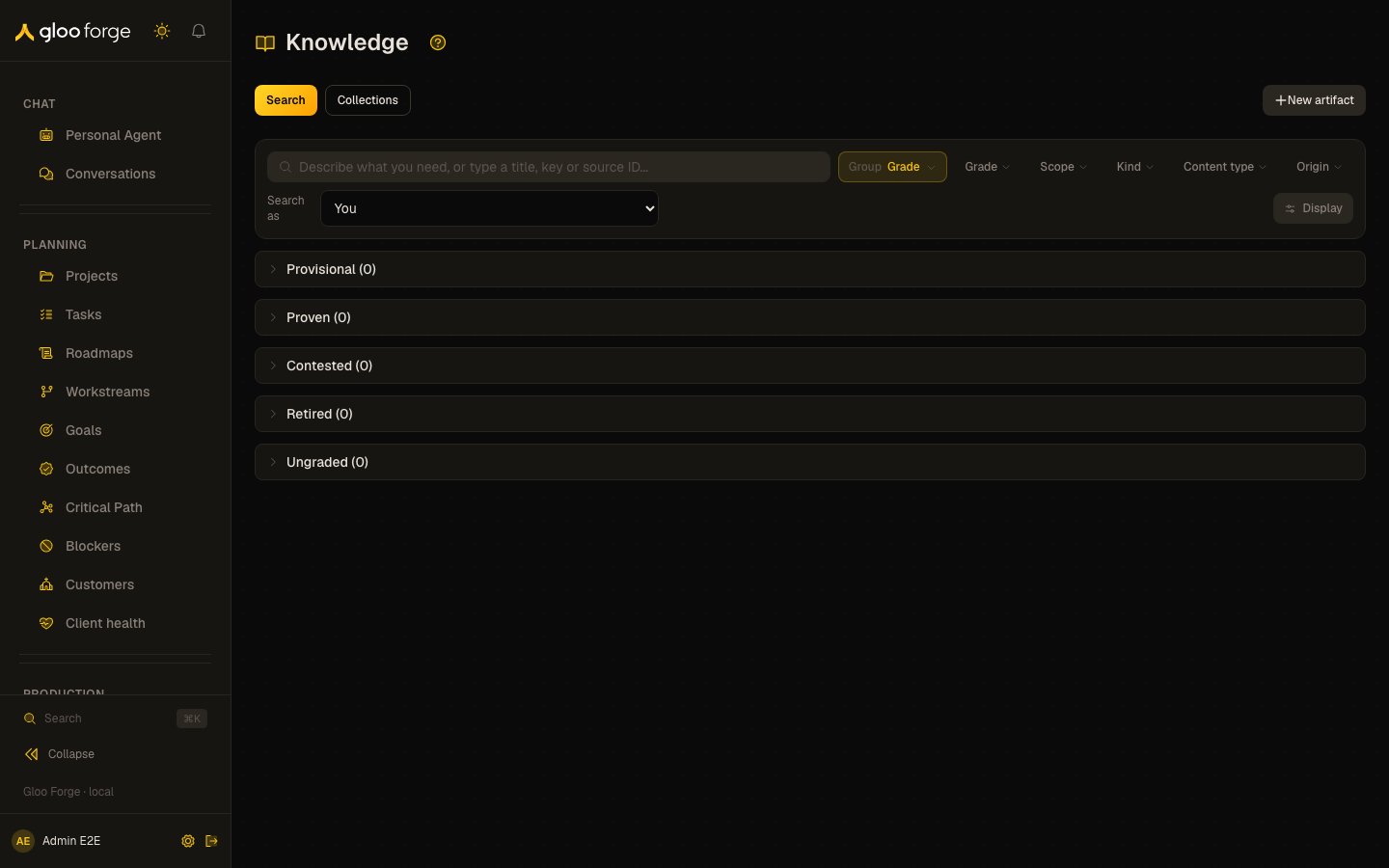
Work with knowledge artifacts — Forge Console at /knowledge
What you can do
- Search and browse the knowledge you can read, by text and by meaning, grouped and filtered by grade, scope and kind.
- Organize artifacts into collections.
- Create and edit Forge-owned artifacts, for Gloo or for one organization.
- Change a case’s grade: approve, contest, retire or restore it, with a reason.
- Export a scope, or delete a Forge-owned case.
What you see
You see active knowledge in your readable scopes: personal, organizational, factory, project, customer, company, and global scopes as applicable. Another person’s personal knowledge is absent. Source-restricted artifacts appear only when the source allows you, even if you can read their scope. Deleted and archived artifacts do not appear in browse or search.Search and browse
The default Search view combines two paths:- the artifact list immediately matches title, summary, key, or source ID text; and
- after a short pause, ranked results by meaning appear above it.
Results by meaning
Ranked results separate written Articles from structured Records. Each group returns its best matches and labels match strength. Ranking combines semantic relevance and grade weight, then applies your readable scopes and source access. Retired cases do not appear. Toolbar filters do not narrow ranked results; the URL’s explicit scope chip does. The URL retains the search text and open artifact, so reload, browser navigation, and authorized shared links keep the same view. A ranked result set is bounded; use browse or a record list when you need a complete decision set.Search as an agent
Withknowledge:manage and agents:read, choose an agent from Search as to run its knowledge
search for the current text. This uses the agent’s ranking and readable scopes. You still see only
results you may read; Console notes that additional results are hidden without naming or counting
them. While an agent is selected, toolbar filters and the scope chip do not narrow its search.
Collections
Switch to Collections to browse subject collections or typed record collections. Scope narrows both lists. A collection organizes artifacts but never changes their access; counts and rows include only what you can read.- Subjects can contain one level of sub-collection and list their readable artifacts.
- Record collections expose the declared schema and records. With management access at the collection’s home, add, edit, or remove records there.
Create and edit record collections
To create a collection, choose a writable personal, team, company, factory, or project scope, name the collection, and define itsforge.* kind. Add typed attributes and relations, then select a
required non-sensitive string attribute as the title. The scope and schema are fixed once created.
Select a collection to add records. External IDs are immutable after creation. Optional values can
be omitted, explicitly null, or supplied. Array items are edited separately so commas and empty
strings are preserved. Sensitive attributes are excluded from search.
Edits and removals use the current record version. If the version changed, reload before saving;
Forge keeps the values or removal reason you entered. Removal also requires a reason.
Forge displays incomplete, stale, changed, denied, and oversized list results as refusals. It does
not render partial records as a complete list, and it reports restricted omissions even when the
visible result is empty.
The former /knowledge/collections URL redirects to Knowledge → Collections and keeps a saved collection.
Export a scope
With a scope filter andknowledge:manage, choose Export this scope. Console builds an NDJSON
file of the active entries you may export and provides a download link that expires after 24 hours.
Exports over 5,000 entries or 16 MB are refused rather than truncated.
Change a case’s grade
Open a graded case and choose an available action:
Every change needs a reason of 1–500 characters. Company and global cases require this human
approval before they become proven. The reason appears in evidence and the change is audited.
Ungraded documents and files have no grade actions.
Create an artifact
Choose New artifact and complete:- Choose the Owner first: Gloo, or one organization (a customer or capital partner) by name. Nothing is chosen for you, and Create artifact stays disabled until you choose. An organization’s knowledge is read only for that organization.
- For Gloo, select a writable scope. Console lists only supported scopes where you currently hold the required management access; global and department are not authoring targets here. An organization owner is the scope itself, so there is no second choice.
- Optionally choose Lesson, Policy, How-to, Reference, FAQ, or Note. Kind describes purpose; it is independent of content type and grade.
- Enter a title and Markdown content. Optionally supply a stable key. A key must be unique within the scope and cannot use the external-source prefix.
- Decide whether the artifact needs review. Company artifacts default to review; narrower scopes, an organization’s included, default not to. While review is pending, authorized people can see the artifact, but agents and machine clients cannot retrieve it.
- Save, then inspect the opened artifact and its scope, grade, and review state.
Edit an artifact
Open a keyed, Forge-owned case and choose Edit artifact. You can change its title, content, and kind; its scope and key remain fixed.- A kind-only change preserves the text version, grade, and verification.
- Changed text on a non-proven case updates the live artifact and preserves the earlier version in History.
- Changed text on a proven case becomes a pending revision. The proven text stays live until the required review is resolved.
- If someone changed the artifact after you opened it, Console refuses the stale save. Reopen and review the current version before editing again.
Delete a case
For a Forge-owned case, choose Delete, enter a reason, and confirm the exact artifact. Deletion removes its content from retrieval immediately, retains an audited tombstone, and can leave redacted version metadata available through History. A synchronized artifact has no Delete action. Delete the item in its source or use Sources to remove the entire source. Removing a source deletes every artifact it synchronized, so read the affected-artifact count before confirming.Customer support knowledge
Customer artifacts use the active customer’s mapped Organization home and appear only with the required root authorization. A customer record is an organizing reference, not a user account. Open Customer knowledge from an active customer’s Planning detail, then author or browse within that Customer scope. Ticket workflow agents receive Customer knowledge only for configured, signed ingress whose ticket company maps to the active Customer Organization. Unmapped tickets use shared knowledge. Support workers and their Personal Agents can retrieve readable Customer knowledge in the worker’s private channel; shared channels omit it.Key state to watch
- Grade. Provisional, proven, contested or retired; company and global cases need human approval to become proven.
- Pending review. While review is pending, authorized people can see the artifact, but agents and machine clients cannot retrieve it.
- Pending revision. Changed text on a proven case waits for review while the proven text stays live.
- Loaded so far. Groups and counts describe what has loaded; Load more continues the scan.