

/observe/views) lists the filters saved from the three Observe pages that support them: Events, Run History and Logs. Each section holds your own views and the views teammates shared. Saved views has no sidebar entry: open the Views menu on Events, Run History or Logs and choose Manage views →, or go to /observe/views.
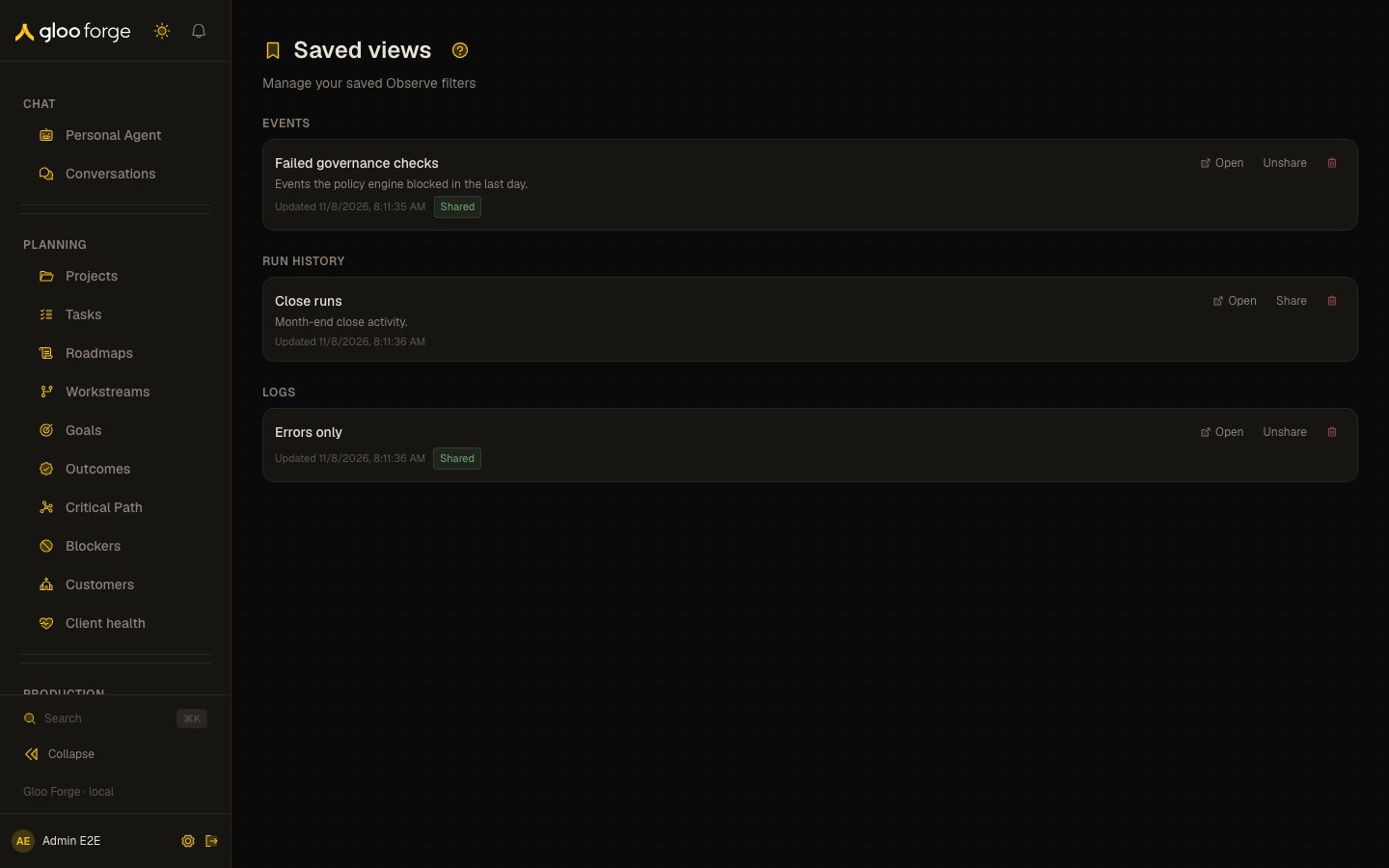
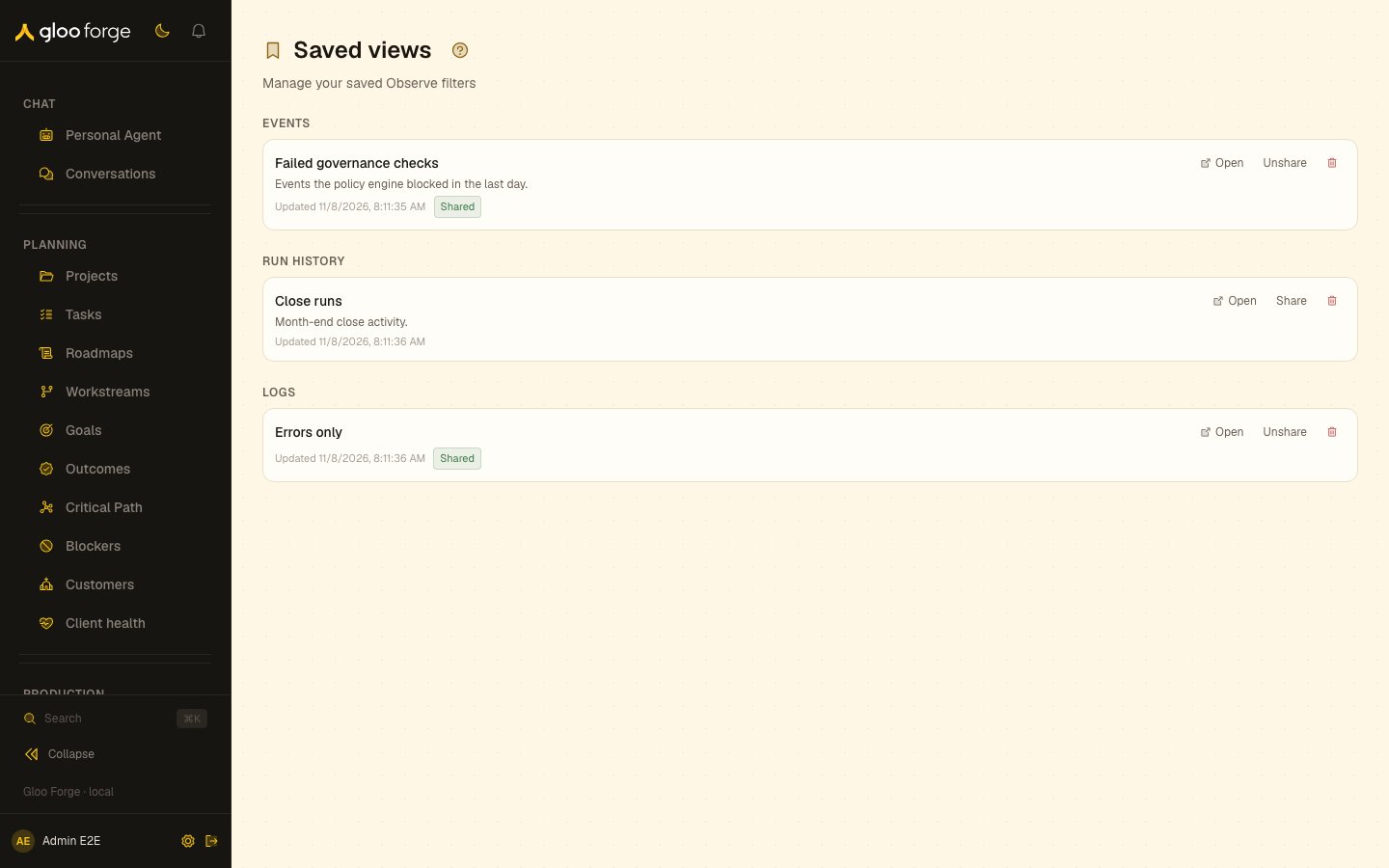
Saved views — Forge Console at /observe/views
What you can do
- Save the current filters as a view from the Views menu on Events, Run History or Logs, with a name, an optional description, and Share with team.
- Apply a saved view from the same menu, under My views or Team views.
- On Events, create an alert rule from a view with its Alert button.
- On Saved views, rename, share or unshare, and delete your own views, and open the page a view applies to.
Managing views
The page has one section per Observe page. Each view shows its name, description, when it was updated, a Shared tag when it is shared, and a Team tag when someone else owns it.- Rename — select your view’s name, type the new name, and press Enter or move focus away. Escape cancels.
- Share / Unshare — make your view visible in teammates’ Views menu, or hide it again. A shared view stays editable only by you.
- Open — go to the page where the view applies. The filter is not applied by this link; apply it from that page’s Views menu.
- Delete this view — removes your view after you confirm.
Key state to watch
- Shared views — every teammate in your org unit sees them in their Views menu. Sharing a view does not grant access to the events or logs behind it; each viewer still sees only what their own access allows.
- Views behind alert rules — before you delete or narrow a view, check Observe alerts for rules created from it.
Related surfaces
- Events — saved views and view-based alert rules.
- Run History and Logs — the other pages that save views.
- Observe alerts — rules that can be bound to a saved view.