

/production/workflows/convex — the operator sees just “Workflows” in the sidebar) is the workflow definition catalog. Each row is a workflow graph: a directed graph of agent / router / join / human / publish nodes, with a pinned version that drives the orchestrator.
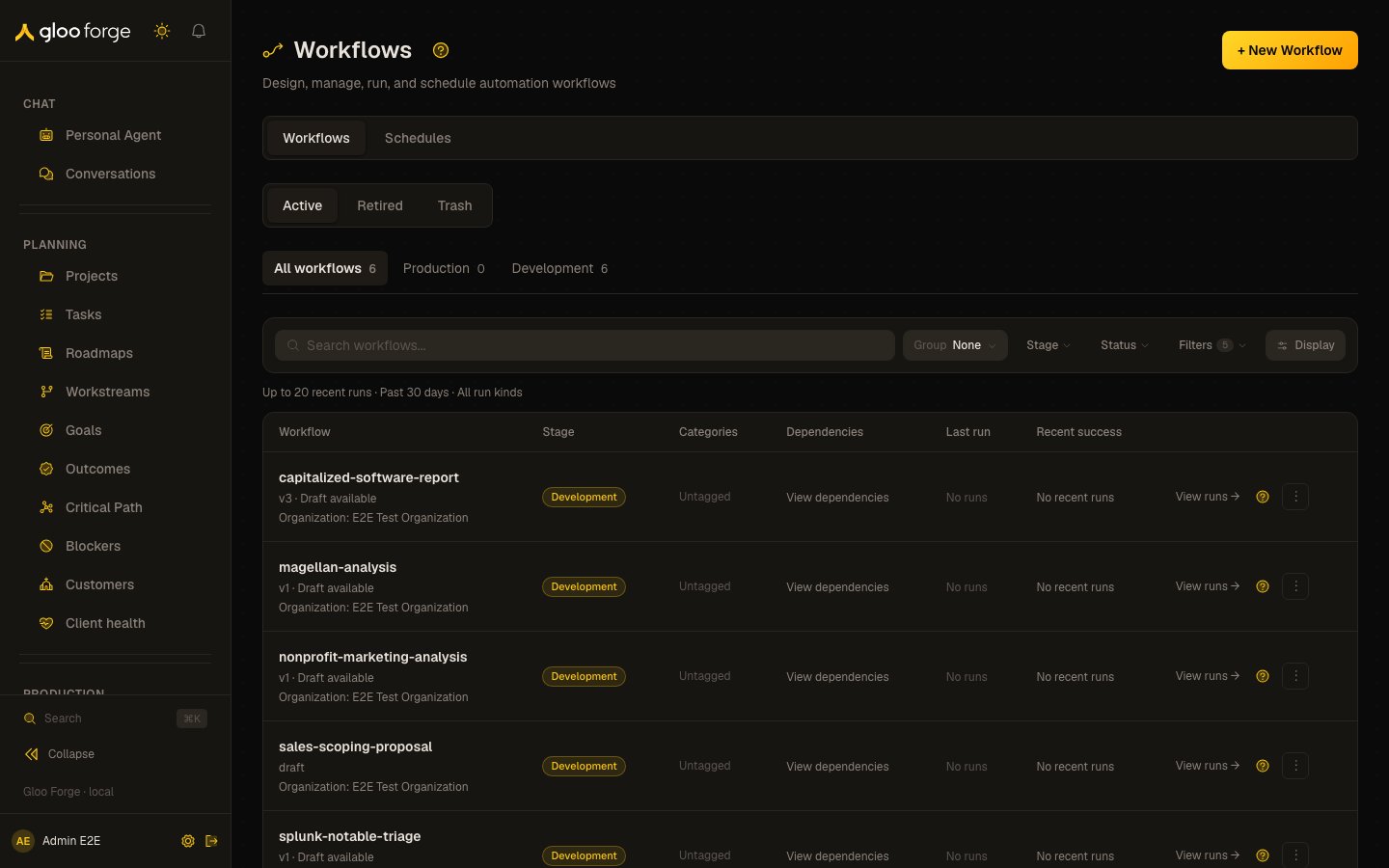
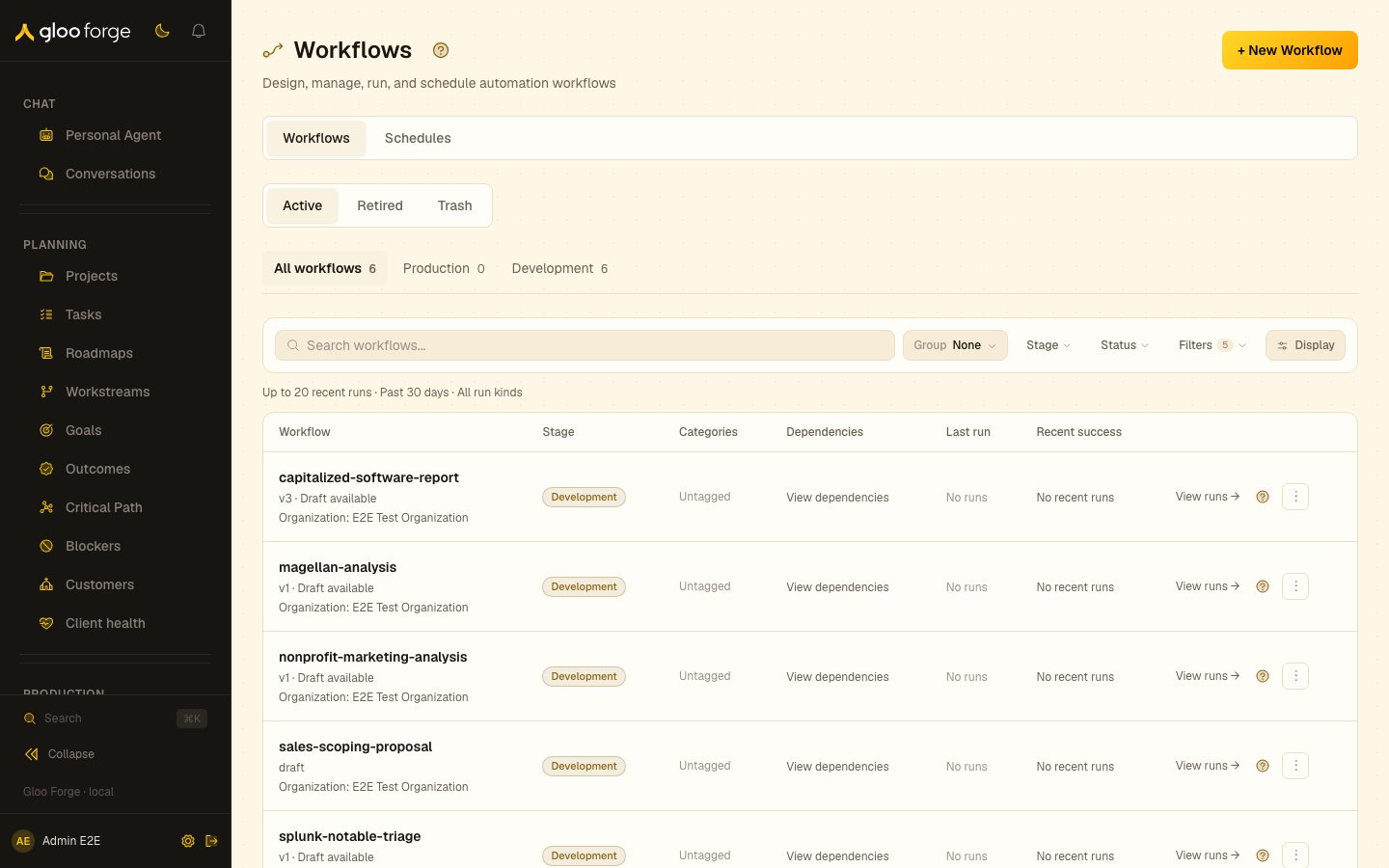
Workflows — Forge Console at /production/workflows/convex
What you can do
- Switch between Workflows (the catalog) and Schedules (the roster) with the pill tabs at the top of the page — Schedules is its own route (
/production/workflows/convex/schedules). See Scheduling. - Search the catalog by name or description, filter by tag, and switch scope between Active, Retired, and Trash (see Lifecycle below). The card/list layout toggle lives in
?view=. - Pin a workflow to your sidebar for one-click access.
- Open the per-workflow detail view: pinned-version graph, recent runs, and this workflow’s schedule (Graph / Versions / Runs / Schedule tabs).
- Read a version as blocks. The Graph tab and each version preview draw the full definition top to bottom, with routes that leave the workflow listed beside their step. Compare on the Versions tab draws both versions on one canvas; steps, routes and edges carry + Added, − Removed or ~ Changed marks, and a panel lists every change with a changed condition’s before and after text. Picking which version to show changes only which steps are drawn solid; nothing moves.
- See whether each agent step can run. On the Graph tab every agent node carries a readiness dot (green Ready, amber Needs attention, red Blocked); hover or focus it to read what blocks the agent, and select it to open the agent’s Ready to run checklist. When any agent is blocked, a Not ready to run banner above the graph lists each blocked agent once, with the number of steps it runs and why, linked to its checklist. Readiness needs
workflows:readfor the whole organization; with it only for some org units, the graph still draws, without dots or banner, and says so. If readiness can’t load for any other reason, the graph still draws without dots, says readiness couldn’t load, and offers Try again. - Click ✨ Ask the Architect on a catalog card (shown when the workflow has a draft) to open a chat with the Architect agent scoped to that graph — useful for impact analysis or debug.
- Click View runs on a card to open that workflow’s Runs tab.
- Edit the graph in the visual builder (the editor lives behind the workflow detail page). Steps arrange themselves; you add, branch, connect and delete through controls on the canvas — see Editing the builder canvas.
Key state to watch
- Active vs Draft — only Active workflows accept new runs; Draft workflows can be edited but won’t dispatch.
- Pinned version — the version every new run executes against. Cutting a new version creates a Draft; promoting it to Active replaces the pinned version.
- “Updated” timestamp — driven by graph edits, not by run activity.
Organizing the catalog
Alongside the scope tabs (Active / Retired / Trash — those are server-side lifecycle scopes, not grouping), the catalog carries the shared collection grammar (Search · Group · Sort · Filter · Layout). Each scope tab lists at most 500 workflows in your scope; past that, the catalog shows a load error instead of a partial list, so no workflow is silently left out. The limit counts only the tab’s own workflows: trashed workflows never count against Active or Retired, and retired workflows never count against Active. The catalog loads its active groups and their first visible row pages before requesting the complete toolbar counts. The Filter options fill in when those counts arrive; the rows and group totals already shown remain exact for the current search, scope, and filters.- Group by — Stage, Status, Factory, Owner, Organization, or Tags. The catalog opens ungrouped, sorted by name. Workflows with no value for the grouping land in a bucket (“No factory”, “Unowned”, “Unassigned”, “Untagged”) that renders last. Vendor is a filter only, not a grouping.
- Sort by (in the Display popover) — Name (the default, A–Z within every group), Updated, Created or Tags (by the alphabetically first tag, untagged last). The legacy
?sort=modifiedbookmark maps to Updated. - Filter — by Stage, Status, Factory, Owner, Organization, Tags and Vendor.
- Layout — card or list, persisted in
?view=. An old?layout=bookmark is no longer read.
Lifecycle: drafts, versions, and deletion
Every workflow moves through a small, reversible-by-default lifecycle. All destructive actions live in one place — the per-workflow overflow (⋮) menu — and it shows the same options whether you open it from a catalog card, the detail header, or the builder. The menu’s options depend on the workflow’s state, never on how the workflow was created (an AI-generated workflow carries an informational ”✨ AI-generated” badge only — it has no special delete button).
Editing and publishing
- Opening the builder edits a draft layered on the active version. Publish snapshots the draft into a new immutable version and makes it the pinned version that new runs execute against.
- Discard changes (in the
⋮menu while editing a draft) reverts the draft to the active version. It only throws away unpublished edits — your published versions are untouched.
- You need the Credential user role for every company a Credential binding on the graph names, and the right to use agents for the agents the graph runs. A publish you are not entitled to is refused in the dialog, listing each binding or agent and the company it names — nothing is written, and the draft is untouched. Ask someone who holds the role to publish, or have it granted to you.
- A Credential binding that takes its company from a run input has to say which companies that input may name. One that does not is refused with the same panel; open the node’s Credential binding, list the allowed companies, and publish again.
- On success the version records which companies and Connections it may act for, granted by you. Publishing a new version does not withdraw what an earlier version was allowed to do, so runs already pinned to it keep working.
- Retire deactivates a workflow: it stops accepting new runs and moves out of the default catalog into the Retired scope. Everything is preserved.
- Restore reactivates a retired (or trashed) workflow.
- Only a person retires a workflow, from this menu, and it needs
workflows:manageat the workflow’s home. The Workflow Architect has no retire tool; in chat it can pause a workflow, and it points you here to retire it.
- Delete does not destroy the workflow. It moves it to Trash, where it is hidden from the catalog and cannot be run, but is fully recoverable for 30 days. Its published versions and draft are preserved.
- The Trash scope lists trashed workflows with who deleted them and how long until they are automatically purged. From Trash you can Restore a workflow or Delete permanently.
- Delete permanently (Purge) is the only action that destroys a workflow and all its versions. It is irreversible, so it requires typing the workflow’s name to confirm, and is available only from Trash. After 30 days, trashed workflows are purged automatically.
Related surfaces
- Builder canvas — the situation panel, confirming the Architect’s decisions, and editing the graph.
- Step settings — procedures, static values, agent readiness, runtime budget and error handlers.
- Launch and debug — inputs, outcomes, required receipts and debug tools.
- Triggers — schedules and capability URLs.
- Concepts → Workflow Graphs
- Architecture → Workflow Execution
- Build → Declare the runtime budget (sizing a long-running node)
- Operator → Runs (placement, liveness, and cost once a step is running)
- Operator → Platform Schedules (admin platform-cron ops console)
- Operator → Signed workflow ingress (capability URLs, HMAC config, status codes, sender recipes)