

{{workflow.<name>}} reference inside a static value, the agent an Agent node runs, the Timeout that decides where a step runs, proven artifacts, and the error path and delivery confirmation on Publish and Notify.
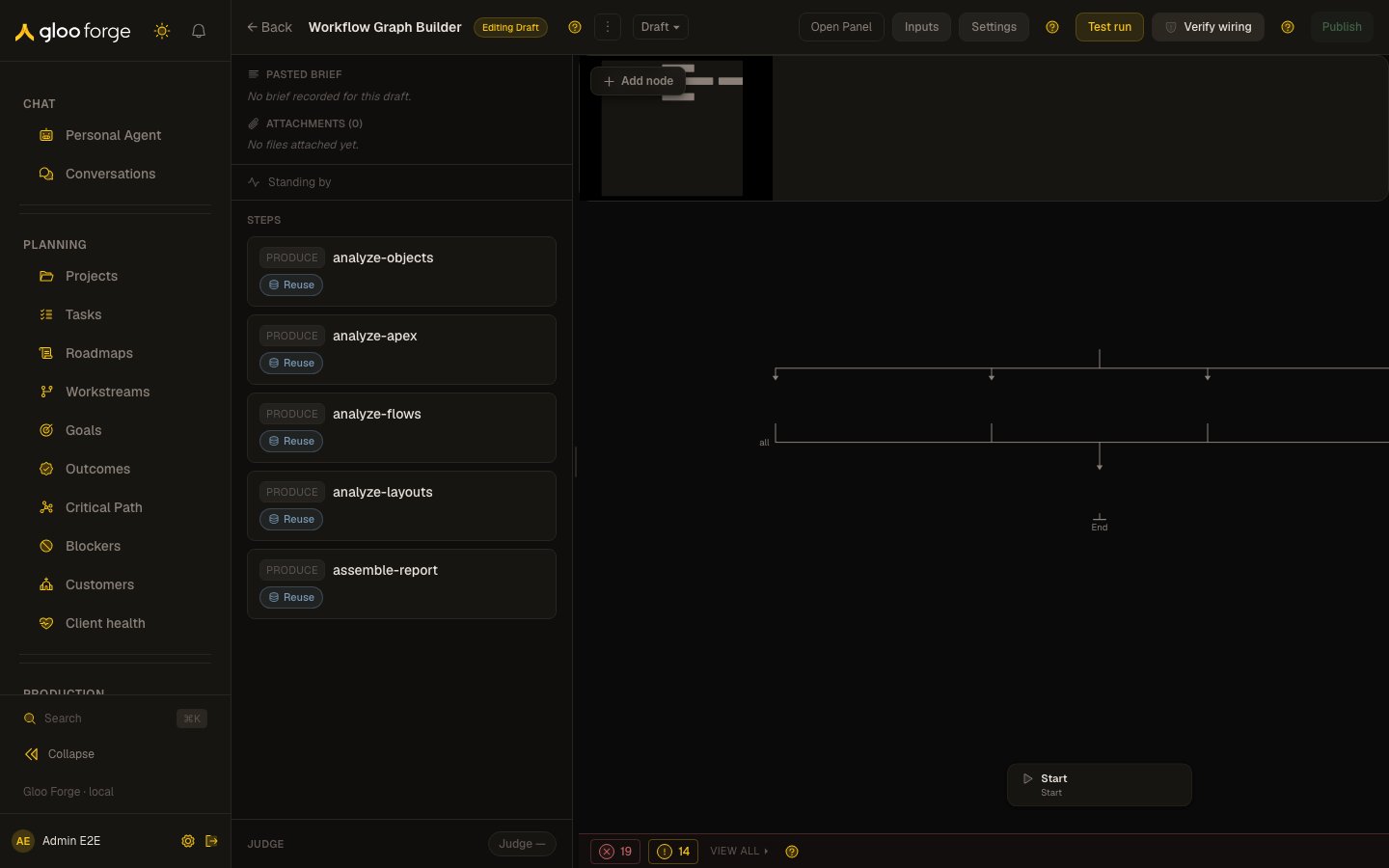
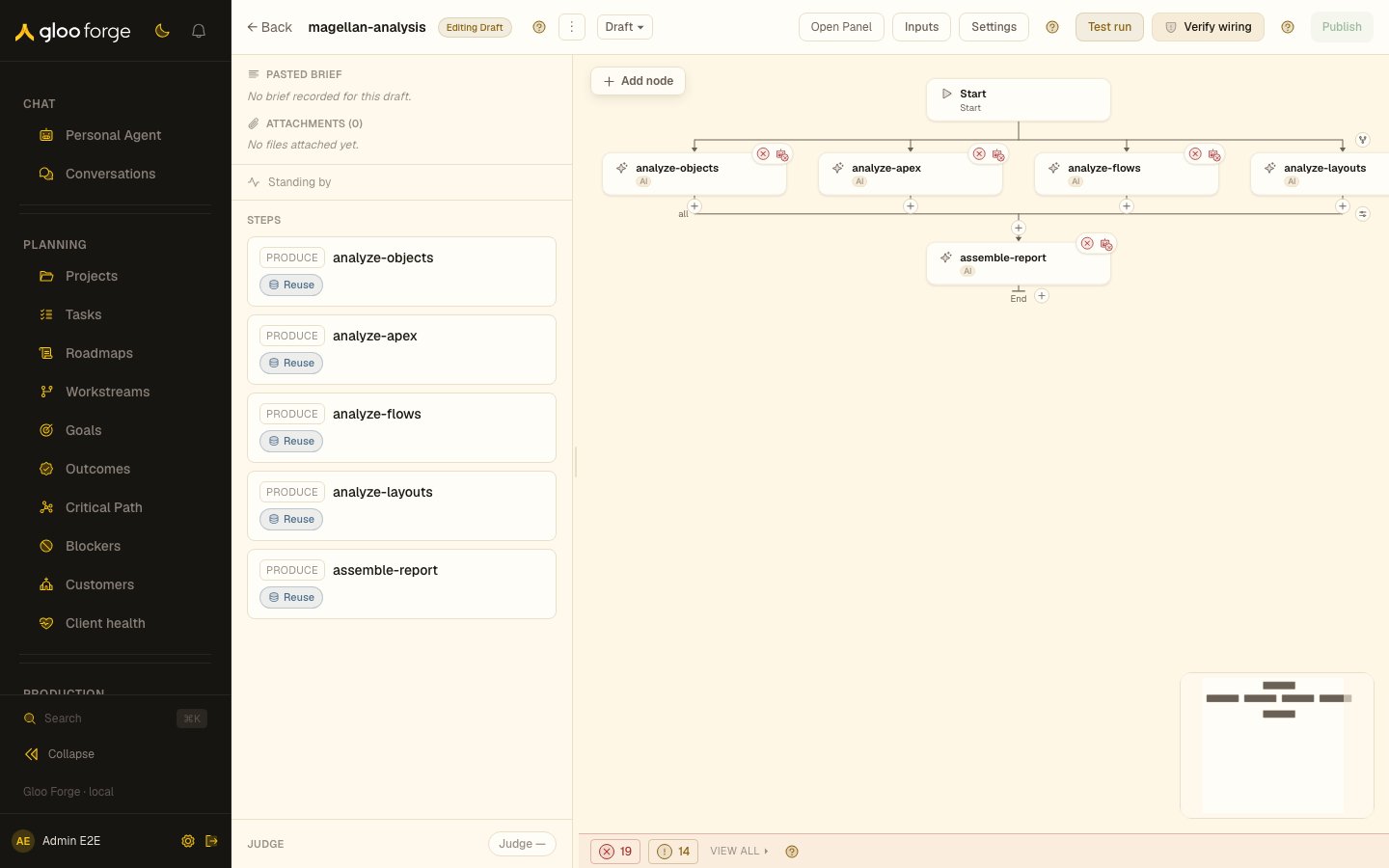
Graph builder — Forge Console at /production/workflows/convex/builder-v2
What you can do
- Declare the fields an Agent or Human step outputs. The last step’s outputs are the workflow’s outputs.
- Pin a procedure node to a procedure version.
- Reuse a declared workflow input inside a node’s static value, so the graph does not change when the value does.
- Pick the AI agent for an Agent node and see whether it is Ready, Needs attention or Blocked before you pick it.
- Set an Agent node’s Timeout, which decides whether the step runs inline or in a detached VM.
- Put up to five of the agent’s proven artifacts in front of a step’s prompt.
- Connect an error path from Publish or Notify to a handler, and require delivery receipts before the success path continues.
Choosing a procedure for a procedure node
A procedure node’s Properties show the procedure it is pinned to, asprocedure-id@version. A
version that is no longer the active head is labelled with its status, for example deprecated.
- Upgrade. When a newer active version exists, a “vX available” banner offers Upgrade. The banner reads the procedure’s own version list, so it appears however large the catalog is.
- Change procedure. The catalog list stays closed on a bound node; choose Change procedure to open it, or Cancel to keep the current binding. Switching procedures replaces the node’s input bindings with the new procedure’s inputs.
- Confirming dropped bindings. A switch or upgrade keeps each input binding whose input still exists with the same type. If any binding would be dropped — on this node, or a downstream node reading an output the new version no longer declares — a confirmation lists each one before anything changes. Keep current procedure leaves the node as it was. An upgrade that drops nothing applies in one click.
- Search. The list shows active procedures a page at a time. Type in Search procedures to match on name, id, or description across the whole catalog, and choose Load more to see the next page.
Reusing a workflow input inside a node’s static value
A node input bound to Static value holds a constant fixed when you author the graph. That constant can carry a{{workflow.<name>}} reference to one of the workflow’s declared inputs, substituted when the run starts — so a value that has to sit inside a shape, like the period token in a report’s dimension filters, stops being a reason to re-author the graph every month.
Select the node, open the properties panel, and set the slot’s binding to Static value.
- For JSON-shaped slots (
object,array,string[],number[]) the value is a multiline JSON editor rather than a single line, so a real filter payload is readable before you run it. It highlights JSON syntax, offers every declared workflow input as you type{{, and underlines problems inline with the same rules the publish gate applies. - Underneath, a substitution preview shows what the literal resolves to, computed with the arguments of the last completed run. It uses the same substitution the orchestrator uses at dispatch, so a whole-value reference previews as a real array and an embedded one previews spliced into its text. If the referenced input has no value the preview names it instead of resolving; if the workflow has never completed a run there is nothing to preview against and it says so.
- The preview appears only once the literal parses. While the JSON is mid-edit and invalid, the preview keeps showing the last value that parsed — which is what would actually be dispatched.
- The reference must name a declared workflow input that always has a value — required, derived, or optional with a default. An optional input with no default publishes cleanly and then fails only on the runs where the field was left blank.
- Inside a static value,
{{workflow.x}}is the only form that resolves. The{{inputs.x}}and bare{{x}}spellings work in agent prompts and publish messages, not here; used in a literal they are sent to the step verbatim and raise a warning.
Choose an agent that can run
On an Agent node assigned to AI, the properties panel’s AI agent picker shows each agent’s readiness beside its name: Ready, Needs attention or Blocked. It is the same check the agent’s Ready to run checklist runs. When the agent you pick isn’t ready, a callout under the picker lists what is missing in plain words and who can fix each gap:
If you hold the permission, the callout points you to the checklist instead. Open setup checklist opens the agent’s checklist in a new tab, and Create a new agent starts one in the Agent Builder in a new tab, so you keep your place in the workflow.
On the canvas, an Agent node whose agent can’t run carries a readiness badge in its bottom-left corner. Hover over it or focus it to see each gap and a link to the checklist. When a publish is refused, the dialog groups these gaps under Agents not ready to run, each with its agent’s name, the gap, and the checklist link.
Setting the runtime budget for a step
On an Agent node assigned to AI, the properties panel’s Timeout field is a duration control — a number plus amin / h unit — and it is the control that decides where that step runs. Under the field sits a live readout that updates as you type:
There is no placement toggle and nothing predicts placement for you — the number you type is the decision, and the readout only tells you what it implies. Over-declaring is close to free (a detached VM bills roughly memory while it waits on model streams, and a dead run is caught by a staleness backstop rather than by the declared deadline), so round up.
AGENT_BUDGET_UNDERSIZED appears in the issue rail when an AI Agent node with tools, declared outputs, and an array-typed (work-list) input still carries an inline-sized timeout. It is a warning, never an error: it carries the sizing arithmetic, offers a one-click timeout fix chip, and never blocks publish. Since placement follows whatever you declare, there is no invalid combination to block — only an under-declaration worth flagging.
Launching a test run shows the same thing before you commit: if any step in the draft will run detached, the launch dialog lists those steps with their declared budgets (“Adjudicate — detached VM, ~40 min budget”) above the cost forecast. An all-inline graph shows nothing there — the pane appears exactly when there is something to tell you.
Once the run is going, Runs shows each step’s actual placement, its heartbeat, and its dual cost meter.
Giving a step proven artifacts
On an Agent node assigned to AI, Advanced → Proven artifacts puts the agent’s top proven artifacts in front of the step’s prompt. Enter a whole number from 0 to 5; 0 is off and is the default. Only artifacts graded proven and still active are used, and only when the agent has memory on. Each one takes prompt space, so use a small number, and only on a step that repeats work the agent has done well before. The field refuses anything outside 0–5. Setting it back to 0 turns it off for that step only: the same agent can use proven artifacts in one step and not in another.Publish and Notify error handlers
Connect an error path from Publish or Notify to a handler. Preflight refusal and synchronous dispatch failures take that path. On durable outcomes, handling a technical failure preserves the failed execution (failure_handled); expected business exceptions have their own routing contract.
On an outcomes-enabled workflow, Delivery confirmation can require queued, accepted, or delivered
receipts before the node’s success path continues. Choose all recipients or at least one, with a
60–900 second deadline. Clearing the policy restores the existing behavior: Notify records obligations,
and queued Publish hands off to its transport. Email hand-off does not establish final delivery.
The selected-step inspector shows original confirmation progress, deadline, and safe next action.
An uncertain effect requires reconciliation before any resend. An authorized repair creates a separate
notification obligation; it cannot change the original wait’s result. Required notification reporting
stays separate from business completion and error handling.
Declare step and workflow outputs
A step’s Outputs are the named fields it emits. Downstream steps read them through their input bindings, rules and conditions, and the outputs of the last step become the workflow’s outputs. Declare a step’s outputs. Select an Agent or Human step and find Outputs in its Properties panel. A step with none shows No outputs declared. When Passthrough is stored as the step’s strategy, an empty section starts collapsed as Add output fields; choose it to open the section.- Type the field name in the
output_field_namebox, for examplesummary. - Press Enter or choose + Add. A new output is a
string. - Change its type if it is not text:
string,number,integer,boolean,object,array,date,file,string[],number[]orfile[]. A text output isstring. - Optionally describe the field, so the agent and downstream authors know what it holds.
- A Human step may declare only the fields every human task returns:
decision,completedBy,completedViaandresponse. Any other declared output is an error that blocks publishing. - An Agent step never emits its declared outputs, so they resolve to nothing. Publishing is blocked when a downstream step binds to one; an output nothing reads is only a warning.
summary output, declare summary on
an Agent or Human step that has no step after it, with Schema or Validated as its strategy. A
Publish or Notify step emits its own result, not the fields of the step before it: Notify, for
example, returns the IDs of the notifications it recorded. If a workflow ends with one of them,
the earlier step’s fields do not become workflow outputs. A failed or cancelled run also records the
outputs its terminal steps produced before it stopped.
Key state to watch
- Agent readiness beside each name in the AI agent picker — a Blocked agent cannot run the step.
- The Timeout readout — Runs inline or Runs in a detached VM (up to 24 h); the number you type is the placement decision.
AGENT_BUDGET_UNDERSIZEDin the issue rail — a warning that a work-list step still has an inline-sized timeout.- No outputs on the last step — the run completes with no workflow outputs to read. Check that the last step is an Agent or Human step and declares them under Schema or Validated.
- Delivery confirmation deadline on Publish and Notify — the success path waits for the receipts you chose, for 60 to 900 seconds.
Related surfaces
- Builder canvas — where steps are added and connected.
- Agents — an agent’s Ready to run checklist.
- Procedures — the procedure catalog and its versions.
- Runs — each step’s actual placement, heartbeat and cost once a run starts.
- Build → Declare the runtime budget — sizing a long-running node.