

What you can do
- Launch a workflow and fill its inputs by their declared role.
- Read a run’s Status and Outcome as separate facts.
- Page through a run attempt’s required outcome receipts, and inspect each notification in the run’s Flow inspector.
- Rebuild a debug slice of a published version with Debug preview.
- Export one run’s debug bundle from the run inspector.
- Run one node of the current draft in debug against a production run’s evidence.
Launching with workflow inputs
Every launch surface uses the selected workflow version’s canonical input contract: the workflow header Run action, the Runs tab, builder Run and Test run, and reruns from a past run. The launch dialog presents each input according to its declared role:- Parameters are editable for this run and may be prefilled from a default or the last run.
- Derived inputs are computed automatically and shown read-only.
- Workflow assets show the currently bound file. Use Replace to update that workflow-level binding before a new run; reruns preserve the past run’s pinned version and input values.
Understanding run outcomes
The Runs tab separates Status from Outcome. Completed records lifecycle; Normal completion, Exception handled and Error handled describe the selected execution path. Failed remains an unfinished execution or required handling failure. These are execution facts, not a business-success rating. Run details show the reason, recorded or reconstructed evidence, affected steps and selected route facts. See Execution outcomes.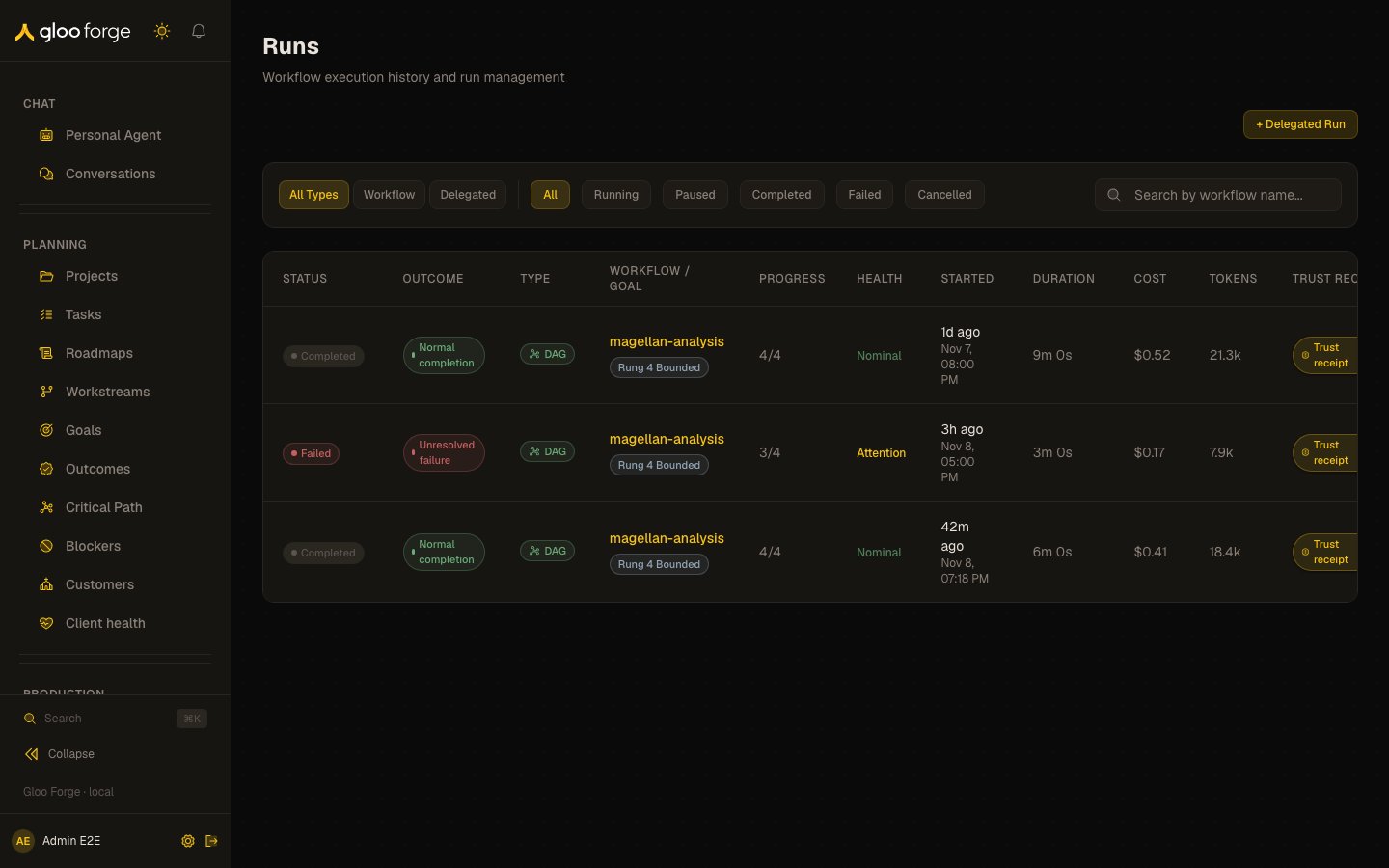
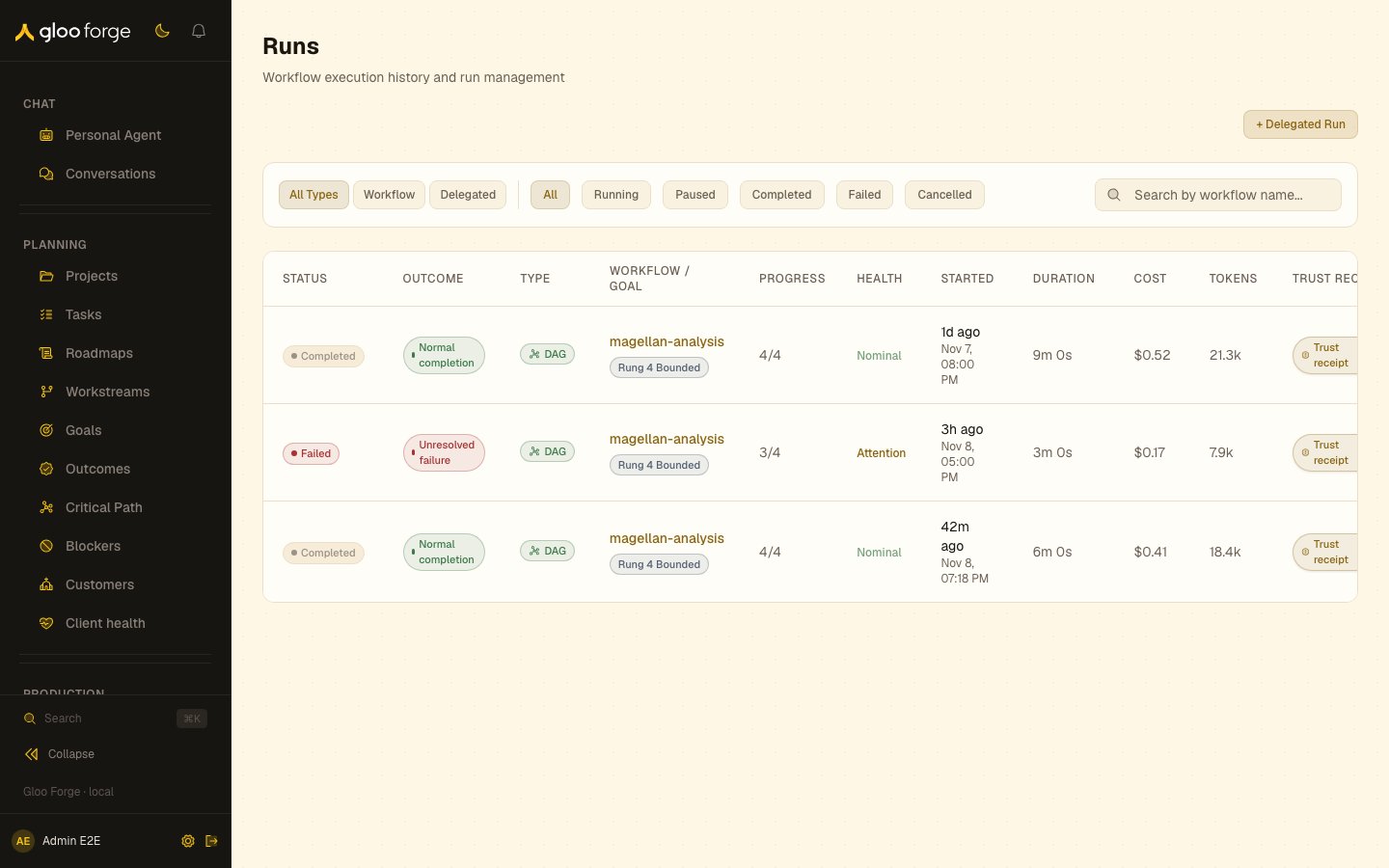
Runs — Forge Console at /production/runs
Tracking required outcome receipts
Workflows using the staged outcome-routing contract record required delivery separately from personal notification preferences. Each run attempt freezes its recipients: the person who starts an interactive run is included automatically, configured operators cover scheduled and other automated runs, and expected exceptions or technical failures notify every configured operator. Muting advisory notifications does not remove these required receipts. For each attempt, authorized run readers can page through up to 100 receipt obligations at a time. Each row identifies the terminal, failure, or expected-exception event; its in-app or staged Slack target; delivery attempts; and one of these states:- Pending — due for delivery or a bounded safe retry.
- Satisfied — the personal in-app receipt committed successfully.
- Attention — the recipient lost access or safe retries were exhausted; automatic resend stops.
- Unknown — delivery cannot safely be assumed or repeated; automatic resend stops.
- Superseded — an authorized repair replaced this target without changing the workflow result.
Required outcome notifications
Workflows using outcome routing declare required operators and optional Slack destinations in Workflow Settings. The run keeps the recipients for each attempt. A later settings change does not redirect an earlier attempt’s notifications. Personal notification preferences do not suppress these required receipts. In the run’s Flow inspector, open Notifications. It lists every notification the run recorded, on any run: these required outcome receipts and the notifications its steps send. Each is labeled by channel (Bell, Slack, or Email). Select Notification attempt to inspect an earlier attempt, including a notification that arrived after a restart. The panel shows its immutable recipient, event, delivery state, retained receipt identifier, and safe error. The run outcome remains separate from delivery status:- Pending means delivery is queued or retrying; it is not a receipt.
- Satisfied means a personal in-app receipt exists, Slack recorded a matching channel and message acknowledgement, an authorized integration manager confirmed delivery in Slack recovery, or an email was handed to the email outbox. The outbox then owns the email’s delivery state and retries, shown under Platform → Email deliveries.
- Unknown means Slack may have accepted the message. Open Slack recovery and establish what happened before sending again.
- Attention means automatic delivery cannot currently proceed. Inspect the error and repair the recipient or delivery operation.
- Superseded keeps the original destination and error and links to its replacement notification.
workflows:manage and retries delivery only. It does
not rerun business steps or erase the original failure. In-app delivery has five bounded attempts
before operator attention. Once Slack work is enqueued, the existing Slack outbox owns retries and
rate limits; workflow repair does not start another send loop.
For a Slack operation, Open Slack recovery leads to the Slack provider’s existing delivery
controls. Integration managers can reconcile unknown sends or requeue a rejected operation.
Return to the run to observe the same operation’s updated evidence. A missing retained operation
stays in attention; it is never silently recreated.
An email notification in attention has the same Retry notification and Replace recipient
controls. A retry checks the recipient again and hands the message to the email outbox once. If the
hold came before the outbox, for example because the recipient was denied or has no email address,
fix the recipient and retry. If the outbox already rejected the message, for example because its
body is too large, the row also shows Open email deliveries; a retry finds that rejected
delivery and stays in attention, so replace the recipient or resolve it under Platform → Email.
A replacement person for an email notification is notified by email.
Replace recipient validates the new destination against the run’s actual scope and requires a
reason. The original record is preserved. An uncertain or still-active Slack send must first be
resolved through Slack recovery. Slack workspace choices require integration management access;
an authorized in-app recipient can be selected without that grant.
Required Slack operations retain acknowledgement and uncertainty evidence, including delivered,
unknown, and rejected operations. The generic retention routines do not delete that evidence.
This feature does not enable a new garbage-collection schedule or an automatic expiry policy.
Notification repair never authorizes business replay. Preserve the run’s effective verdict and
accepted provider identifiers, reconcile any unknown external effect first, and use targeted
restart only when the retained replay evidence says the selected boundary is safe.
Previewing a workflow debug slice
For an immutable published version, Debug preview in the builder header can reconstruct the JSON inputs that a selected node would receive from a prior run. Select a completed or failed production run from that exact version, then select the node where inspection should begin. The preview separates historical values that would be reused from the downstream nodes that would be part of a future execution slice. This surface requires bothworkflows:read and workflows:use, plus the
workflow_debug_execution feature flag. It supports linear, AI Agent-only slices with JSON boundary
values. Branching, unsupported node types, file inputs or outputs, missing historical values, and
oversized source data appear as explicit blockers.
Exporting a run’s debug bundle
The run inspector’s Export debug bundle action collects every record needed to triage one run — the graph snapshot, step results, validator runs, and the structured failure detail — into a single payload. Small bundles are returned inline for copying; a bundle above the query result cap is streamed to storage and returned as a download URL instead. This surface requiresworkflows:read. The same permission covers the Workflow Architect’s
debugger tools, which read the identical bundle when an operator asks it to explain a failed run.
Running one current-draft node in debug
When a production run exposes a problem, edit the matching node in the workflow’s current draft, select that oneproduce or procedure node, and choose Debug node in its properties panel.
Select a completed or failed production run from the same workflow as the historical source.
Preparation is intentionally separate from execution. Before Run debug, review:
- the immutable target-node snapshot that will execute;
- every historical JSON and file input, including its source run, version, producer, and output key;
- the pinned agent or procedure version, tools, capabilities, credentials, and sandbox policy;
- which operations are live reads, debug-local writes, captured writes, or blocked.
Not found
rather than guessing a match.
Choose Compare on an earlier terminal attempt to compare target configuration, inputs, effects,
outcome, metrics, files, captured writes, and tool/governance summaries. The page records the
baseline as ?compare=<baselineAttemptId>, so a refresh or shared URL restores the same bounded
comparison while both attempts remain retained. Unchanged sections stay collapsed. A notice
identifies truncated history or comparison evidence, and an expired baseline does not hide the
candidate attempt.
Back to draft returns to editing. Debug again from this setup starts a new preparation from
the then-current draft. It reuses only the historical source run and compatible operator-selected
node-output mappings. It does not copy the old plan or plan hash, values, files, credentials,
governance decision, effects, or launch ID. Review the newly resolved plan and blockers before
launching through the normal Run debug control; repeat never launches automatically.
This surface requires workflows:read, workflows:use, and the
workflow_debug_execution feature flag. Prepared plans expire after 15 minutes. Debug records and
files become cleanup-eligible after seven days.
Key state to watch
- Outcome next to Status — a completed run can still have taken an exception or error-handling path.
- Receipt states — Attention and Unknown stop automatic resend and need a person to act.
- Notification delivery — Unknown on a Slack notification means open Slack recovery before sending again.
Related surfaces
- Runs — the cross-workflow run feed and the run inspector.
- Workflows — the catalog and each workflow’s detail page.
- Builder canvas — where the draft node you debug lives.
- Architecture → Workflow Execution