

/production/workflows/convex/schedules) to schedule workflows you can operate and inspect their recent execution health. The roster includes both scheduled and manual workflows.
Platform → Schedules is the administrator view across recurring schedules, upcoming jobs, and triggers. If that page redirects you here, use this workflow-scoped roster.
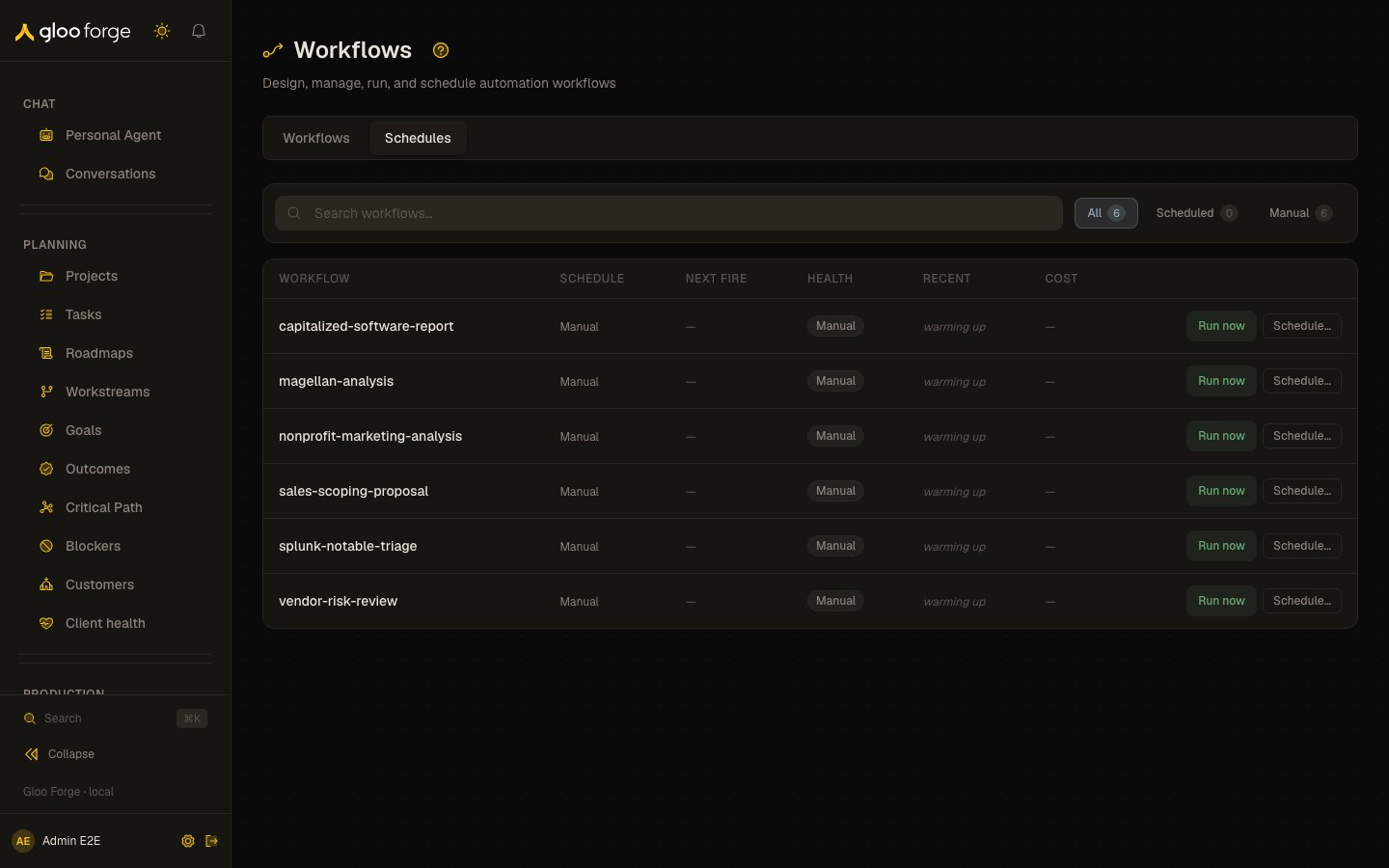
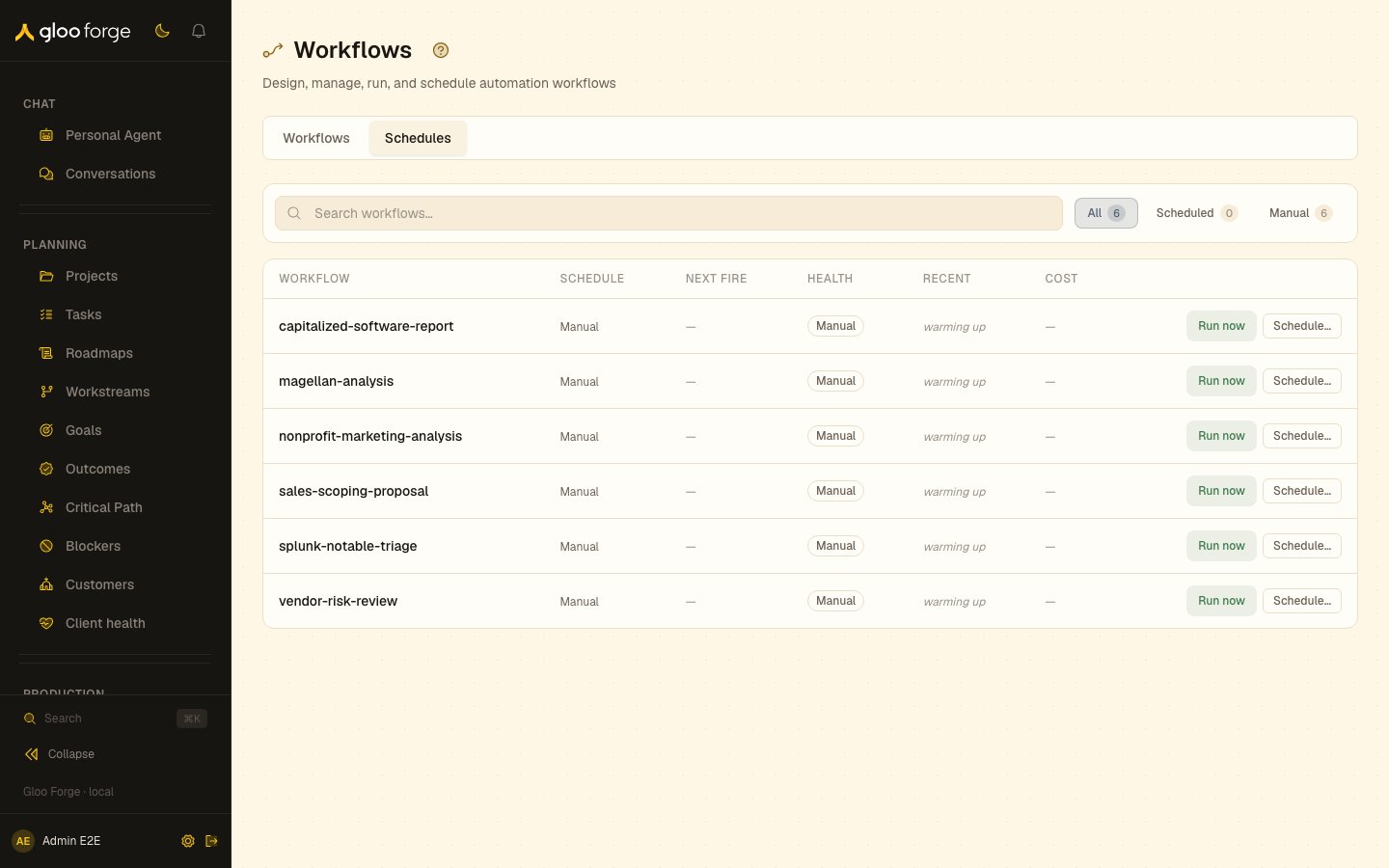
Workflow schedules — Forge Console at /production/workflows/convex/schedules
What you can do
- Read the cadence, next fire, health, recent runs and cost of each workflow you can operate. See Read the roster.
- Create or edit a recurring or one-shot schedule. See Create or edit a schedule.
- Run a workflow now, or pause, resume or unschedule it. See Run, pause, or remove.
- Work out why an occurrence was missed or failed. See Diagnose a missed or failed occurrence.
Read the roster
Search by workflow name or filter to Scheduled or Manual workflows. Rows are ordered with failing or degraded work first. Inspect these columns:
A schedule’s existence does not prove that its last run succeeded. Inspect the recent runs when diagnosing execution health.
Create or edit a schedule
- Find the workflow. Choose Schedule… on a manual row, or Edit on a scheduled row.
- Choose Recurring or One-shot (run once at a future time).
- For recurring work, configure the recurrence and inspect the next-firings preview. For a one-shot run, choose a future date and time.
- Check the timezone explicitly. New schedules start from your browser’s detected timezone; an edited schedule keeps its saved timezone.
- Review the missed-run/backfill policy and any workflow input fields. These inputs are stored for scheduled dispatches.
- Choose Create schedule or Save changes.
- Confirm the workflow’s cadence, enabled state, and Next fire in the roster. Reopen Edit if you need to verify the saved input values or timezone.
Run, pause, or remove
An expired one-shot schedule does not offer Resume. Use Edit to set a valid future occurrence when appropriate, or Unschedule if no future run is needed. Pausing future firings does not itself cancel a run already in progress; inspect that run separately.
Diagnose a missed or failed occurrence
- Confirm you are viewing the intended workflow and scope, with search and filters cleared if necessary.
- Check enabled state, timezone, next fire, and whether a one-shot time has expired.
- Inspect Runs for a created run. If a run exists, investigate its state, failed step, or hold rather than changing the schedule first.
- Use Events for supporting execution evidence. Use Approvals when the run is waiting for a person.
- If a create/edit request fails, retain the form and read its error before retrying. Do not repeatedly choose Run now to test whether a schedule saved.
Key state to watch
- Health — failing or degraded work sorts first; Warming up means too little history to judge.
- Next fire — a dash means nothing is due to fire. An expired one-shot can show its past fire time until the next evaluator tick (up to a minute) disables it.
- An expired one-shot — it offers no Resume; edit it to a future time or unschedule it.
- Timezone — an edited schedule keeps its saved timezone, not your browser’s.
Related surfaces
- Scheduling workflows: create and edit a workflow’s schedule.
- Schedules: platform crons and the operator-wide trigger rollup.
- Runs: runs a schedule has launched.