

/workforce/org-chart) is the org-chart visualization. Forge models humans and agents under one workers abstraction (kinds: EMPLOYEE, CONTRACTOR, AGENT) and shares the org hierarchy — Company → Departments → Teams → Positions → Workers — across both.
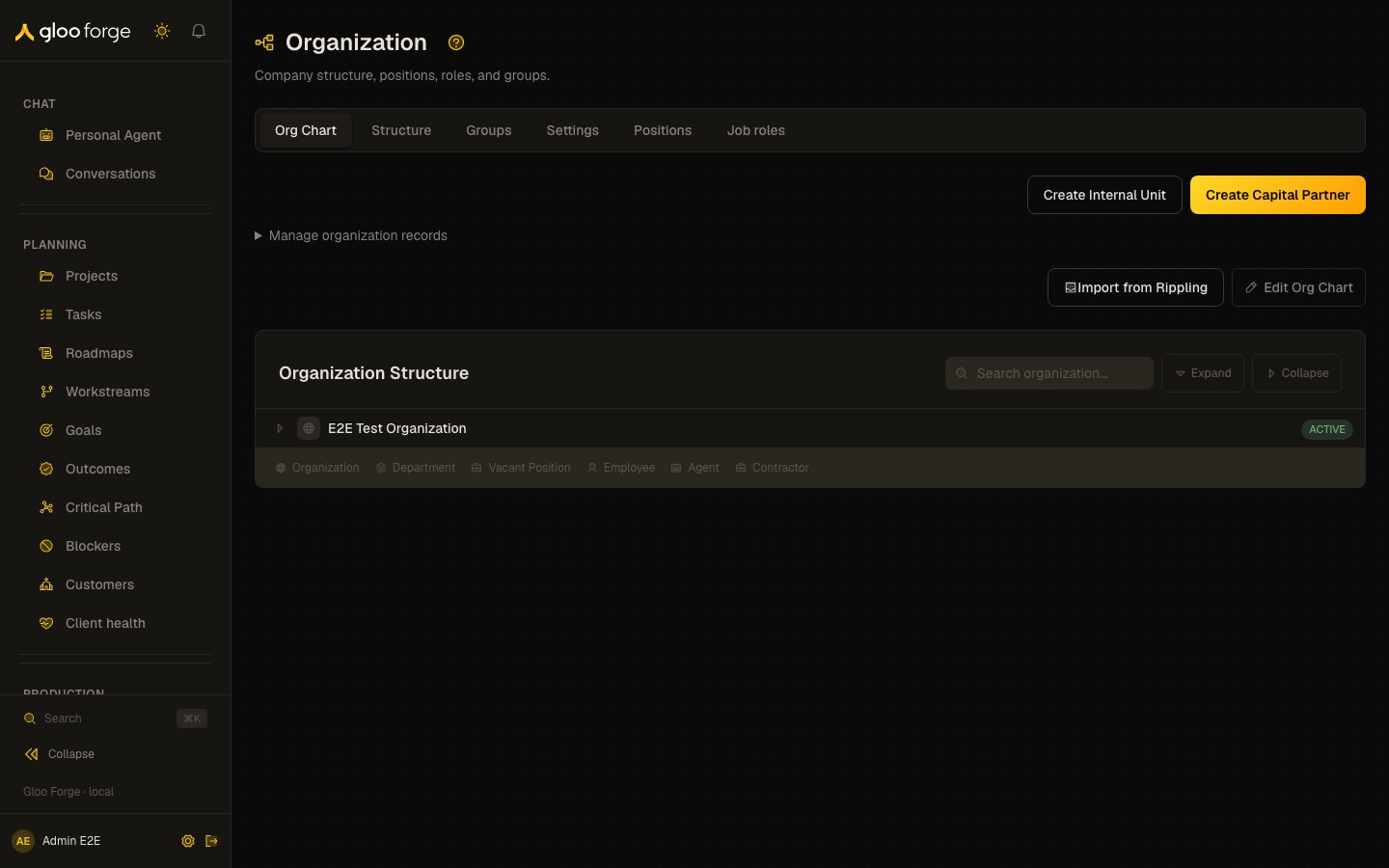
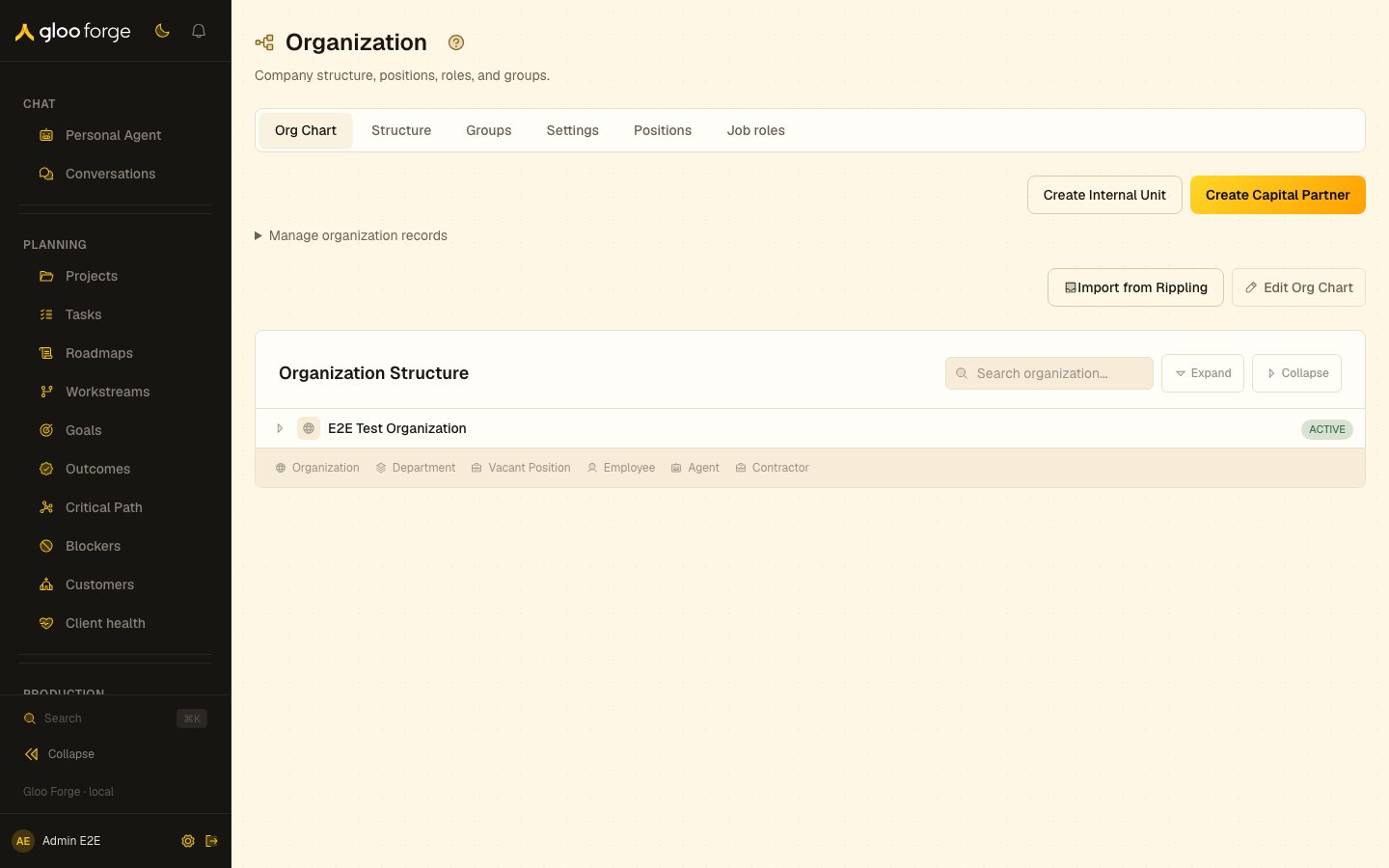
Organization — Forge Console at /workforce/org-chart
What you can do
- Pan and zoom the org chart. Click any node to see its detail panel.
- Expand a department to see its teams; expand a team to see its positions; expand a position to see the worker filling it.
- Toggle between workforce-kind filters: humans only, agents only, both.
- Edit reporting lines directly — drag a node under a new parent. Edits are governed events.
- Open a position to see its assigned worker, role, and entitlements.
- On an org unit’s page (
/workforce/orgUnit/<id>), the Knowledge card shows what the unit knows as a team and as a department: the number of active entries in each scope (it stops counting at 200 and shows “200+”), its top five cases, and Browse all, which opens the Knowledge Base filtered to that scope. It needsknowledge:read; a scope you can’t read shows no count. An external organization’s own unit (a customer or capital partner) also shows that organization’s knowledge first, under Organization.
Move a unit between companies
The org chart has many company roots: the canonical Gloo organization and each independent capital partner. Moving a unit carries everything beneath it, so a move that crosses from one company root into another changes who can reach that whole subtree. That move takes platform administration;org:manage alone is not enough, and the live move dialog shows destinations in
another company as disabled rather than letting the move fail on submit. Moves inside one company
are unaffected.
A move is also refused when it would create a cycle, when the destination is archived, when the
tier nesting rules disallow it, or when the subtree is larger than 500 units. A refused move
changes nothing — the chart is never left half-moved.
Manage canonical organization records
Forge owns the canonical organization, including records linked to an external source. Withorg:manage, create or edit organization units and positions through the org-chart draft, review
the proposed changes, then publish. Use the active/archived filter to find a record to restore.
Archive and restore show a dependency preview: resolve active children, positions, assignments,
or other listed dependencies explicitly and provide a reason. If the target changed since preview,
refresh and review again; a stale confirmation cannot apply.
Create a capital partner as an independent root organization, not a department under Gloo. Its
stable CP_* code identifies the partner, and its name, code, and description remain editable
through the capital-partner editor. Archive a partner only after reviewing its dependency preview;
use the archived filter to restore it later. Creating or restoring a partner does not provision a
credential, connection, or source mapping. Existing partner codes with dependencies cannot be
casually renamed.
Open /workforce/positions or a position detail to review assignment history. Authorized operators
can create, date-correct, end, or reassign a placement after reviewing its before/after state.
A new placement is made by choosing the worker from a search of people and active agents (agents
are listed for anyone with chat:read) and the position from a searchable list, not by typing
their ids. A new position can be given its Job (the role whose
tools, skills, and bounds its worker gets) when it is created.
Primary placements cannot overlap for the same employment seat, and active placements require
active organization ancestry. Historical assignments remain visible after they end.
A placement change, whether made here, on the org chart, through a published draft, or by an
archive that ends assignments, takes effect at an agent’s next dispatch: the same write refreshes
the home and tool sets the agent derives from its position. A published role change on a position
does the same for its seated agent.
Jobs and agent seats
A position’s Job is the role it names: the tools, skills, and bounds its holder works with. An agent must sit in a position that has a job before it can run in a workflow.- On the org chart, each position shows its job’s name (for example Job: AP Clerk), or a muted No job when it names none. Draft edits do not show jobs until they are published.
- On
/workforce/positions, the Job column shows the same name. The Held by filter keeps positions held by an Agent, a Person, or nobody (Vacant); the choice stays in the URL as?holder=agent,?holder=person, or?holder=vacant, and each chip shows its count. - Agent seats shows agent-held positions plus vacant positions that allow agents
(
?holder=agent&seats=open). It is the shelf agents are seated from. - A position’s detail page shows its Job, linked to the jobs list, and who it is Held by.
- An agent-held position shows whether its agent is ready to run: a status dot on the org chart,
and a Ready, Needs attention or Blocked pill beside the holder on
/workforce/positionsthat opens the agent’s checklist. Only people who can see agents (agents:read) see the status.
Position occupancy and edits
Each position has one current primary occupant at most. Assigning a worker to a filled position ends the outgoing worker’s current placement and records the new primary placement. If that worker already has a primary placement elsewhere, Forge ends that placement and reopens the former position as part of the same change. Clearing a position ends its current placement and reopens the position; it does not delete assignment history. Seat edits and occupancy changes are separate. Position settings such as agent eligibility, role, and prompt can change without replacing the current occupant. Use the assignment controls to move or replace an occupant. Reporting-line edits require a reason and are rejected when they would create a cycle. Position details also support a reviewed reporting-line edit or explicit clear. A rejected cycle names the conflicting positions and shows the complete cycle path so the operator can correct the right edge without changing organization placement.Review workforce integrity
Open Workforce → Integrity to run or inspect an integrity audit. Findings are grouped by causal problem and lead with resolved people, worker, position, organization, assignment, and identity names; stable IDs remain available as diagnostic detail. Review the proposed effect before applying any repair. Personless seats require an explicit canonical person or reviewed name-only person creation—Forge does not match people by similar names. Live orphan identity claims can be reviewed for relink or revocation. Revoked historical claims remain preserved as non-blocking evidence. Seat consolidation previews bind the exact workers, positions, assignments, reporting edges, mappings, and reference transfers to an immutable plan hash; a changed dependency requires a fresh preview.Review a Rippling reconciliation
People with bothorg:manage and workforce:manage can select Import from Rippling. The import is a
reviewed reconciliation, not a replacement or clear-and-reseed operation:
From a repository checkout with the Rippling capture tool’s dependencies installed, refresh the saved
Chrome session when needed and create the artifact with the expected tenant identity:
out/rippling-org-<timestamp>.zip. Do not use --limit: limited captures are marked
SAMPLE, and Forge rejects them for application. Before archiving, capture prints a non-PII
preflight summary with worker counts and the external IDs of active profiles that lack email. Forge
imports those records as source-only workforce profiles unless an existing canonical person can be
resolved safely. Upload the complete artifact within 24 hours.
- Create a fresh
FULLcapture for the expected Rippling tenant, then choose its zip file. - Wait for preview. Preview makes no canonical organization, person, employment, assignment, reporting, or cleanup changes.
- Confirm the tenant, capture time, worker/department/team counts, artifact digest, and plan hash.
- Review organization creation and exact-match results, identity conflicts, position adoptions/moves/creates/retirements, primary-assignment changes, preserved secondary assignments, reporting changes, and source-scoped deactivations. Repeated worker-placement blockers that depend on the same unresolved organization mapping are grouped with an affected-worker count; root-placement exceptions remain individually visible.
- Resolve only genuine conflicts or exceptional company-root placements. On first import, Forge proposes a unique exact-name department match or a distinct child of its canonical Forge parent. Workers without an explicit department inherit their manager’s resolved placement. A source department reviewed beneath a canonical Department is represented as a canonical Team; later previews retain that reviewed type instead of recreating or reverting it.
- Select Re-preview with resolutions if a genuine conflict required a disposition. Apply stays disabled until the preview has no blockers and any required suspicious-drop reason is present. A profile with neither source email nor a safe canonical-person match is imported as an unlinked source profile; Forge does not invent an email or omit the worker. Its person-only avatar is deferred until the profile is linked to a canonical person.
- Select only the proposals you approve. Review each category, before/after state, and downstream effects; reject anything you do not want applied. Conflict rows cannot be selected until resolved in a fresh preview. Confirm the selected proposal set, then choose Apply reviewed plan. Apply binds the exact selection to the reviewed preview and target state. A stale preview is rejected before any workforce mutation; omitted proposals are recorded as Not selected.
- Review every named verification result in the completed view. A run cannot complete when any predicate fails or with entity-level errors.
Retry and artifact retention
If preview is blocked, change the dispositions and re-preview the same artifact. After a stale-plan response or failed apply, re-preview before retrying so Forge calculates a new run and plan hash against current state. Only one Rippling apply can run at a time. Its lease expires after 15 minutes without a heartbeat, allowing a later reviewed run to proceed after the abandoned run is marked failed. Forge deletes the uploaded artifact immediately after a completed apply; an hourly retention job retries deletion if necessary. Blocked or failed artifacts may remain available for diagnosis or retry for up to seven days. Run history keeps the digest, source timestamps, counts, operator, override reason, plan hash, and verification results, but not names, emails, or the raw manifest.Organization and reporting are separate projections
Department and team placement follows the active primary position’s typed organization ancestry. Reporting follows position-to-position manager links, even when a manager and report belong to different departments. Changing a reporting line does not change department membership, and moving a position between departments does not invent a reporting relationship. Mapped department and team nodes display Managed by Rippling. The badge records provenance, not a write lock: Forge remains canonical, and later imports require another explicit review.Key state to watch
- Worker kind icons — humans vs agents are visually distinct on the chart.
- Jobs — an agent seated in a position with No job cannot run in workflows.
- Vacancy state — open positions are highlighted; pending hires show their target start date.
- Span of control — the count of direct reports under each manager. Out-of-band spans are flagged.
Related
- Concepts → Worker Abstraction
- Workforce → People