

/workforce/agents) is the agent-fleet directory. Each row is a worker with kind === "AGENT" bound to an agentDefinitions row. Some agents are platform-shipped (SYSTEM agents); others are workspace-authored. Both flow through the same governance stack.
WORKER-tier agent cards show the agent’s active position and org unit (if assigned). Clicking the position title navigates to the position detail view; clicking the org unit name navigates to the org unit detail view.
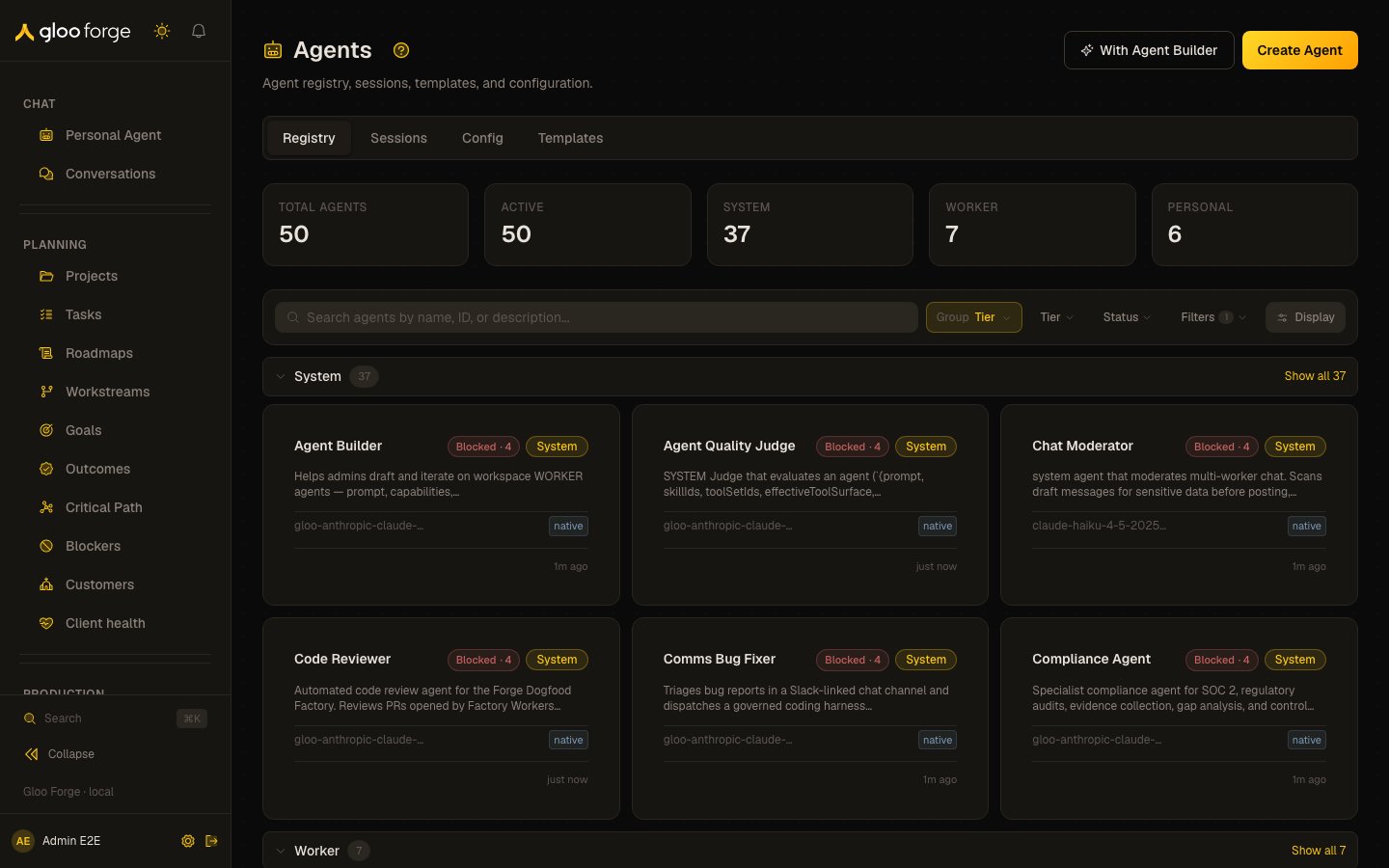
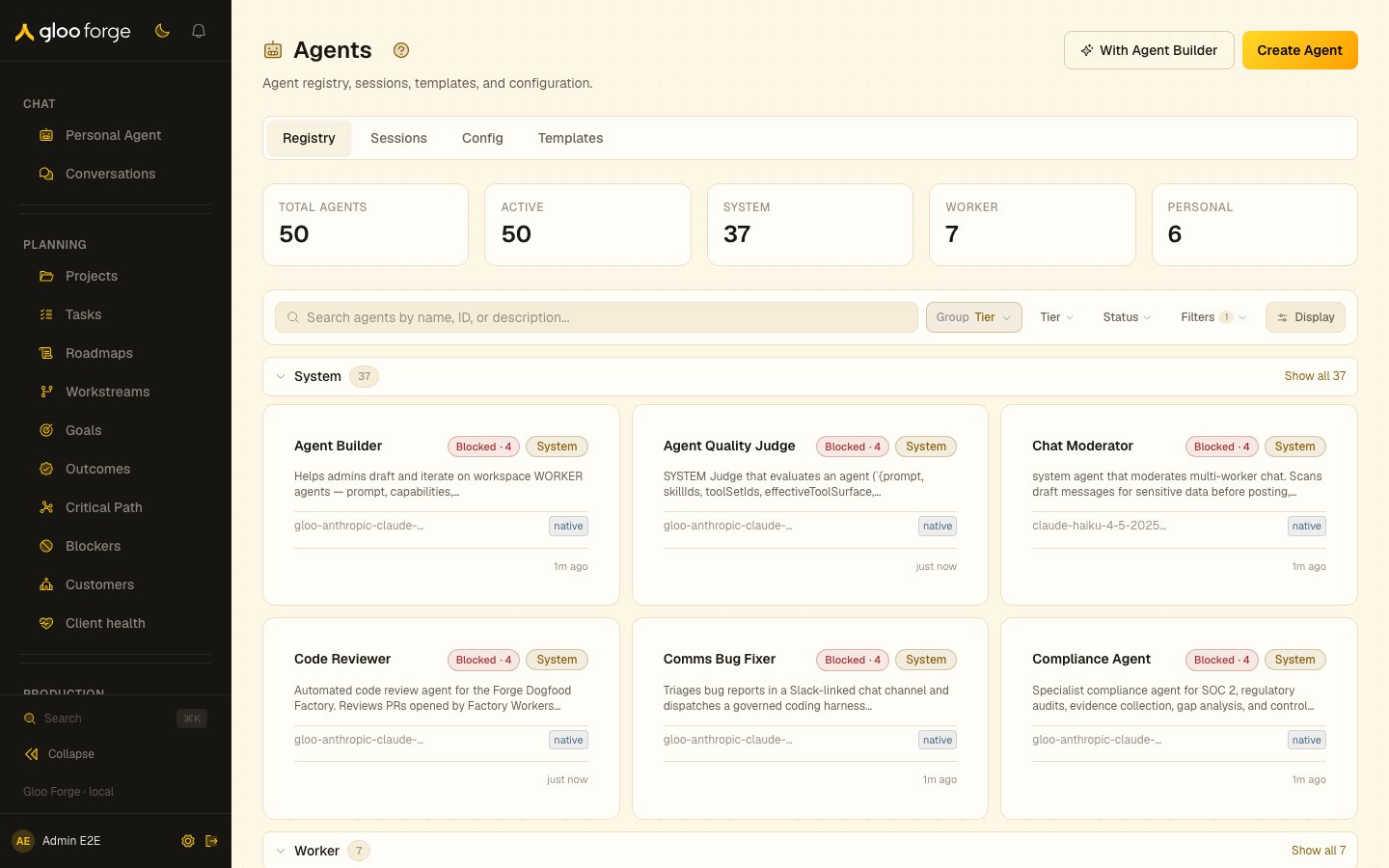
Agents — Forge Console at /workforce/agents
What you can do
- Filter by Tier (System, Worker, Personal), Status, and Execution model.
- Open an agent’s profile to see its current prompt, skills, tools, governance posture, and the dispatches it has handled.
- Pause an agent — the Trust Fabric gate-1 preflight blocks future dispatches until unpaused.
- Hand off an agent’s queue to a different agent or to a human worker.
- Review the agent’s recent governance decisions — every
blockorholdit has received.
Create an agent
Choose Create Agent on the registry, or open/workforce/agents/create, to define a new agent.
Name and Agent ID are required; typing a name regenerates the ID from it (lowercase, spaces as hyphens).
- Identity — Name, Emoji, Agent ID, Purpose (one sentence), Description and Tags (comma-separated).
- Core Prompt — the agent’s standing instructions.
- Model — a model ID from the catalog, and whether the model may be overridden at runtime. Leave it empty to use the platform default chain; an ID that is not in the catalog is refused.
- Constraints — Max Tool Calls and Timeout Seconds.
- Governance — Tier (System, Worker or Personal) and Data Scope.
- Risk Classification — the autonomy rung (Assistive, Retrieval, Supervised or Bounded), the external AI/API vendors it uses, whether it accesses sensitive data (PII, PHI, financial records, compensation or legal documents), and its maximum spend per action in USD (0 = none).
Organizing the fleet
The directory uses the shared collection grammar (Search · Group · Sort · Filter · Layout), consistent with every other Forge collection.- Group by — Tier (the default), which bands agents in System → Worker → Personal order; or none.
- Sort by (in the Display popover) — Name (the default, A–Z within every band), Updated, Created or Most used.
- Filter — by Tier, Status (Draft, Active, Deprecated, Archived) and Execution model.
- Layout — card (the default) or list.
Check that an agent is ready to run
An agent’s Overview tab opens on Ready to run. It checks the same things the runtime checks before it gives the agent work, and groups them under three questions:- Where does it work? The agent has a worker, the worker sits in a position, the position has a Job, and a team answers for the agent through that position.
- What may it do? The agent is on, and it holds the Access its workflow steps need. Its autonomy level is shown with what that level means for its work.
- Who answers for it? An active person owns the agent, the owner’s review is current, and the owner has confirmed the agent’s identity. This card offers one next step at a time.
Anyone who can read the agent sees the checklist:
agents:read for the whole organization, or for the org unit the agent belongs to or one above it. If your access doesn’t grant agents:read for the agent, the card says so instead of showing the checks.
If you don’t hold the permission, the check names it instead of offering the fix, and offers Request setup. One request covers every gap the agent has, not just that check. It goes to the people who hold a permission the gaps need and can open this checklist, up to 25 people: Access requests go to holders at the agent’s org unit, an org unit above it, or the platform, and position and owner requests go to holders for the whole organization, because only they can make those fixes. It lands in their Approvals → Waiting on me, and the check then reads Requested · N people notified. If no one holds the permission yet, it says so and suggests asking a platform admin. Asking needs only agents:read, and asking again returns the open request. The request closes by itself once the agent is ready to run.
Checked at run time lists what the checklist can’t promise because it is decided on each run: the kill switch, budgets, rate limits, approvals and policies, and model availability.
The meta rail shows the result as Ready, Needs attention or Blocked; select it to jump to the checklist. Creating an agent from the create form ends on Finish setup, which opens this checklist; creating one from a template opens the checklist directly.
The same status shows wherever agents are listed:
- Each card and row on
/workforce/agentscarries the agent’s status. A count after Blocked is the number of checks that stop it from running. - On
/workforce/positions, an agent-held position shows its agent’s status beside the holder’s name. Select it to open the agent’s checklist. - On the org chart, an agent-held position carries a status dot.
- In the workflow builder’s agent picker, each agent shows its status. See Choose an agent that can run.
agents:read). Someone whose agents:read covers only some org units sees the status of the agents homed there, as the agent list shows them.
How it’s connected
Below the checklist, How it’s connected draws the same settings as one picture: the owner, the agent, its worker, the worker’s position and the position’s org unit, the position’s Job with its tools, the agent’s Access with each grant’s scope, and the workflows whose active version uses the agent. Each link is one of the checklist’s checks:
A failing check draws its link and the thing it points to in red, with the check’s message; select it to jump to the checklist’s fix. Something missing appears as a dashed placeholder, such as No position yet, rather than disappearing. Without
grants:read, the Access box says it is hidden instead of empty. Without workflows:read, the Workflows box says Workflows hidden instead of claiming no workflow uses the agent. When more workflows use the agent than the page lists, it says so. If the readiness checks can’t load, the graph still draws with no link marked, and a line under the heading offers Try again. Under the graph, the same chain is listed as text.
See what an agent knows
Open an agent’s profile (/workforce/agents/<agent>) and select the Knowledge tab to see what the agent knows. Its memory has three layers:
- Session: the running summary the agent keeps for each conversation session, with the channel it came from.
- Channel: what the agent carries across sessions in a channel.
- Long-term: the durable memories the agent recalls, with how often each has been recalled.
memory:read permission. Managing memory needs memory:write, which lets you:
- correct a session summary;
- Forget one long-term memory;
- Clear all of a layer.
memory:read.
At the top of the tab, Knowledge it can read lists the knowledge scopes the agent reads outside a run, grouped by scope type: global, company, its team, and the agent’s own scope. A run can add its own factory and project scopes. This section needs the knowledge:read permission.
Recent authored knowledge artifacts and Recent cited knowledge artifacts show active cases the agent wrote or cited. Each section shows up to 20 distinct artifacts from its newest 50 author or citation records; it is a recent view, not a complete history. Select a title to open the artifact in the Knowledge Base. These sections require knowledge:read and visibility of the agent under agents:read. They show only artifacts in your readable knowledge scopes and allowed by their source permissions. They remain available when you cannot read the agent’s memory.
Platform agents are centrally managed, so their memory is read-only here. The tab shows it, but hides every action. A Personal Agent’s memory belongs to its owner. Its Knowledge tab links to Settings → Personal Agents, where the owner manages it.
With memory:read, Export long-term memory below the memory card builds an NDJSON file of the agent’s active long-term memories and offers a download link that expires after 24 hours.
The Memory tab next to it is separate. It holds the agent’s memory configuration: its context-budget fraction and its session and channel summary token caps. Only an admin sees Edit or Configure there, since only an admin can save the overrides; anyone else sees a note saying so.
Review an agent’s exemplars
A WORKER agent’s profile has an Exemplars tab. It lists the cases an improved version of the agent must still pass: an input, its expected output, and optional notes. When an improvement starts, it freezes the current list and checks the new version against every frozen exemplar before the version is offered for approval. Editing the list later never changes an improvement that is already running. An admin can add or retire exemplars and then Save exemplars; the agent keeps between two and five. The tab is read-only, and says why, for anyone who isn’t an admin, for platform agents (they are managed by pull request), and for agents that aren’t in draft or active status.Give an agent roles
An agent is an actor, like a person, an API key or an external app, and it holds role grants. An agent’s role grants are its permissions: the Trust Fabric permission gate reads them at the scopes covering the agent’s position. Until that permission source is live on a deployment, a grant is recorded and listed but decides nothing. Open the agent, go to its Governance tab, and use the Roles card. Withgrants:read the card lists every role the agent holds, at every scope, including revoked and expired grants; with grants:manage it also shows Manage roles, where you give or revoke a role. Without grants:read the card shows nothing.
- A role is given at platform scope, so it applies wherever the agent’s position sits in the org chart.
- The grant is keyed by the agent definition’s id, the id the permission gate reads for the agent at dispatch.
- An agent can never hold a permission that approves or administers —
approvals:approveandplatform:manageamong them. Manage roles does not offer a role carrying one, and the server refuses it withnever_held_by_agents. - An archived agent cannot be given a role (
actor_unavailable, reasonarchived); a draft agent can, so it has its roles before it is activated. Revoking always works, and disables the role at every scope the agent holds it. - Every give and revoke writes a
role_grant.givenorrole_grant.revokedaudit event.
Manage role capabilities
Open Workforce → Job roles (/workforce/roles), select a job role, then open its Tools tab to manage the capabilities shared by workers in that job role. The tab can grant or deny skills, individual tools, and tool sets. A deny removes that capability from the role layer; grant it only where the role needs it.
Agent-specific grants are exceptions to the shared role policy. They are applied after the role layer, so an agent grant can restore a capability that its role denies. Use a distinct role when several agents need the same policy, and use the agent configuration only for the exception.
Positions remain the org-chart placement and prompt-context layer. They no longer grant or deny skills or tools. To change a worker’s capability, edit its role or the agent’s exception instead.
The Save button applies the role’s changed grants, denies, and revocations as one atomic update. If the save fails, none of those pending capability changes take effect; correct the error and save again.
Grant procedures to an agent
An agent’s Skills & Tools tab has a Procedures card. A procedure granted there becomes a tool the agent can call. Only active procedures exposed as agent tools can be granted. Each grant or removal takes effect at once; there is no Save. Under Add procedure, search by name or id, then choose Grant on a procedure. The list loads one page at a time. When more procedures exist, it shows Load more instead of cutting the list short. A procedure already granted to the agent reads Granted, and one denied to it reads Denied. The agent’s procedures are listed by name even when they are not on the loaded page.Key state to watch
- Rung — set at creation and shown on Trust Fabric → Agents; the autonomy gates check it on every tool call and procedure run, not on step or delegated dispatch.
- Budget consumption (24h) — token + compute spend.
- Drift signal — Judge agents flag drift on this agent; the badge surfaces the highest-severity active alert.
Related
- Agent composition — how the dispatch config is built.
- Workforce → Org Chart — where agents sit in the hierarchy.