

/trust-fabric/access) shows Forge’s authority in one place. Everything an agent or a
person may do comes from permissions. A role bundles permissions, and a role grant gives
someone a role at a scope: the platform, or one organization unit. Access shows the permissions
and roles in words, and links each refusal elsewhere in the Console back here.
Permissions and Roles need See roles (roles:read), which the Base role includes. Holders, Access check and Delegation independently need See access (grants:read). A role
grant itself is given and revoked from Members (/platform/members).
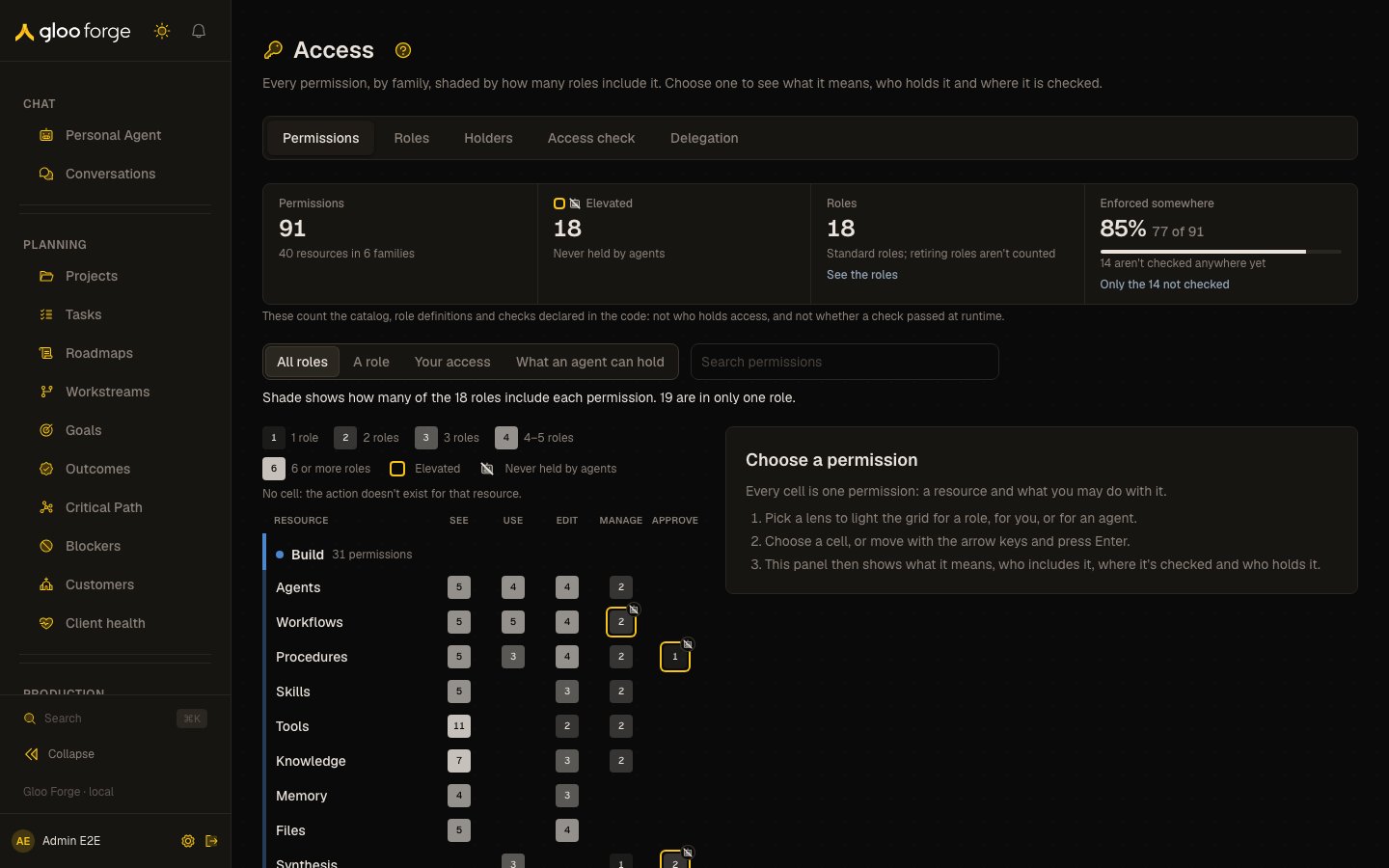
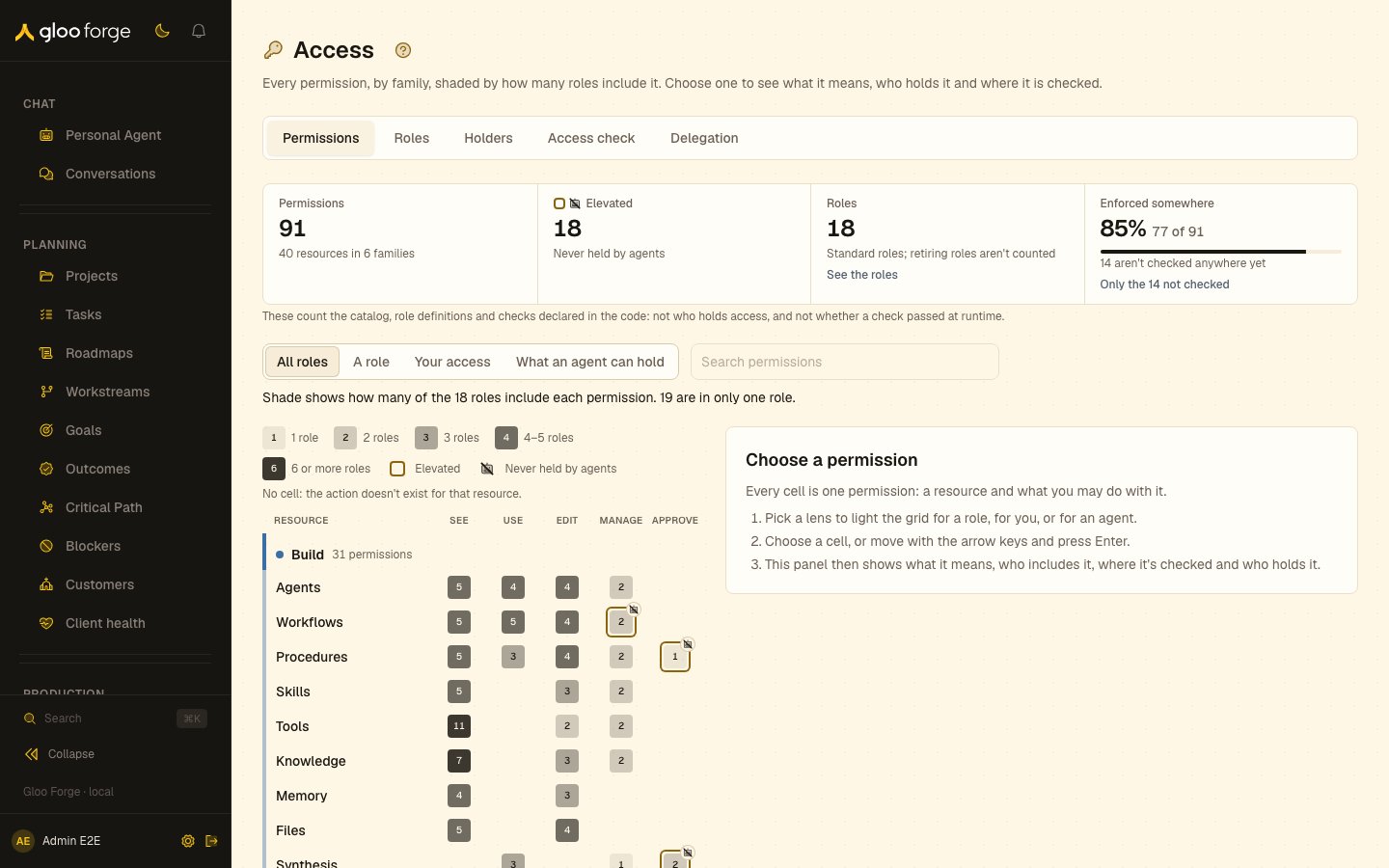
Access → Permissions — Forge Console at /trust-fabric/access
What you can do
- Find a permission. Search by what you want to do, and narrow the grid to the permissions nothing checks yet.
- Change the lens. Read the grid for all roles, one role, your own access, or what an agent can hold.
- Open a permission. See what it allows, the roles that include it, where Forge checks it and who holds it at a scope.
- Move to another tab. Roles, Holders, Access check and Delegation each have their own page.
Tabs
Access has five tabs. This page covers the first, Permissions.Permissions
Every permission, grouped by family, as a grid of resources against the five verbs, shaded by how many roles include each one. This is the default tab, at/trust-fabric/access, described below.
Roles
Every role as a card, and a comparison of any two roles, at/trust-fabric/access/roles. See
Roles.
Holders
Everyone who holds a role that reaches a scope you choose, and how roles are given and revoked, at/trust-fabric/access/holders. Needs See access (grants:read). See
Holders.
Access check
Ask whether a person or agent holds a permission at a scope, and see why, at/trust-fabric/access/check. Needs See access (grants:read). See
Access check.
Delegation
Review the published workflow versions authorized to use a company’s credentials, and revoke a grant, at/trust-fabric/access/delegation. Needs See access (grants:read). See
Delegation.
The permission grid
A permission is a verb on a resource, such as Manage runs. The verbs are See, Use, Edit, Manage and Approve, and permissions are grouped into six families: Build, Run, Connect, Govern, Org and Platform. Each permission’s key, such asruns:manage, is under Technical details and in the
permission reference.
The tab opens with four numbers:
- Permissions: how many the catalog has.
- Elevated: approve or administer permissions, which need an explicit opt-in to give. Agents may never hold them: agents do work, and never approve or administer. If the catalog ever lists a permission agents may not hold that isn’t elevated, the tile counts both.
- Roles: the standard roles (retiring compatibility roles aren’t counted), with a link to the Roles tab.
- Enforced somewhere: the share with at least one entry in the enforcement map. Only the …
not checked is a toggle: pressed, it narrows the grid to the permissions nothing checks yet,
kept in the address as
?filter=unenforced; pressed again, it shows every permission.
- Legend. Above the grid, a legend names each shade the grid draws, the amber ring and the agent mark, and says that a missing cell is an action the resource doesn’t have.
- Shade. Each cell prints how many roles include the permission; darker cells are in more roles. Retiring compatibility roles are not counted.
- Amber ring. The permission is elevated.
- Robot with a slash. An agent may never hold the permission.
- Blank cell. The resource has no permission for that verb.
- Find a permission. Search by what you want to do, for example “cancel” or “credentials”. The grid narrows to permissions whose label or description matches.
-
Choose a lens. The same grid answers four questions:
- All roles: how many roles include each permission (the shade).
- A role: what one role includes. Choose the role from the list; retiring roles are marked.
- Your access: what you can do at a scope you choose, from your own grants. A permission a role grants but scopes narrow or a ceiling caps reads that way. If Forge can’t tell what you hold, the sentence under the lenses says why and nothing is lit.
- What an agent can hold: everything but the elevated permissions, which an agent may never hold.
?lens=role&role=operator&key=runs:manage), so a link shares the same view. -
Open a permission. Choose a cell, or move to it and press Enter. A panel beside the grid (a
drawer below 1024 px) shows what it lets someone do, what it means in the current lens, the roles
that include it (the lens role highlighted), where Forge checks it, and who holds it at a scope
you choose (needs See access). Escape or Close returns to the cell. The panel links to the
permission’s own page at
/trust-fabric/access/permissions/<key>.
A permission’s page
A permission’s page shows:- what the permission lets someone do, and its family and resource;
- where the permission check sits among the checks every governed request passes, from the kill switch to budgets;
- Elevated, needs opt-in when giving the permission needs an explicit opt-in;
- Included in: the roles that include it;
- Held at a scope: who holds it at a scope you choose, through a role given there or above it.
This part needs See access (
grants:read); without it, the page says so and shows the rest; - Enforced at: how many server functions, places in the Console and tables check it, then the
Console pages and API routes that check it, by name. The server functions and tables, and each
raw path, are under Technical details. A link opens the enforcement map
(
/trust-fabric/access/enforcement), the read-only table of every place Forge checks any permission, with its guards and known gaps. It replaced the Platform Access Control Matrix, whose old URL redirects there.
/trust-fabric/access/enforcement) is a static inventory of declared checks,
not a runtime test or a measured protection rate; a callout above its numbers says so. Each surface opens its detail from a button you
can reach with the keyboard.
When an action is refused
When a control is unavailable because you lack a permission, it says what you need in words and which roles include it, for example “You need Manage runs. Operator and Platform admin include it.” With See roles the permission links to its page here. In Decisions, a blocked decision’s missing permissions read the same way.Access
- The Permissions and Roles tabs, and the permission and role pages, need See roles (
roles:read). - The Holders tab, a holder’s page, Held at a scope and View access need See access (
grants:read). - Giving and revoking needs Manage access (
grants:manage), within the rules in Giving and revoking roles. - Offering an organization the person doesn’t already hold needs See people and positions
(
workforce:read).
Key state to watch
- Enforced somewhere. The share of permissions with at least one entry in the enforcement map; Only the … not checked narrows the grid to the rest.
- Elevated. An amber ring marks a permission that needs an explicit opt-in to give. Agents may never hold it.
- Nothing lit in Your access. Forge can’t tell what you hold; the sentence under the lenses says why.
Related surfaces
- Permission reference: every permission, generated from the catalog.
- Decisions: why a request was allowed, blocked or held.
- People: a person’s roles on their profile.
- Trust Fabric concepts: how the gate decides.