

/platform/members) is where you invite people and give or revoke their platform roles. It is the Members tab of the Settings sidebar entry under Platform, after Feature Flags. Open it to onboard someone, to see who holds a role, or to change roles for several people at once.
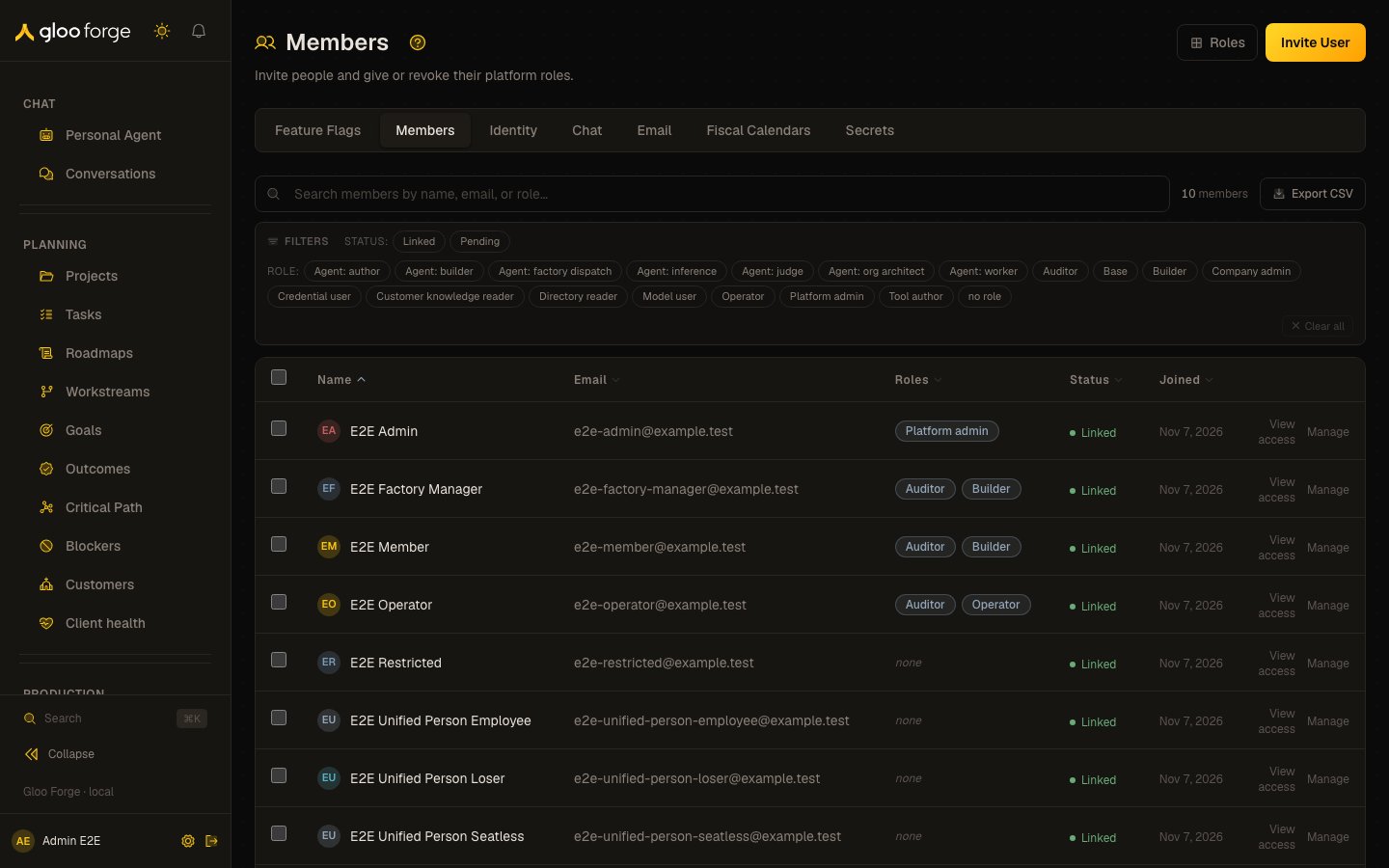
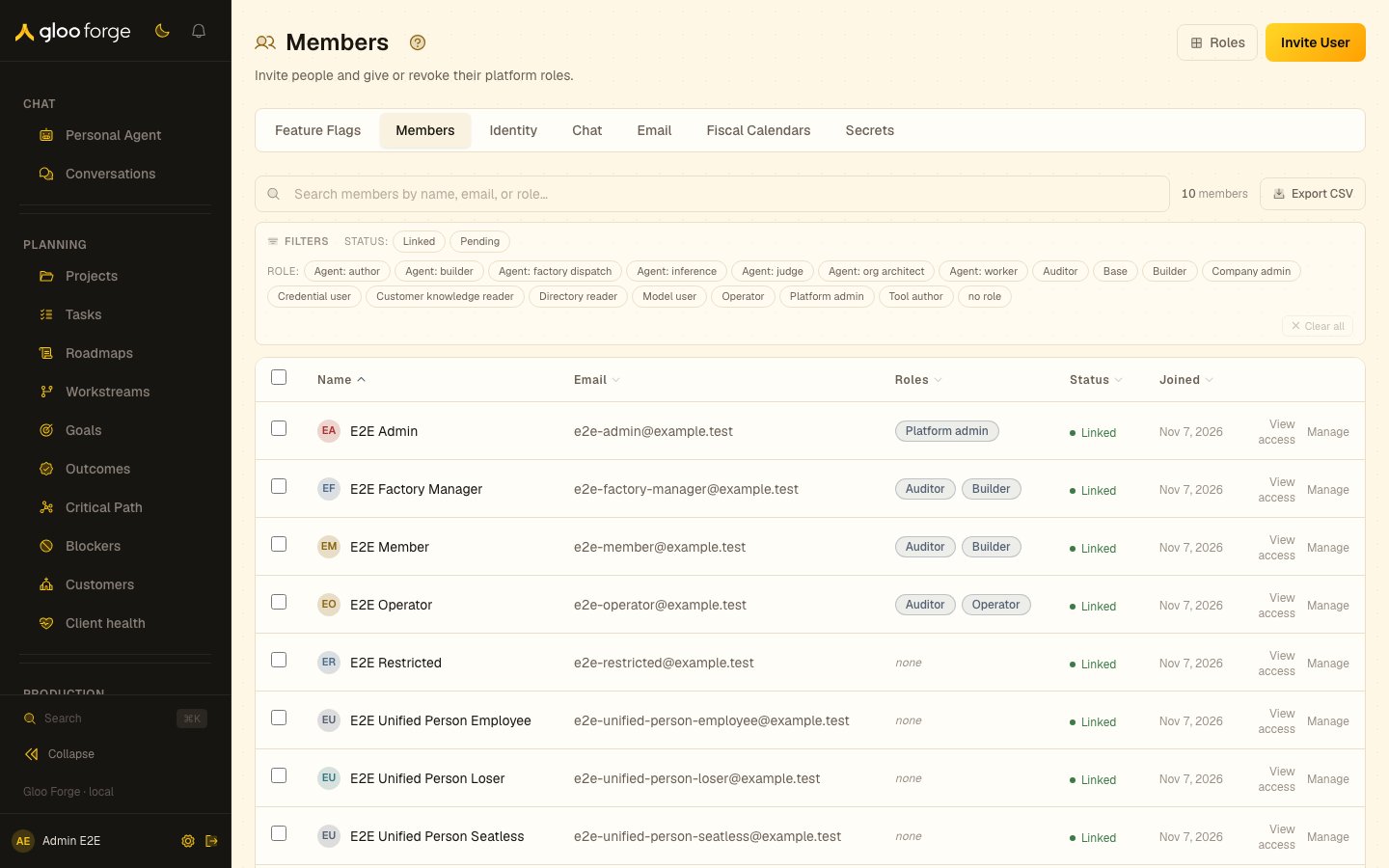
Members — Forge Console at /platform/members
What you can do
- Invite User opens an inline form with Email and Name (optional); submit with Invite User.
- Roles opens the role catalog under Trust Fabric access.
- Search with “Search members by name, email, or role…”.
- Filter by status (Linked, Pending) and by role, including no role. Clear all resets the filters.
- Export CSV downloads the current list.
- Manage on a row opens that person’s roles: Held roles lists what they hold, with a revoke control on each revocable grant, and Give a role lets you pick a scope and a role to grant.
- Select rows with the checkboxes to open the bulk bar, then Give role or Revoke role. Review the change and click Confirm. Cancel or Escape clears the selection.
Columns
Every column sorts.
Who can act
The role pickers offer only roles you may give. When you may give none, Give role is disabled with “No role you may give”; when the selection holds no platform role, Revoke role is disabled with “No platform role held by the selection”.Key state to watch
- Pending members: no sign-in account is linked to the person yet. Follow up, or check Identity for an unmapped sign-in attempt.
- “Not every role grant was loaded, so some members may show fewer roles than they hold.”: the Roles column is incomplete; confirm a person’s roles in Manage before acting on them.
- Members with no role: they hold no platform role; give one from Manage if they need access.
- A bulk change that reports ” of failed.”: the review lists each person it could not change; retry them from Manage.