

/trust-fabric/access/holders) is the third tab of Access. It lists everyone who
holds a role that reaches a scope you choose. It needs See access (grants:read). Roles are given
and revoked from Members (/platform/members).
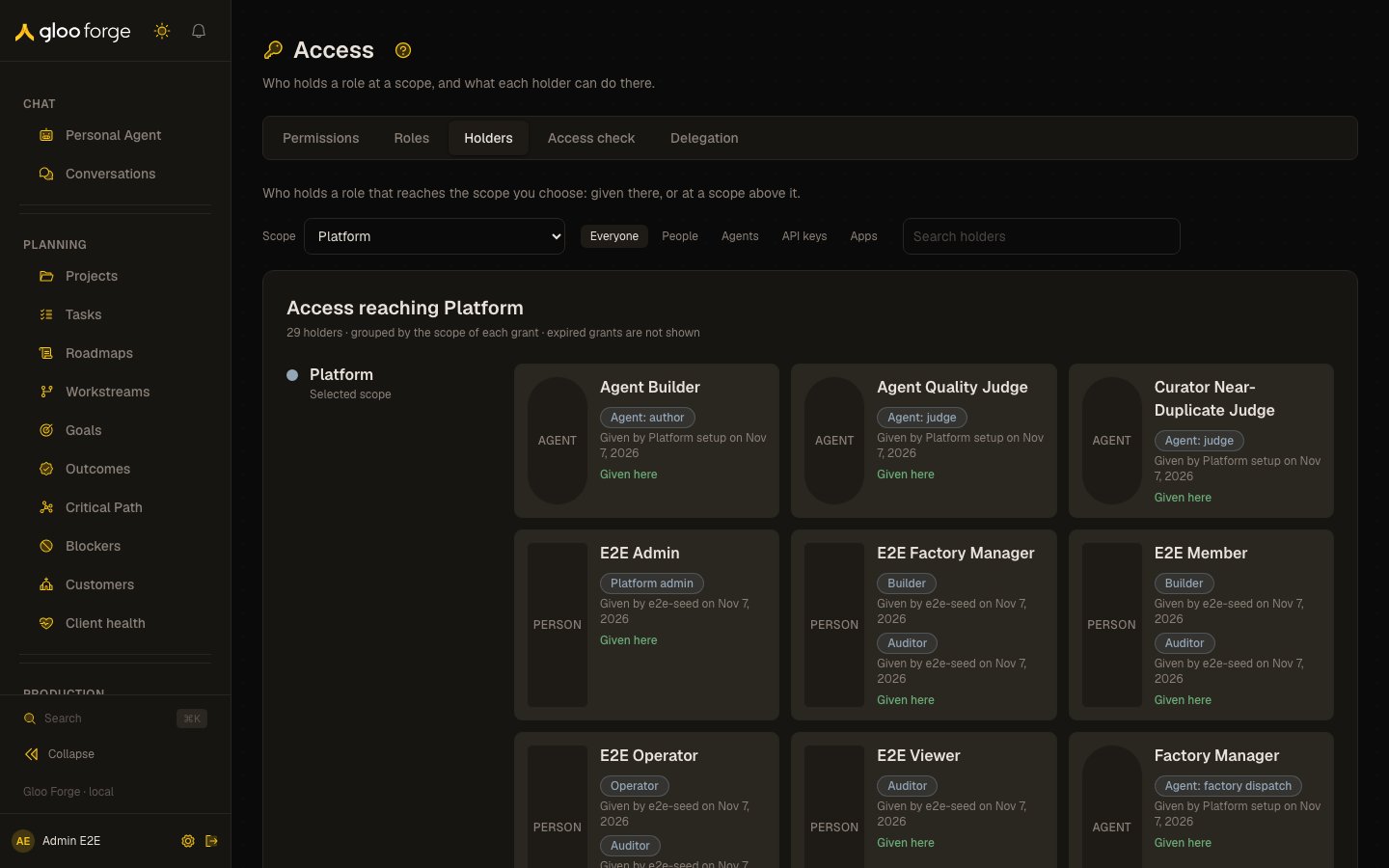
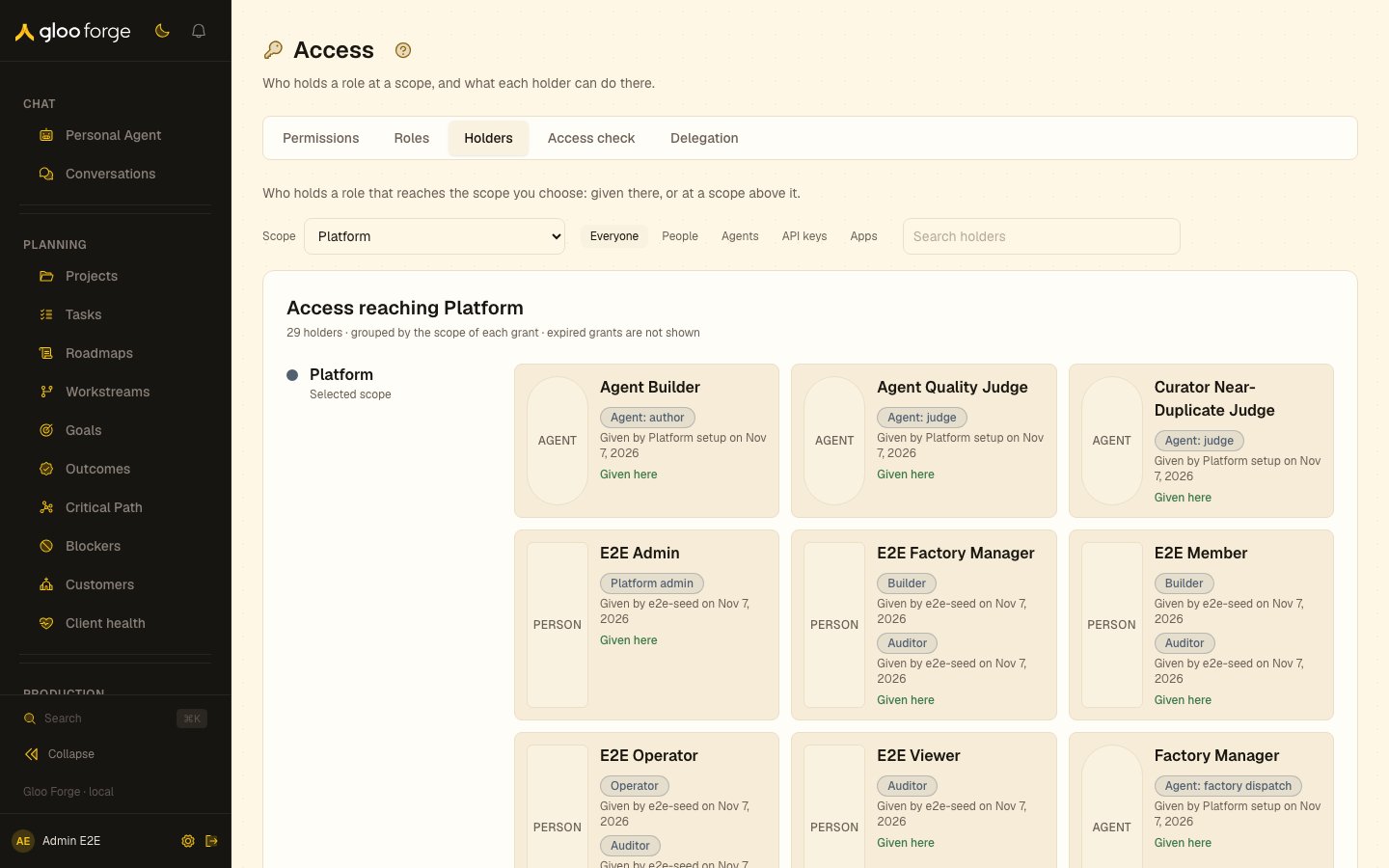
Access → Holders — Forge Console at /trust-fabric/access/holders
What you can do
- List who holds access at a scope. Choose the scope; people, agents, API keys and apps are listed together.
- Filter and search. Filter by kind, or search by holder or role name.
- Open a holder. See why each grant exists and every permission the holder can use at the scope.
- Change a holder’s roles. With Manage access (
grants:manage), Manage roles gives and revokes them.
Who holds a role
The Holders tab lists everyone who holds a role that reaches the scope you choose: given at that scope, or at one above it. People, agents, API keys and apps are listed together; filter by kind, or search by holder or role name. The scope is kept in the address (?at=<organization>), so a link shares it. When more than 500
role grants reach the scope, the list says it is incomplete.
Holders are grouped in bands on a rail by where each grant was given: Platform first, the scope
you chose last, and any other covering scopes between them. Each holder is a card with what it is
(person, agent, API key or app), its roles given at that band and who gave them, and Given here
or Inherited from the band’s scope. Forge doesn’t return the order of the parent scopes, so
they are listed by name. Expired grants are not shown.
Choose a holder to open their page at /trust-fabric/access/holders/<kind>/<id>:
- At the top, one strip per role grant: the holder, the role and where it was given, and the scope, Given here or Inherited from where it was given.
- Why this access exists: for each grant, the role, where it was given, who gave it, when, its expiry and the reason when the giver gave one. The platform itself reads Forge. A fact the grant didn’t record is named once, not shown as a blank. Under Technical details, its Grant reference is the id the grant’s audit events record.
- What it allows: how many permissions the holder can use at the scope, with a link to check one in Access check (people and agents).
- Every permission at the scope: a grid of every permission. A permission reads can do, can’t do, granted, narrowed by scopes (an API key’s or app’s scopes hold it back) or granted, capped by a ceiling (an agent acting for someone can’t exceed them).
Giving and revoking roles
Roles are given and revoked from Members. Choose Manage on a person to open their roles dialog, or select several people and use the bulk bar. Choose the scope in the dialog: the platform, or an organization. Choosing an organization the person doesn’t already hold needs See people and positions (workforce:read). Each change is one role grant, recorded in the audit log. A role given at an
organization applies there and in every organization under it. Revoking disables the grant rather
than deleting it, so the history stays; giving the role again restores the same grant.
Choosing Give on a role, or Revoke on a held role, opens a review before anything changes:
- the role, and where it applies;
- a preview of what changes, from the same resolver the gate uses: a give marks permissions would be added or already held, and a revoke marks them would be removed, or already held when another role still gives them. A permission a key’s scopes or an agent’s ceiling holds back keeps that state. The sentence names the roles that keep held permissions;
- for a give, an optional expiry date: the grant ends at the close of that day. A date already past can’t be chosen;
- an optional reason, up to 280 characters, for a give or a revoke. It is recorded on the change’s audit event.
grants:read) and the grid needs See roles (roles:read); without
them the review says so, and the change can still be confirmed. Confirm give or Confirm
revoke makes the change; Back leaves without changing anything.
A key’s or app’s own legacy role, kept while access moved to role grants, reads App role
(legacy). It can be revoked but not given.
Forge refuses a change, writes nothing and shows the reason, when:
- you don’t hold every permission of the role at the chosen scope (
not_held); - the grant is your own: you can’t give or revoke your own role (
self_grant); - it would revoke the last Platform admin (
last_platform_admin); - the role is given per company or per organization unit, and so isn’t available at platform scope
(
per_company_role,org_unit_role); - the role is platform-only and you chose an organization (
scope_mismatch); - the role is a compatibility role for one API key or app and you are giving it
(
compatibility_role); - you are giving it to an agent and it includes a permission agents never hold
(
never_held_by_agents); - you are giving it to an API key, an External App or an agent that can’t receive roles now
(
actor_unavailable).
Key state to watch
- Incomplete list. When more than 500 role grants reach the scope, the list says it is incomplete.
- Can’t determine access. A holder’s page says why instead of showing an empty grid.
- Expired grants. They are not shown.
- A refused change. Forge writes nothing and shows the reason; see the list above.
Related
- Permissions: every permission, and who holds it at a scope.
- Roles: what each role includes.
- Access check: ask whether someone holds a permission, and why.
- Members: where roles are given and revoked.
- People: a person’s roles on their profile.