

/workforce/settings) holds the two kinds of structure type every org unit is built from: Hierarchy Tiers, the levels of the org chart, and Cross-Cutting Group Types, the kinds of group that span it. Reading them needs workforce:read; adding a type or reordering tiers needs org:manage.
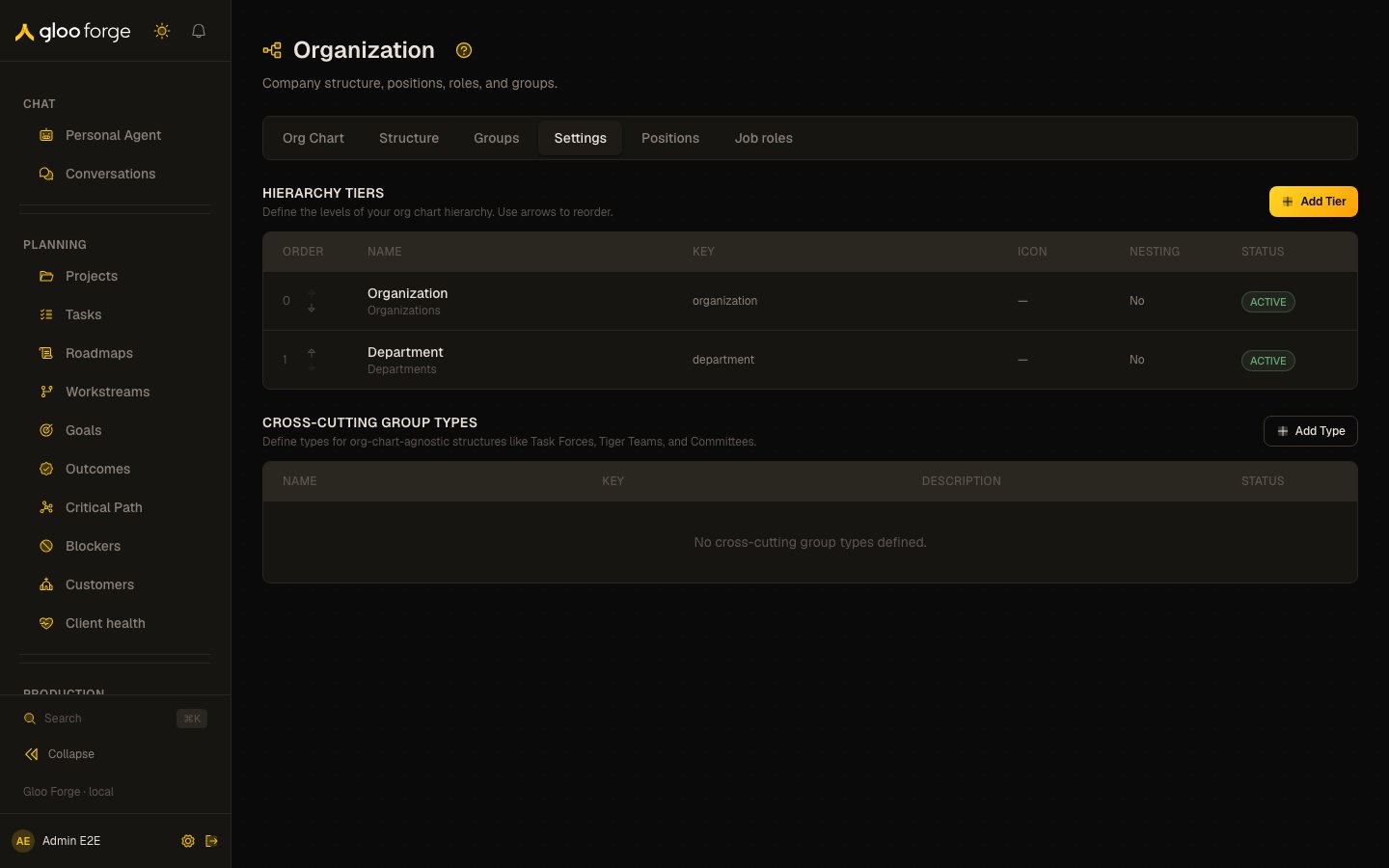
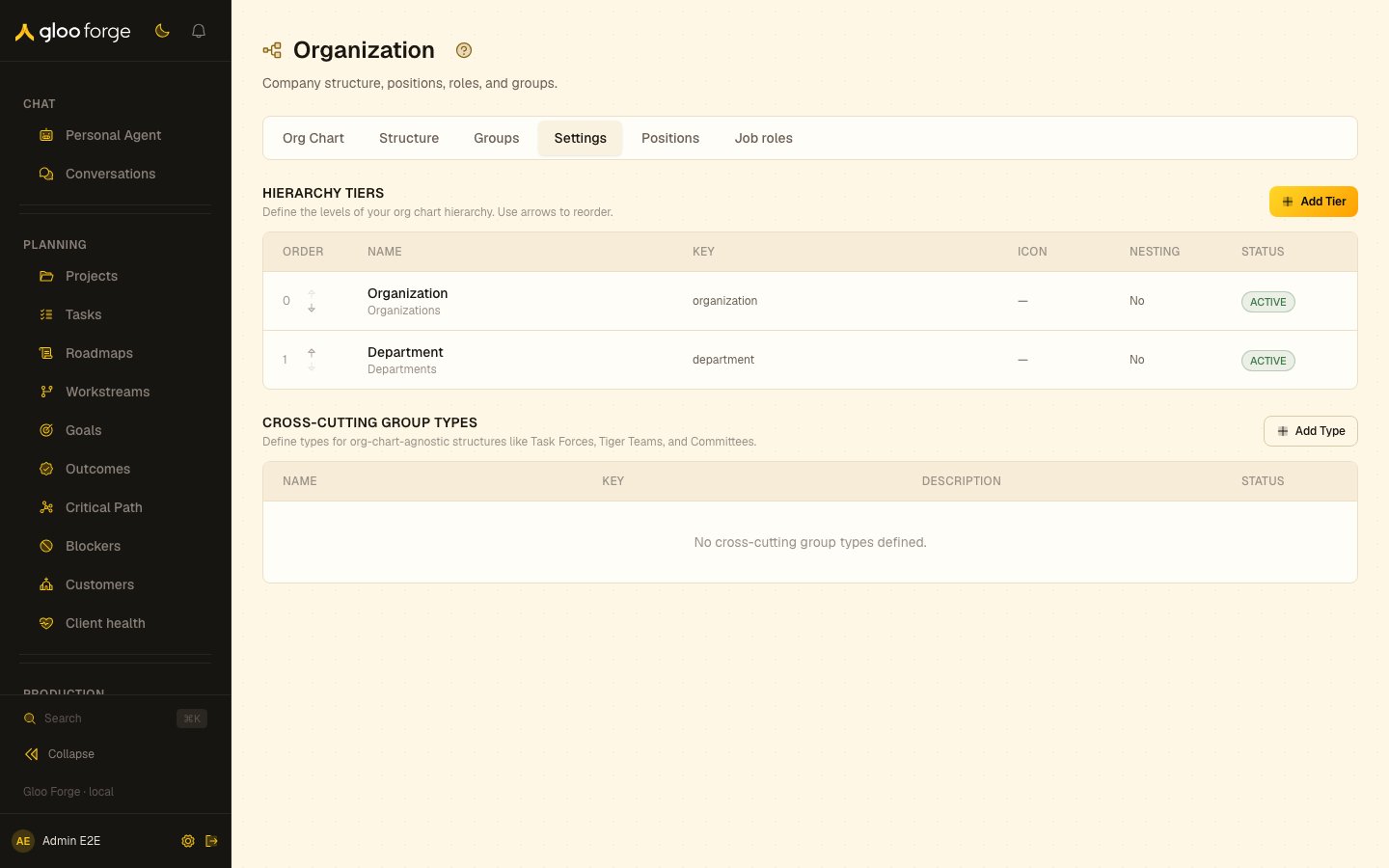
Organization settings — Forge Console at /workforce/settings
What you can do
- Read the hierarchy tiers in order, and move a tier up or down.
- Add a hierarchy tier with Add Tier.
- Read the cross-cutting group types, and add one with Add Type.
Hierarchy Tiers
The tiers are the levels of your org chart, listed in order. Each row shows:
An arrow saves the new order at once; there is no separate save. If the server refuses the reorder, the reason appears above the table. Organization structure shows each unit’s tier by name in its Tier column.
Cross-Cutting Group Types
Group types define the org-chart-agnostic structures, such as Task Forces, Tiger Teams and Committees, that Groups are created from. Each row shows the Name and plural, the Key, a Description and the Status.Adding a tier or a group type
Add Tier opens Add Hierarchy Tier, and Add Type opens Add Group Type. Both ask for:- Name and Plural Name, for example Department and Departments.
- Key, a lowercase kebab-case slug such as
department. The field turns other characters into hyphens as you type. - Icon, optional, chosen from a searchable list.
Key state to watch
- Tier order — it is the order of levels across the org chart; reorder it only when the levels themselves change, not to fix a single unit.
- No group types — without one, nobody can create a group on Groups.
Related surfaces
- Organization structure — the org-unit tree built from these tiers.
- Groups — groups created from these types.
- Org Chart — the hierarchy as people and positions.