

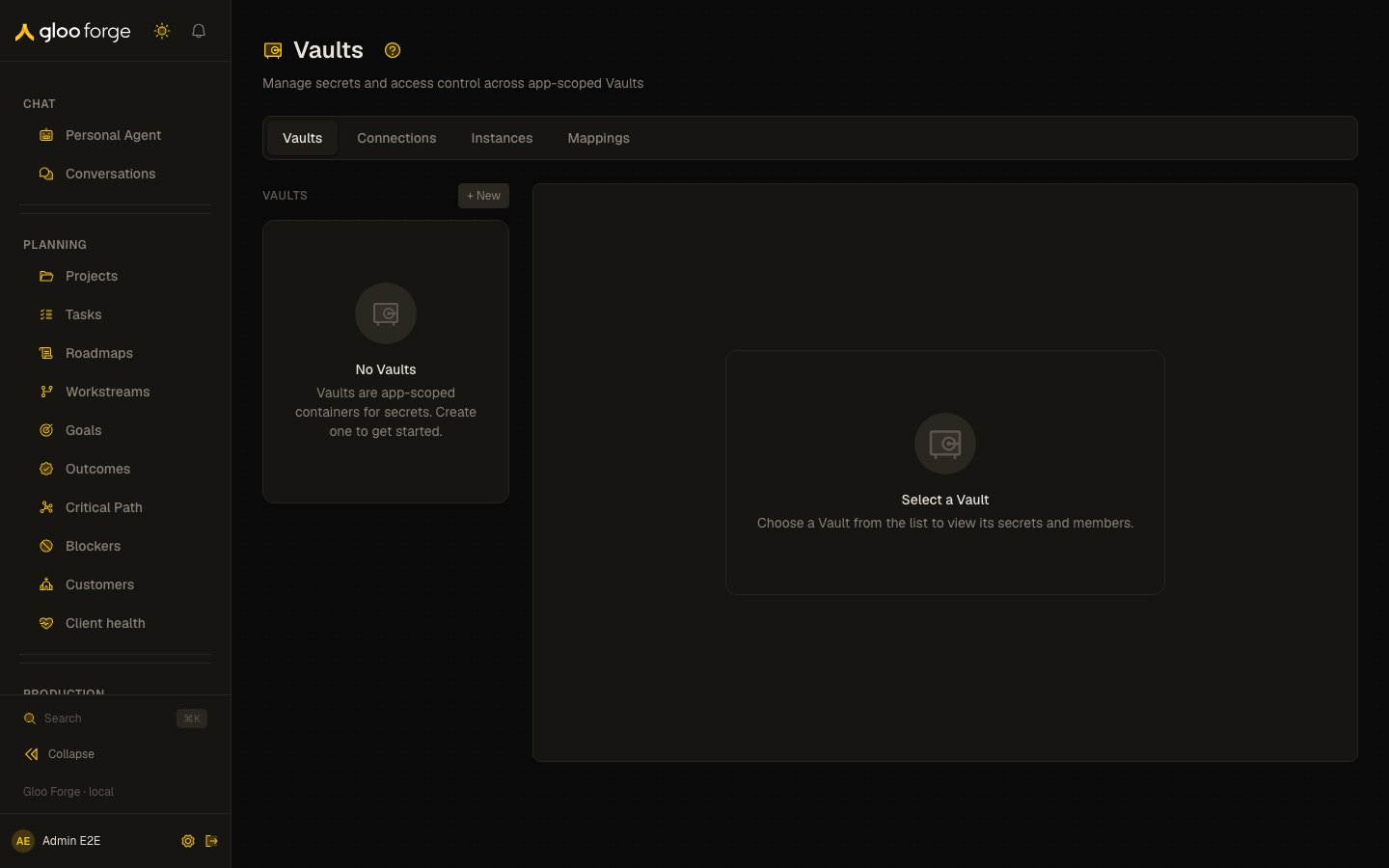
Vaults — Forge Console at /platform/vaults
What you can do
- Open a Vault you are a member of, and read its secrets’ names, types and rotation status.
- Create and rotate secrets, as an Editor or Admin.
- Manage members, as an Admin: give each person the Admin, Editor or Viewer role.
- Delete a Vault or a secret, as an Admin.
Navigating to Vaults
Platform → Settings → Secrets. Vaults is the first of the Secrets tabs: Vaults · Connections · Instances · Mappings. The last three are Environments.Vault list
The left panel lists all Vaults the caller is a member of. Click any Vault to open its detail panel.Detail panel tabs
Secrets
Shows all secrets in the selected Vault with:- Name — the identifier used when referencing this secret in workflows or environment mappings
- Type —
sensitive(value never returned in plaintext) orvariable(standard env var) - Status — rotation health:
OK,Stale, orRotation Required - Last Rotated — timestamp of the most recent rotation
Members
Shows the Vault’s access control list. Each member has one of three roles:
The creator is automatically added as Admin.
Key state to watch
- Stale and Rotation Required. The secret’s rotation health; rotate it before it is deployed again.
- Sensitive values. A
sensitivesecret’s value is never returned in plaintext. - Membership. The list shows only Vaults you are a member of.
Related
- Environments — configure where Vault secrets are deployed